Release Highlights for Sites
Release Date: April 17, 2026
The 26R1.0 release of Veeva products for sites is available April 17, 2026. Summaries of the major highlights are below. To view the full release notes for a product, follow the link in the product's section, if applicable.
Veeva eCOA
Select here to read a full list of what's new in Veeva eCOA this release.
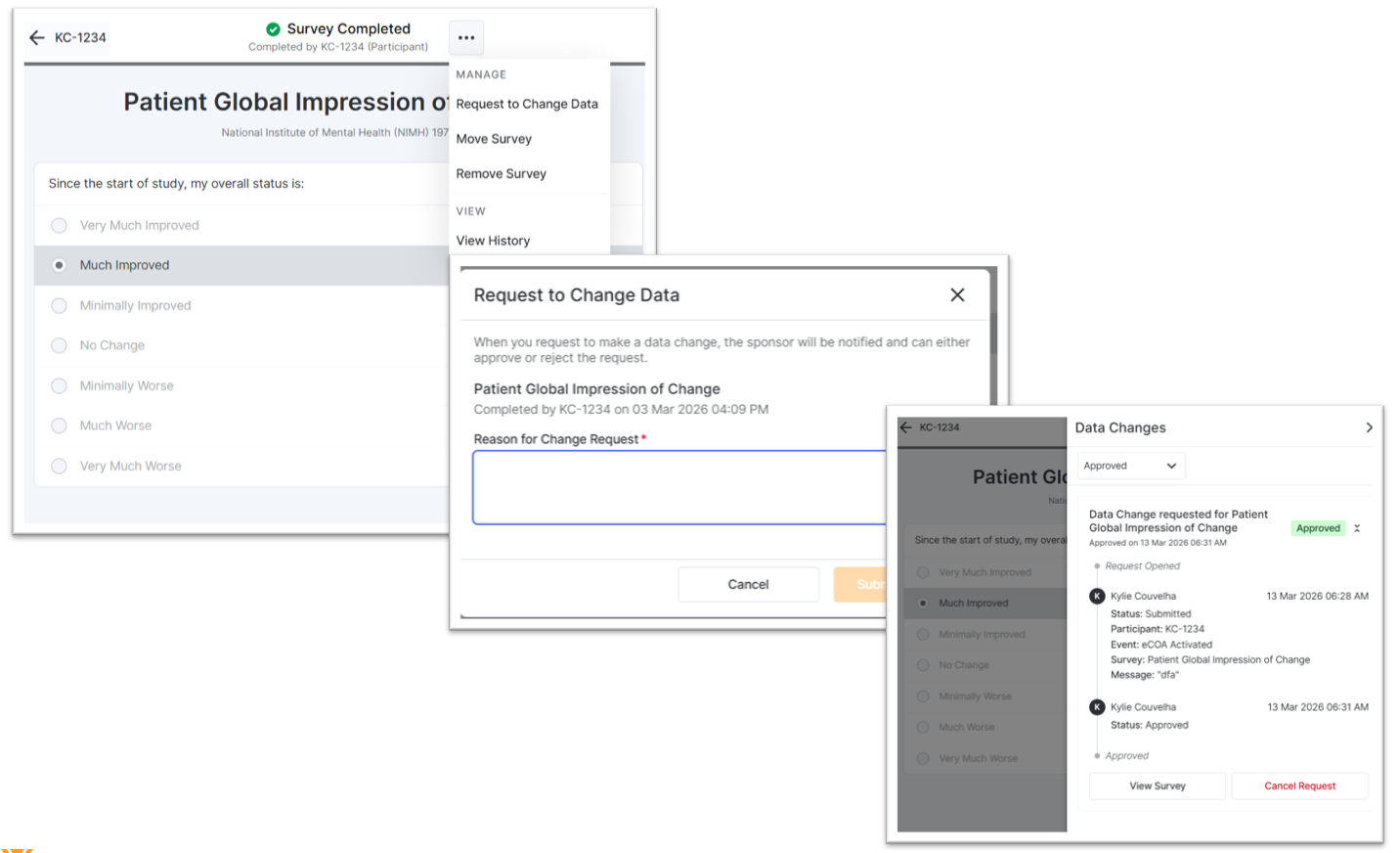
Targeted Data Changes
You can submit data change requests for any survey when data changes are turned off or the time to make changes has passed. The sponsor/CRO reviews, approves, or rejects these requests. Once a data change request is approved, you will be able to make the change to the related survey.
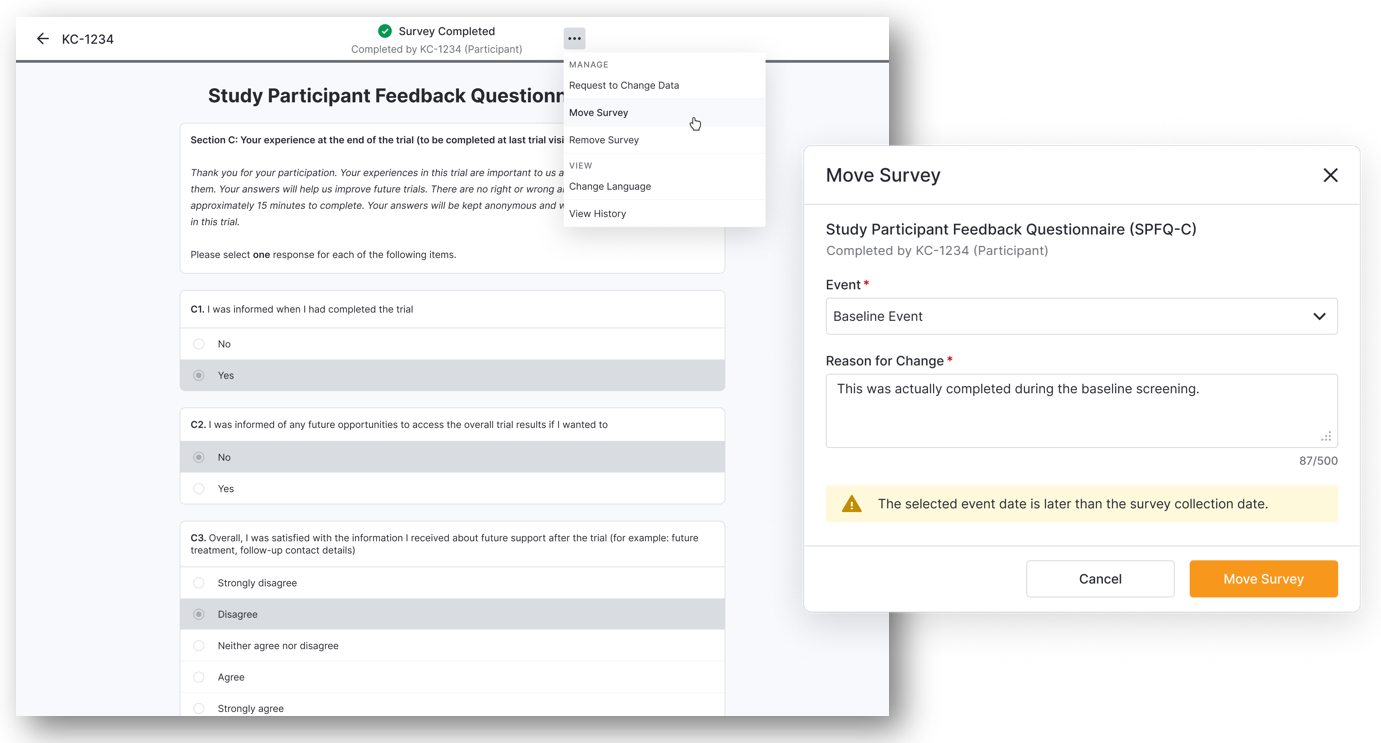
Moving Completed Surveys
You can now move a completed survey to a different event when it was completed at the wrong event. After the survey is moved, we may cancel overlapping available or missed surveys for the event it is moved to and ensure that all changes are tracked for the audit trail. You no longer need to submit data change requests for moving surveys to a different event.
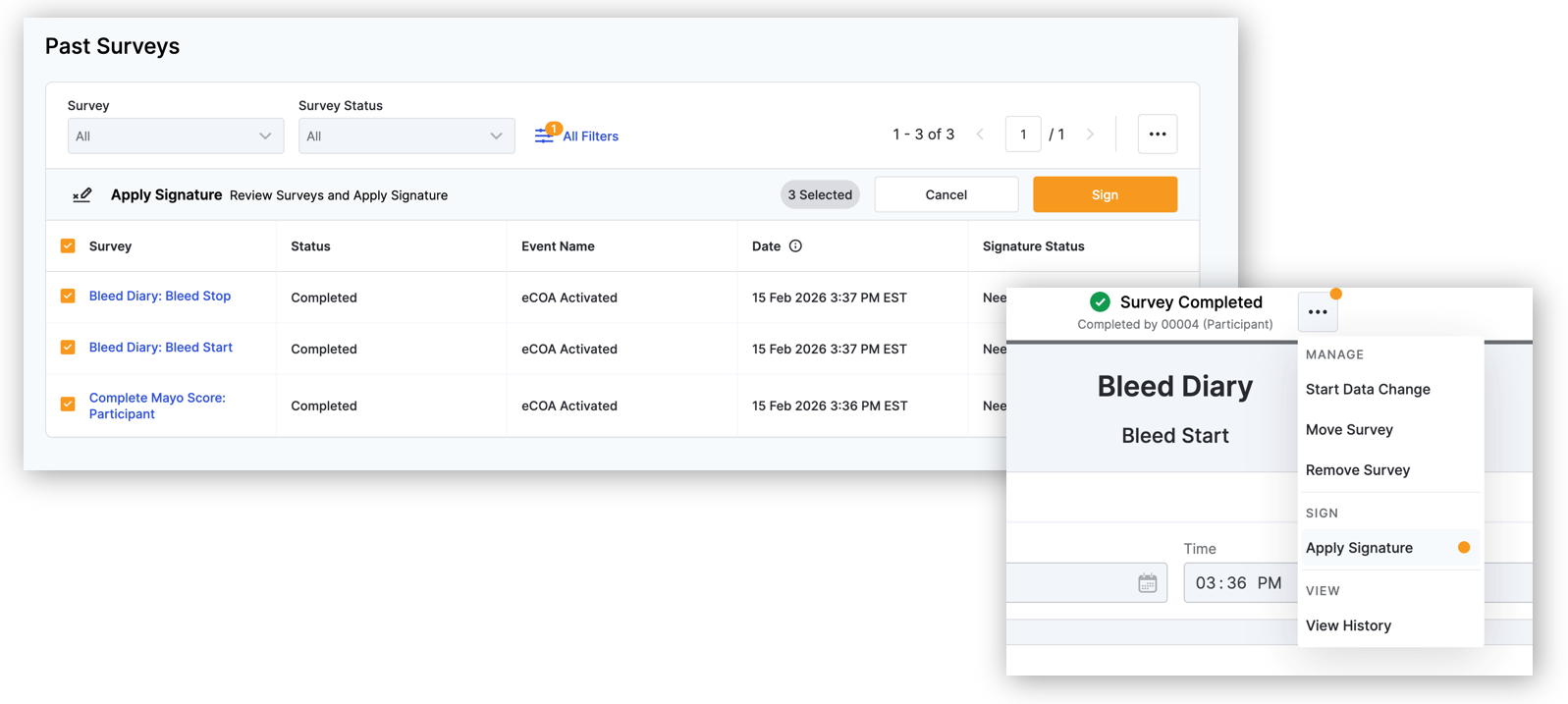
Site Investigator Data Review and Signature
When a sponsor/CRO requires an investigator to review data for completeness and accuracy, investigators can electronically sign using their VeevaID credentials to certify they have reviewed the data.
Sponsor-Controlled Deployment
Sponsors/CROs can deploy and activate an approved study version. If you need to activate a study, the banner will still be displayed at the top of the screen to let you know.
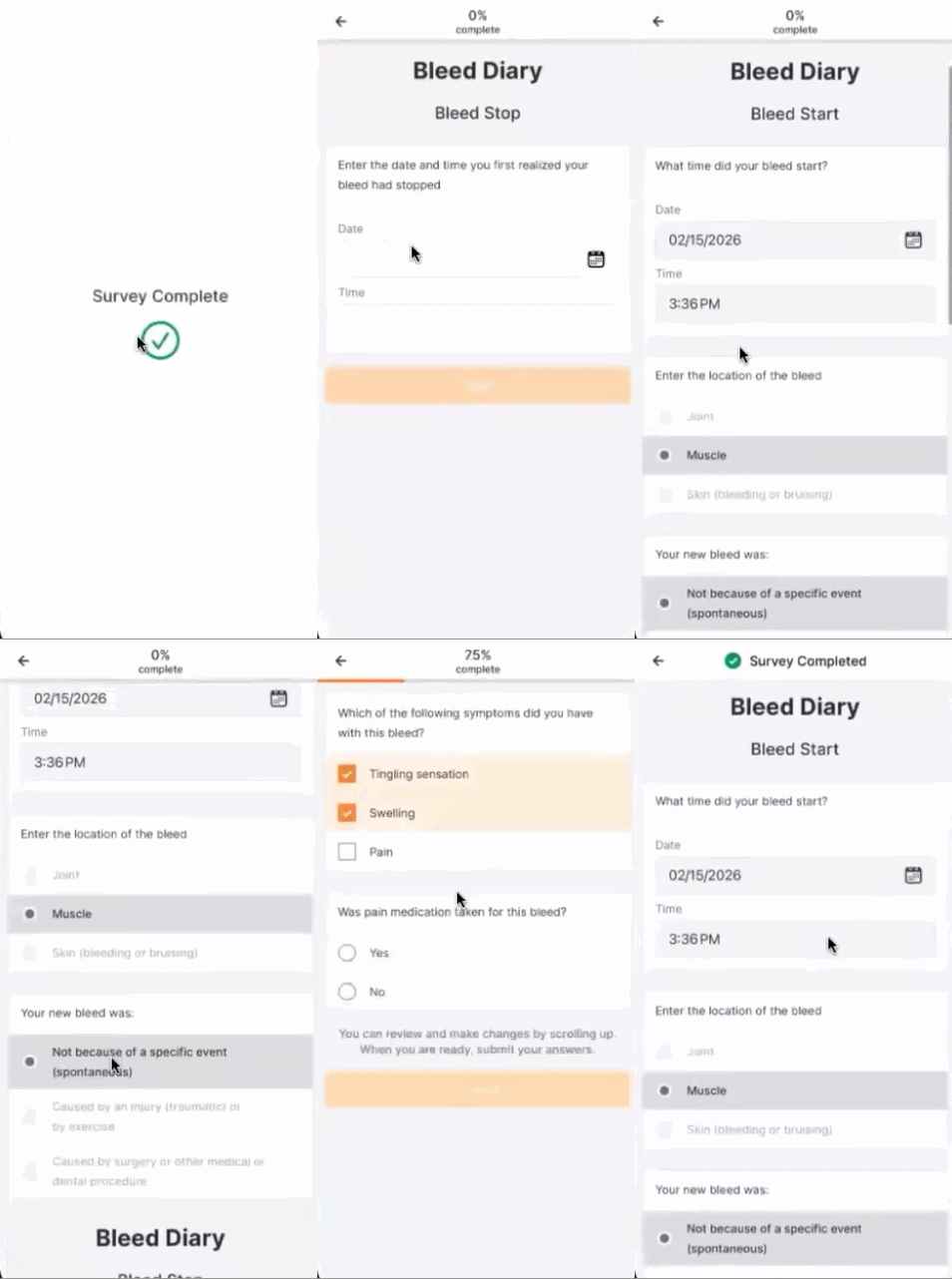
Multi-Part Surveys
Surveys can be configured by the sponsor/CRO to have more than one part. When completing a survey with more than one part, you will be able to submit and view previous parts. When changing survey data, you can select which parts to perform the change on.
Composite Surveys
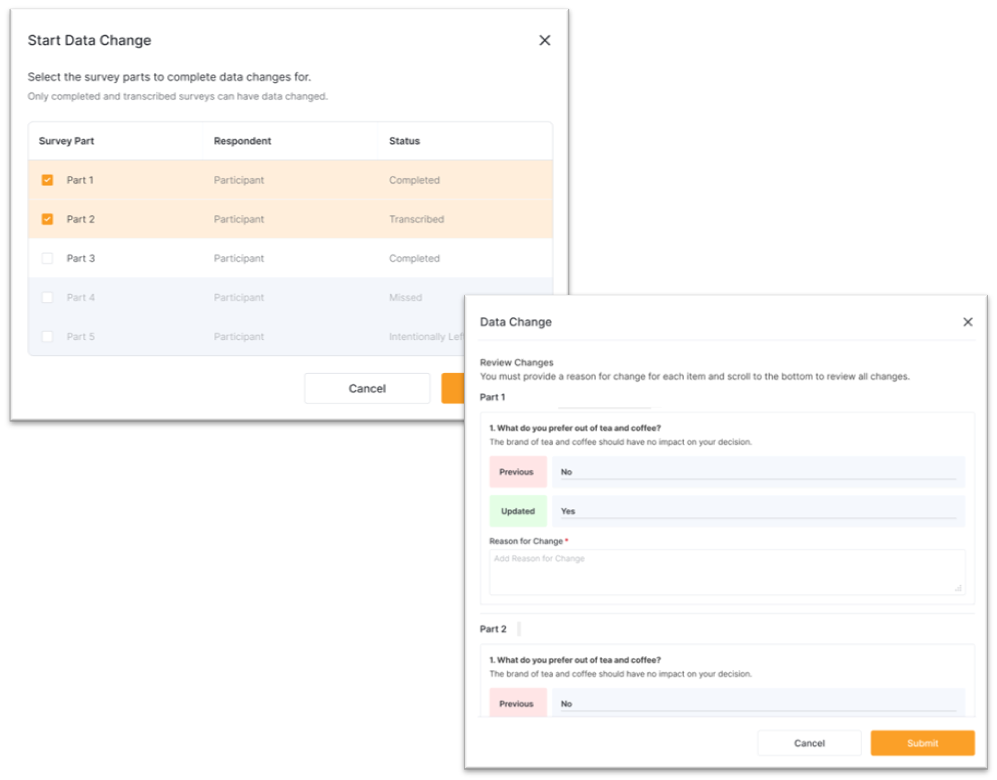
Composite surveys are configured by the sponsor/CRO to have a different respondent for each part. When viewing a composite survey, you will see parts completed by different respondents, such as participants and other site staff. When changing survey data, you can select which parts to perform the change on.
Veeva EDC
Select here to read a full list of what's new in Veeva EDC this release.
Clear All Form Data
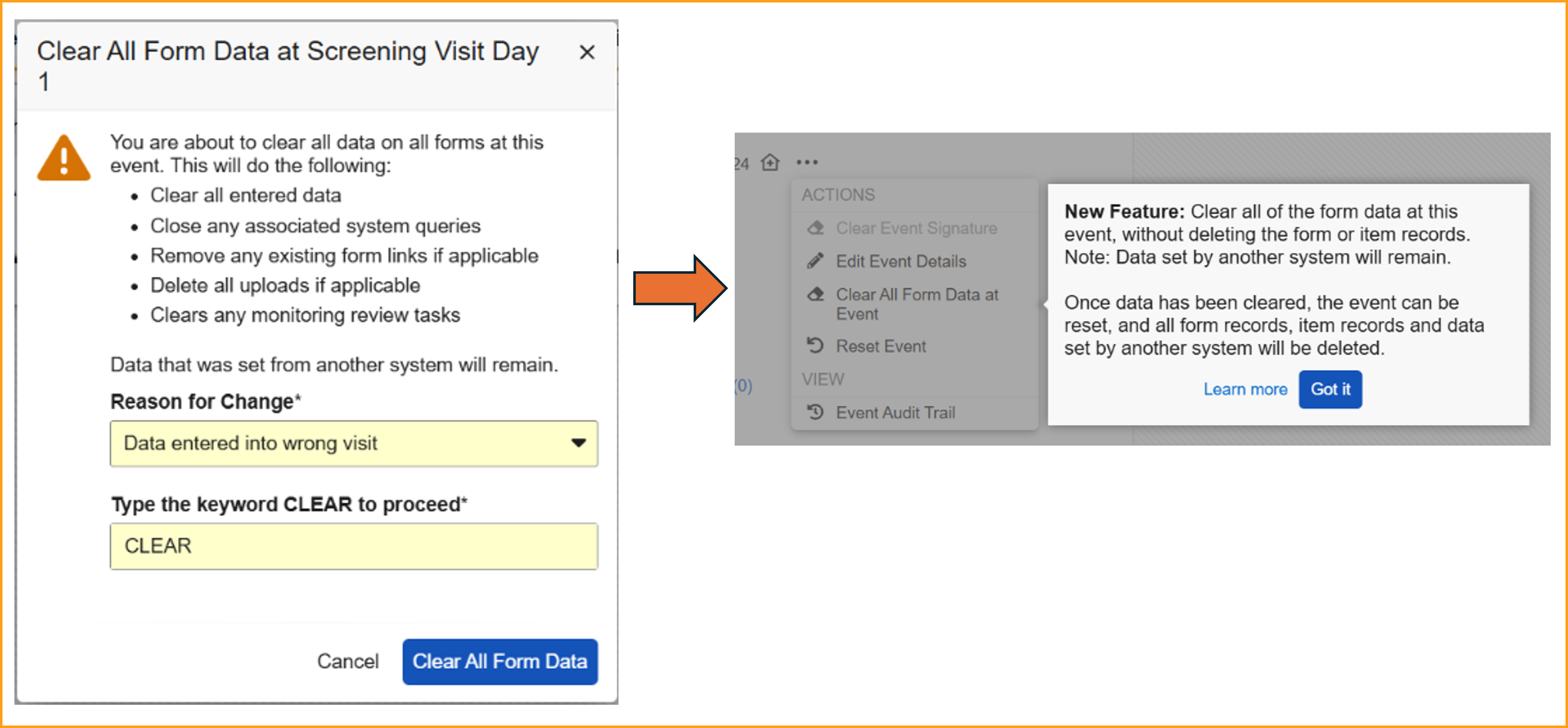
When resetting events and forms with external data, a two-step process is now required. Having a two-step process provides more control and protection when removing data and reduces the need for external systems to resend the data.
Events containing one or more forms with data will display a new option in the Event Actions menu called Clear All Form Data at Event. This step allows sites to reset the form data while protecting the data sent from external systems, like IRT data.
When clearing form data, the event data, visit method, and any external data will remain. If this data also needs to be removed, use the existing Reset Event option. The dialog window for this option has been updated to provide more detail on what will occur.
When accessing the event Actions menu for the first time following the release, a dialog window displaying help text will call out the new feature to inform site users.
File Attachments
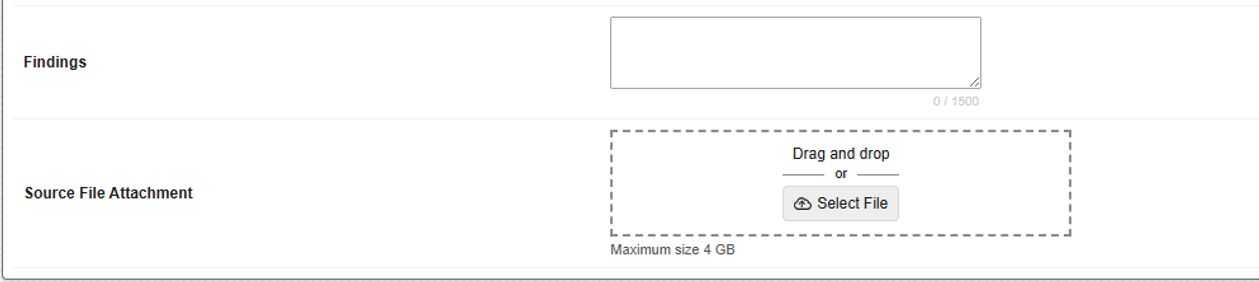
If configured for your study, you can now upload files of up to 4 GB in size to configured File Attachment items using either a simple file selector or by dragging and dropping the file directly into the form.
Veeva Site Connect
Select here to read a full list of what's new in Veeva Site Connect this release.
Generate FDA 1572
This feature introduces the ability to generate a FDA 1572 form within Site Connect. By leveraging existing CTMS data—specifically information captured within the Site Profile such as Site Staff and Site Addresses—the system pre-populates the form.
Site Connect users can manage the form via a new Forms tab located on the Document Exchange page. The interface is organized by sections that mirror the physical FDA 1572 layout and provides dynamic editing capabilities. Users can manually add missing information, such as adding new Site Addresses, or remove pre-populated addresses that are not applicable. The document can also be e-signed within the Site Connect UI. Alternatively, site users can download the form to edit and sign manually if a wet ink signature is required, then re-upload the completed document.
If the Site is connected to SiteVault, the 1572 can be automatically filed in the ISF.
Removed Site Connect Document View for Obsolete & Deleted State Types
This feature prevents Site Users from accessing the content of exchanged documents that have reached a lifecycle state that’s associated with the Obsolete or Deleted state types.
The document row will remain visible in the Document Exchange section, but the content itself is restricted. If a user selects the name link, the document viewer will state that the document is no longer available.
The same behavior will apply when selecting document links within document exchange email notifications.
Site Home User Interface Improvements
This feature adds several user interface enhancements to the Site Home Page.
- The column order within Study Contacts has been updated to provide a more intuitive view of Contact Information. Email Address now appears immediately following Contact For, and Office Phone has been relabeled to Office.
- When hovering over a recalled document in Document Exchange, the hover text will now dynamically display the specific Reason for Recall entered by the Sponsor or CRO. Previously, a generic message displayed stating that the document was no longer accessible.
- The error messages have been standardized when a download fails from either the PAL document viewer or Authenticated Document Links
Failed Safety Distributions Visible in Site Home
Safety Distributions in the Failed state are now visible within Safety Distribution and Document Exchange. The documents can be marked as Read by recipients completing distribution tasks. This allows for better visibility and management of exchanged safety documents.
Veeva SiteVault
Select here to read a full list of what's new in Veeva SiteVault this release.
Redesigned Digital Delegation Log
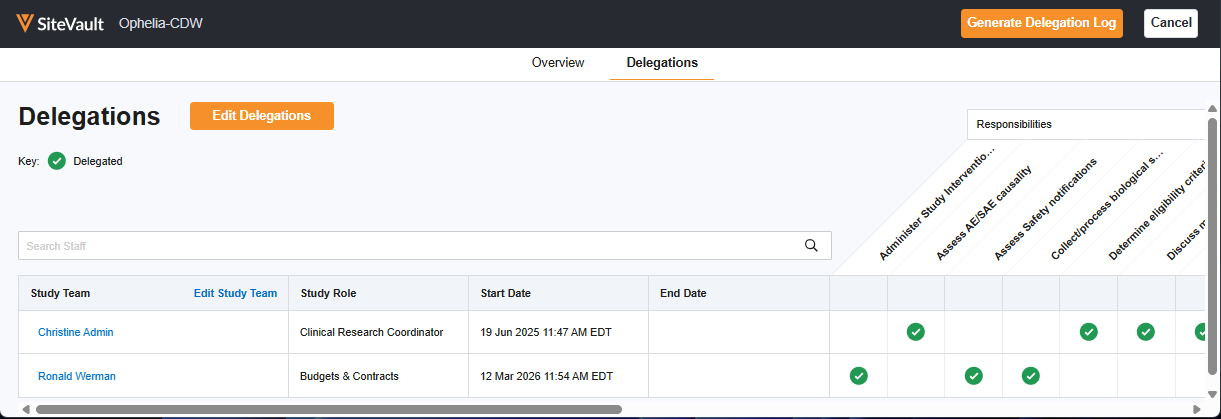
We are pleased to introduce a refreshed Digital Delegation experience, offering a significant update designed to provide greater flexibility and efficiency when managing delegation logs in SiteVault.
- Manage Delegations: The study’s Team tab now includes a Manage Delegation button which navigates to the Delegations Editor. This is an intuitive workspace for managing staff responsibilities and start/end dates in real-time, providing a clear overview of your study’s delegations at all times.
- Flexible Approvals: Sites now have the option to send DOA logs directly to the PI for signature or include a staff acceptance step, depending on your site's review process.
- Inactive Team Members: You can now manage and correct delegation data for inactive study team members directly, ensuring your logs remain accurate throughout the entire study lifecycle.
- Improved DOA Experience: The updated eDOA output features a clickable Table of Contents for faster navigation and a standardized E-Signature Page for improved compliance documentation.
Current DDL users, for more information, see the Digital Delegation 2.0 Transition Guide.
Optional Site Signature
To streamline the approval process when a site signature is not needed or appropriate, site staff can approve completed eConsent forms without a countersignature. During a Sign or Reject Document task, selecting the Make Current without Signing option immediately approves the eConsent, bypassing the prompt for site staff credentials and the creation of an electronic signature. For an eConsent to not require a site signature, the Site Member signatory role must not be selected during the eConsent editing process.
Study Budget: Expense Plan
The Expense Plan (Finance menu) provides a mechanism to capture study operating costs on a per-visit and per-participant basis. This enables you to make informed decisions when negotiating sponsor budgets. Expense plans are version-controlled in the same way as CTMS schedules and budgets. As expenses in the expense plan are incurred upon the completion of participant visits, payable items are automatically generated and tracked on the new Payable Items tab.
The feature provides support for three primary expense categories:
- Activity Expenses: Cost of executing study procedures.
- Personnel Expenses: Hourly cost and effort associated with key study personnel.
- Participant Stipends Cost of participant compensation.
Visit Calendar
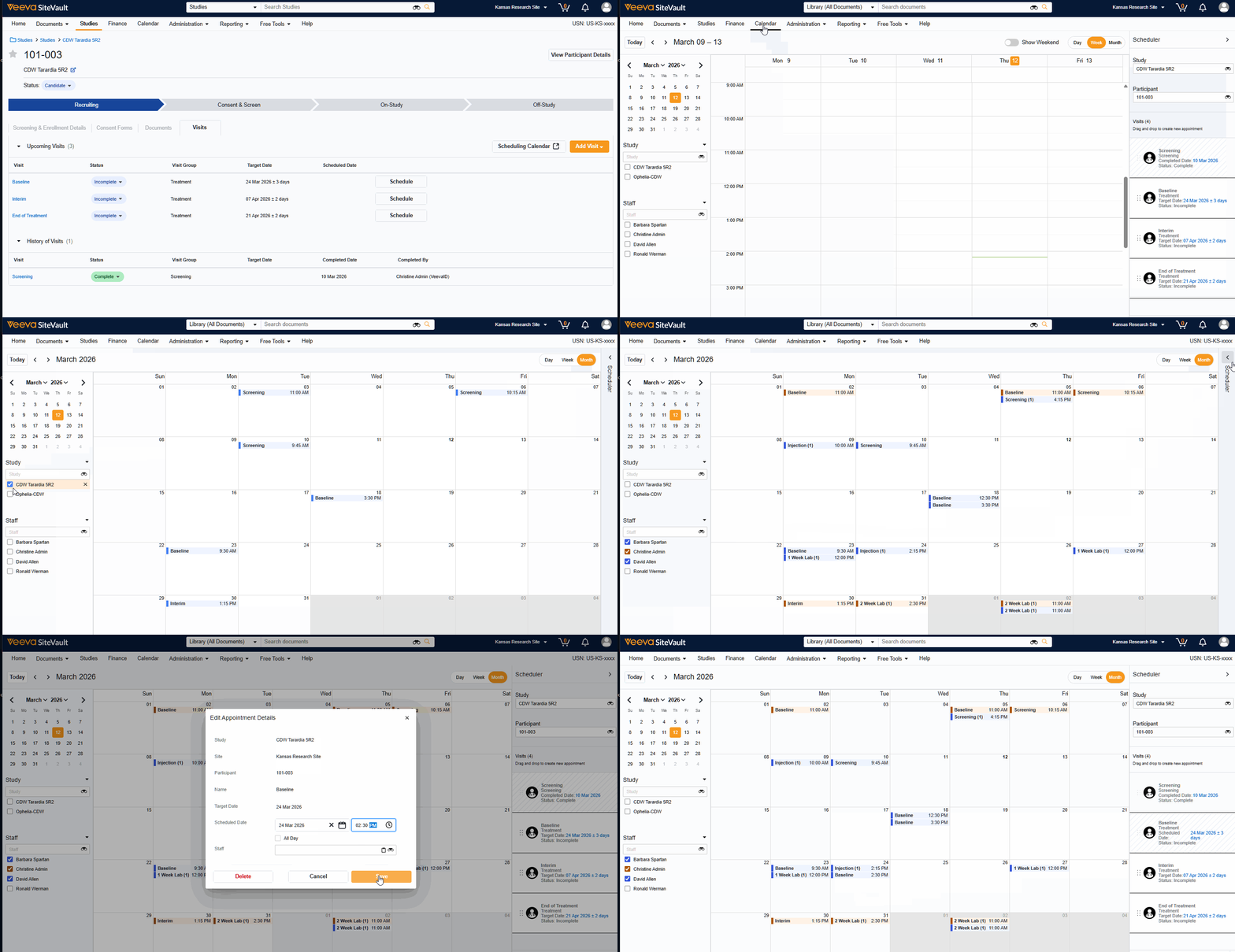
The Visit Calendar provides a centralized view of upcoming participant appointments and their associated resources. Designed specifically for sites that use SiteVault CTMS as their system of record, this feature allows you to manage study schedules, staff availability, and participant visits in one location.
- Schedule Participant Visits: Create and manage appointments for specific participant visits at designated dates and times.
- Link Staff to Appointments: Associate specific staff members with scheduled visits to manage workloads.
- Centralized Visibility: View all appointments across all studies in a single, unified calendar.
- Advanced Filtering: Filter the central calendar by Study or Staff to focus on specific scheduling needs
Veeva Study Training
Select here to read a full list of what's new in Veeva Study Training this release.
Viewing Classroom Training Assignments
On the Learner Homepage, you can now view Training Assignment (TA) Cards for courses you are not registered for. Previously, TA cards were not viewable when the assignment not part of a class and Self Enrollment was not available.
Deep Linking to Training Requirements for Self Enrollment
With this release, you can now share Self-Enrollment training courses with other Learners via a URL or a downloadable QR code. When a recipient clicks the link or scans the code, they are automatically directed to the course within their Homepage so they can enroll.
VeevaID
Select here to read a full list of what's new in VeevaID this release.
VeevaID Recent Activity
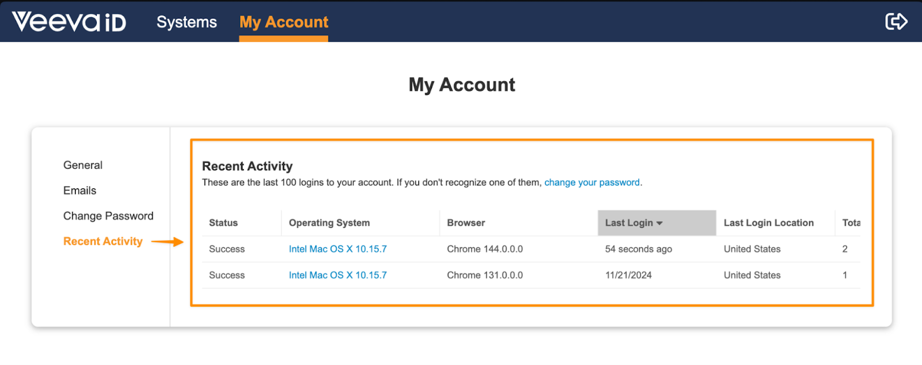
VeevaID users will now have access to a Recent Activity section in their My Account page, which will provide details on the last 100 logins on their account. This feature allows users to monitor their activity in the interest of keeping their account secure. This page will also include a link to change their password easily if there are any unfamiliar logins.
No release notes match the selected filters.



