- Administrators and Site Staff with the Financial Management Extended Permission
The Expenses tab provides tools to plan for and track costs associated with running a study. These tools serve two purposes:
- To help you understand the cost of running the study, so you can make informed decisions when negotiating budgets
- To help you track expenses you incur and payments you make as you run the study.
Create Study Expense Plan
Create an Expense Plan to gather and estimate study expenses on a per-visit and per-participant basis; this will help you understand the cost of running the study so that you can make informed decisions when negotiating budgets. As visits are completed, Payable Items are generated based upon the costs entered in the Expense Plan; this will help you track your expenses as you run the study. As accounts are settled, you can later update these items to the Paid or Void statuses.
- In the Expense Plan, you can create costs and expenses under the following categories:
- Activities: Costs associated with study activities.
- Personnel: Costs related to staffing or personnel (ex. pay rates).
- Stipends: Fixed payments made to participants.
- The system supports multiple versions of an Expense Plan. If revisions are needed, you can create a new version built off of the prior version.
- Once a plan is moved to Current, it cannot be altered. To make changes, you must create a new version.
- Schedules, Budgets, and Expense Plans are versioned independently; if a schedule change impacts the costs and expenses associated with the study, you should update the Expense Plan.
- The Effective Date of an Expense Plan determines which version is used when visits are moved to the Completed status.
Report to Compare Expenses to Budgets
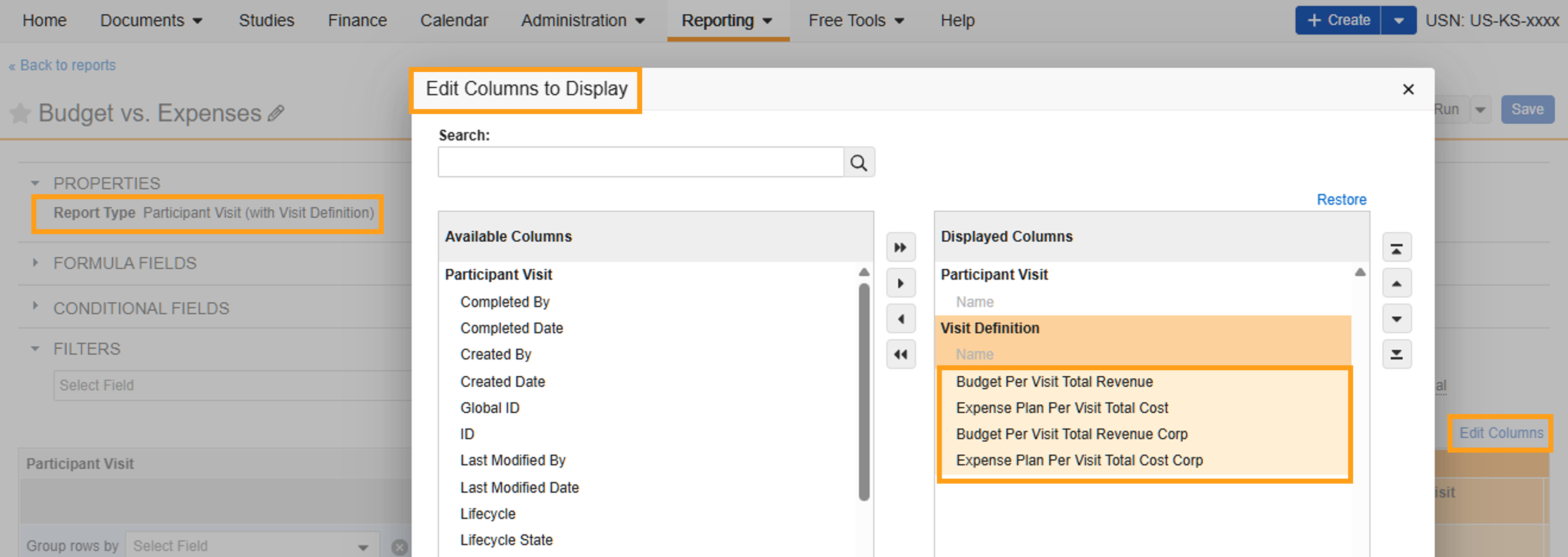
From the Reporting tab, create a report with the type Participant Visit (with Visit Definition). Add the following columns to the report:
- Budget Per Visit Total Revenue
- Expense Plan Per Visit Total Cost
Access or Create the Expense Plan
To create an Expense Plan, complete the steps below:
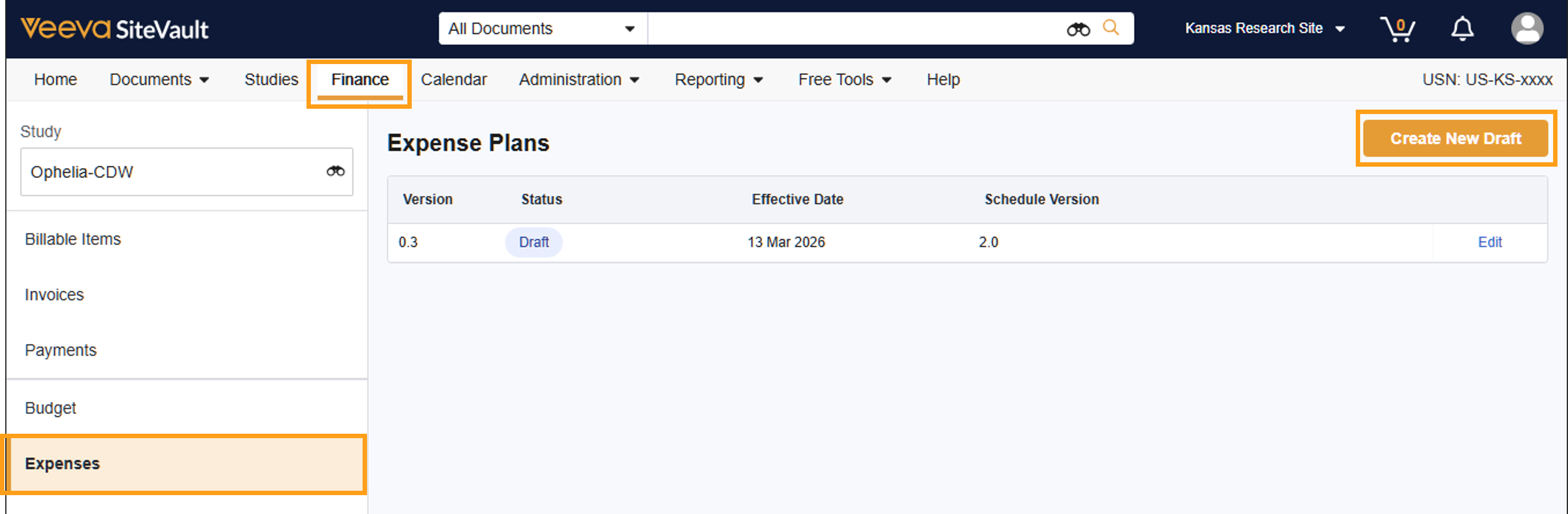
- Navigate to Finance > Budgets & Billing.
- Select the study.
- Select Expenses.
- Select one of the following:
- Select a version to view or a Draft version to edit.
- If a Draft version exists and you select Create New Draft, the existing minor version will increase to the next minor version.
- If no plan exists, select Create New Draft.
Complete Expense Plan Overview
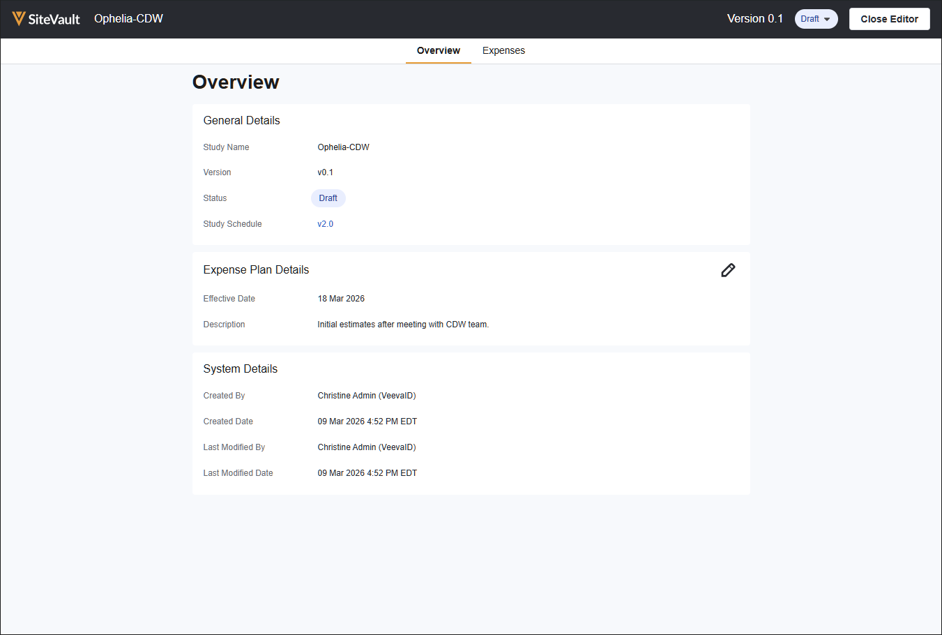
The Overview provides the plan’s version, status, and system details. It also includes an editable field for the effective date of the plan.