- Administrators and Site Staff with the Financial Management Extended Permission
Add Study Expenses and Costs
In the Expense Plan, you can create expenses under the following categories:
- Activities: Expenses associated with study activities.
- Personnel: Expenses related to staffing or personnel requirements.
- Stipends: Expenses associated with payments made to participants.
After you’ve added expenses, you can edit their costs (amounts). For an Activity expense, the cost is applied uniformly to each Visit that uses that Activity. For Personnel and Stipend expenses, cost can be specified per Visit.
Once you’ve added the associated costs, scroll to the right to view how the costs are incurred throughout the study schedule.
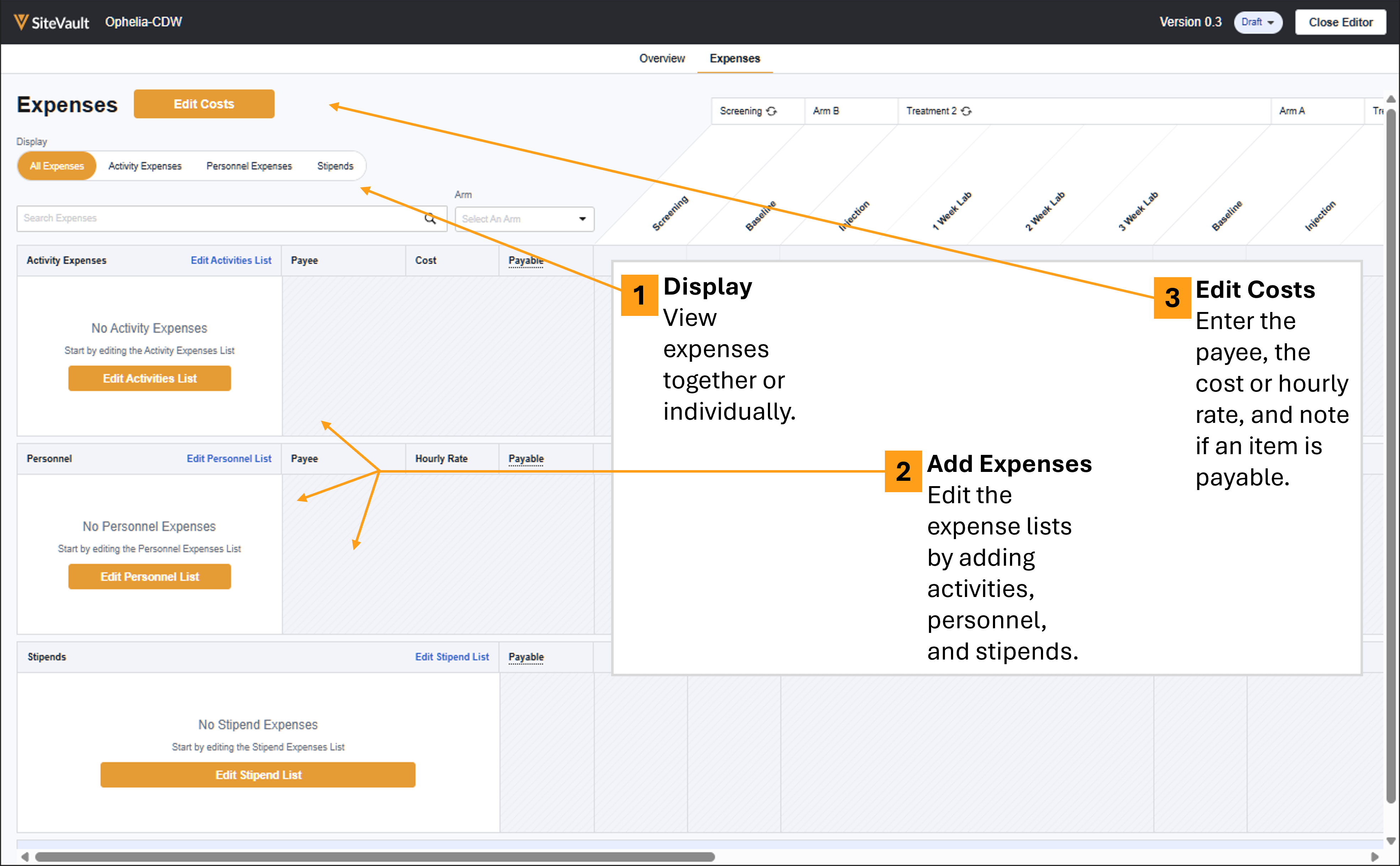
You can add expenses and costs simultaneously or create and save your expense lists in preparation to enter costs later.
Add Activity Expenses
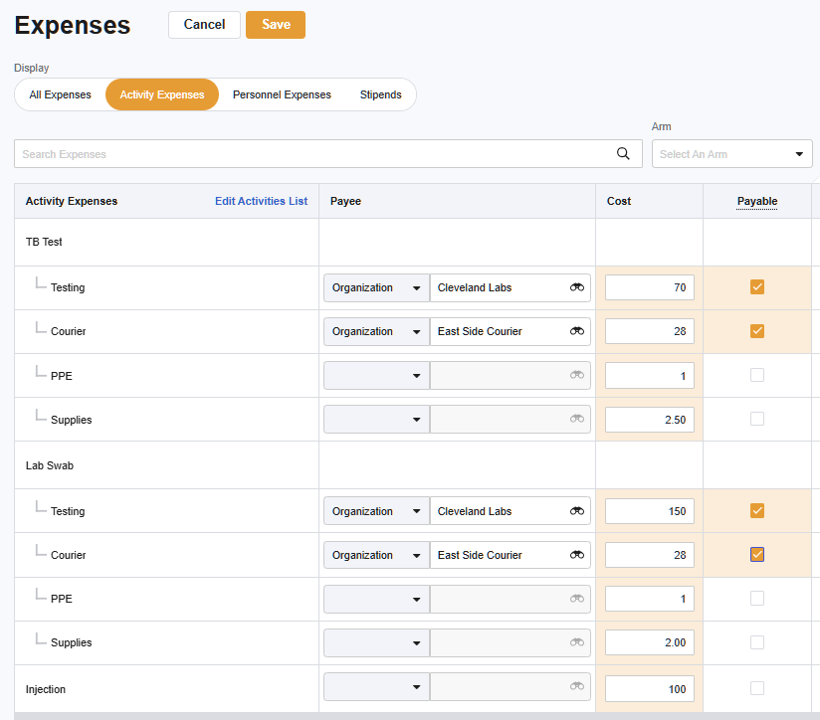
An activity can be listed as a single expense or can be itemized for more granular tracking.
To add activities and their costs to your expenses plan, complete the following steps:
- Access Finance > Budgets & Billing > Select Study > Expenses > Expenses.
- Optionally, from the Display menu, select Activity Expenses to remove Personnel Expenses and Stipends from your view.
- Select Edit Activities List. The activity list from the study’s schedule opens in a panel on the right of your screen.
- Select activities that when completed, have an associated cost for your site.
- Select Save. The selected activities are listed as Activity Expenses.
- Optionally, you can itemize activities to break down the cost into individual items.
- To itemize an activity, hover over the item’s row and select the branching icon (set of lines indicating a hierarchy of items).
- Select + Create Itemized Expense to create as many expenses as needed.
- Select Save when finished.
- Select Edit Costs. The Payee, Cost, and Payable columns are open for editing.
- For each expense:
- If applicable, assign a Payee.
- Complete the Cost field.
- Select the Payable checkbox if a Payable Item should generate upon completion of the activity.
- Select Save.
Add Personnel Expenses
To add personnel and their costs to your expenses plan, complete the following steps:
- Access Finance > Budgets & Billing > Select Study > Expenses > Expenses.
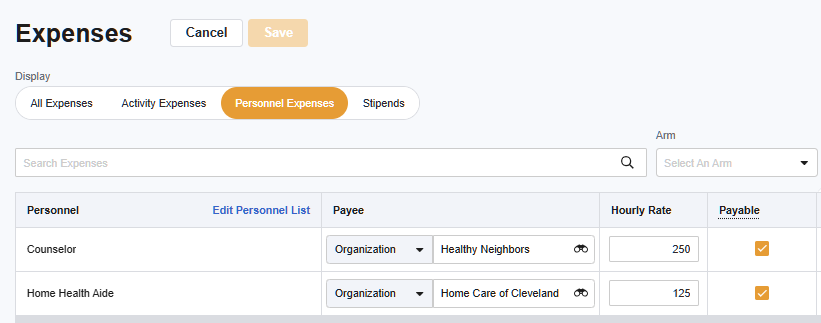
- Optionally, from the Display menu, select Personnel Expenses to remove Activity Expenses and Stipends from your view.
- Select Edit Personnel List. The Personnel List opens in a panel on the right of your screen.
- Select +Create Personnel to add Personnel related to visits that when completed, have an associated cost for your site.
- Select Save. The added personnel are listed on the Personnel List.
- Select Edit Costs. The Payee, Hourly Rate, Payable, and Visit columns are open for editing.
- For each expense:
- If applicable, assign a Payee.
- Complete the Hourly Rate field.
- Select the Payable checkbox if a Payable Item should generate upon completion of the associated visit(s).
- Scroll to the right and enter the expected billable time (in hours) per visit. Use decimals for partial hours.
- Select Save.
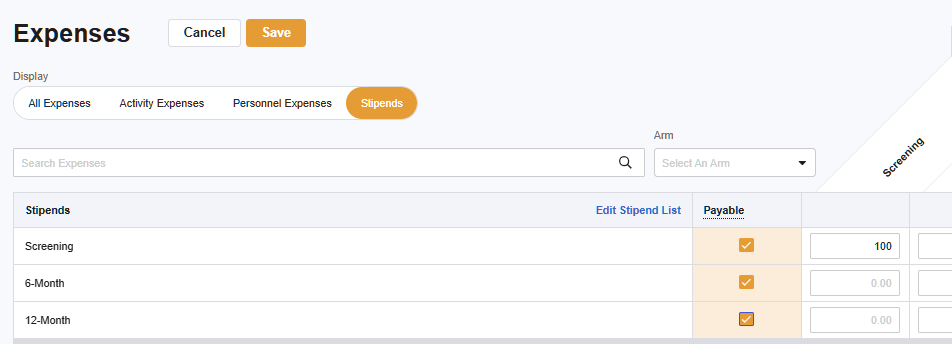
Add Stipend Expenses
To add stipends and their costs to your expenses plan, complete the following steps:
- Access Finance > Budgets & Billing > Select Study > Expenses > Expenses.
- Optionally, from the Display menu, select Stipends to remove Activity Expenses and Personnel Expenses from your view.
- Select Edit Stipend List. The Stipend List opens in a panel on the right of your screen.
- Select +Create Stipend to add stipends related to visits that when completed, have an associated cost for your site.
- Select Save. The added stipends are listed on the Stipends List.
- Select Edit Costs. The Payable and Visit columns are open for editing.
- For each expense:
- Select the Payable checkbox if a Payable Item should generate upon completion of the associated visit(s).
- Scroll to the right and enter the stipend amount per visit.
- Select Save.