Note: This tool is only available to SiteVault Enterprise customers that have Collaborative Authoring configured. If you are an Enterprise customer who would like to configure Collaborative Authoring, reach out to your Success Consultant.
Collaborative Authoring connects SiteVault to Microsoft 365, allowing multiple users to edit a document at the same time using Microsoft 365 desktop software or mobile apps. In SiteVault, you may see Microsoft 365 referenced as Microsoft Office, Office Online, or Office 365.
Document types not compatible with Collaborative Authoring can be edited with Check Out.
Collaborative Authoring Requirements
To use collaborative authoring, the following requirements must be met:
- Collaborating users must have the required permissions
- The document must be in a non-steady state
- The document must support collaborative authoring
- The document file type must be one of the following:
- Microsoft Word (.docx)
- Excel (.xlsx and .xlsm)
- PowerPoint (.pptx)
Note: Microsoft Word (.docx) documents checked out for collaborative authoring do not display annotations made in SiteVault.
Start a Collaboration Session
To start a collaborative session, complete the steps below.
- Access the document.
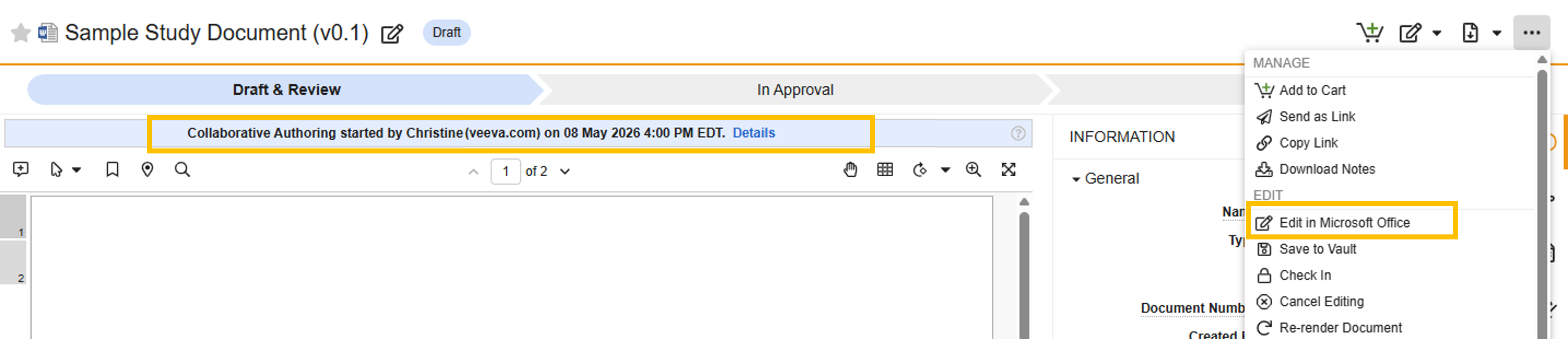
- Select the All Actions menu (…).
- Select Edit in Microsoft Office. The document opens in Microsoft 365 on your desktop. Keep your SiteVault browser window open while you edit.
- Collaborate with Others:
- An icon will appear in the Word menu bar if another user joins the session.
- Print view will display other users’ edits
- Click the icon in the Word menu bar to see where in the document the user is currently editing or to contact that user.
- Save your changes in Microsoft.The edited SiteVault document’s file is stored in a Microsoft 365 shared drive.
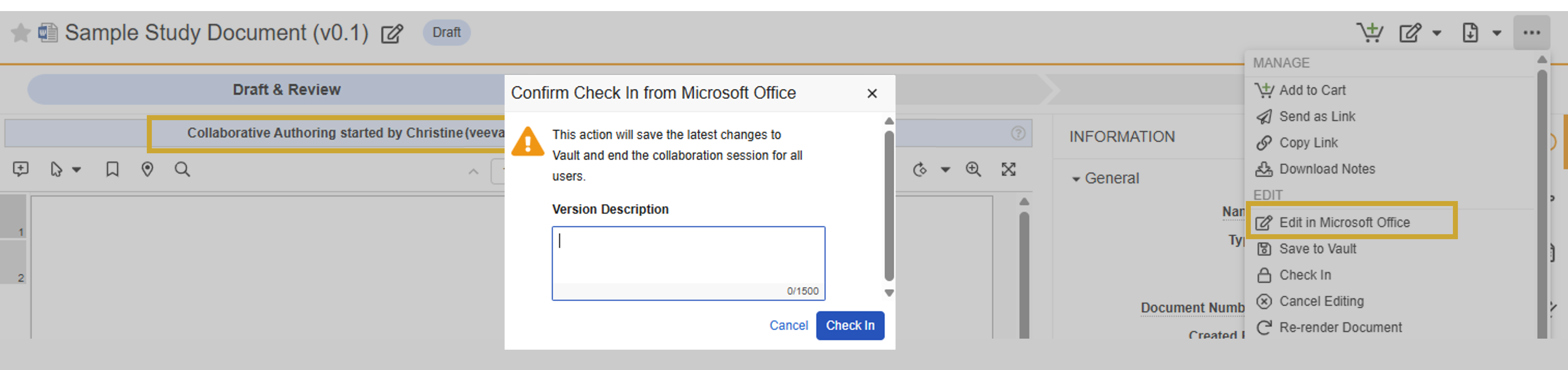
- Save or Check In to SiteVault. Changes are only shown in SiteVault when you perform one of the following actions:
- Save to SiteVault: The collaboration session continues and a new minor version is created in SiteVault. Action is available to any collaborator.
- Check In: The collaboration session ends for all collaborators, a new minor version is created in SiteVault, and the document progresses through its lifecycle. Action is only available to the Document Owner or the initiating collaborator.
- Note: Changes made in Microsoft 365 after Check In are not synced with the Microsoft 365 file. If you made further changes to the document after you checked it in, we recommend saving a copy of the file to your desktop.
Join a Collaboration Session
When another user starts a collaboration session on a document, you can join the session and edit the document in Microsoft 365.
- Access the document.
- Confirm the Collaborative Authoring banner is present.
- Select Edit.
Edit a Microsoft 365 file in your browser
If you don’t have Microsoft 365 installed on your computer, you can edit a document with Microsoft 365 in your web browser.
- Access the document.
- Confirm the Collaborative Authoring banner is present.
- Select the question mark icon in the Collaborative Authoring banner
- Select open in browser.
- Select Continue. This will set your preference for Microsoft 365 in the browser so that each time you start or join a collaboration session, the document will open in your browser automatically.
Cancel a Collaboration Session
Users with the required permissions can cancel a session. Canceling a collaboration session ends it for all users, and none of the changes made to the document during the session are saved in SiteVault.
To cancel a collaboration session, complete the following steps:
- Close Microsoft 365.
- Access SiteVault.
- Select Cancel Editing from the drop-down next to the Edit in Microsoft Office button.
- Select Continue to confirm the intent to cancel the session without checking in the latest edit version.
