- Administrators and Site Staff with the Study Schedule Design & Management Extended Permission
Overview
The study schedule is the detailed plan of the clinical trial, outlining all planned visits, procedures, and timelines for each participant. It serves as the foundational roadmap for study conduct and completion. It allows you to define the structure of your trial, including phases or groups, visits, and activities.
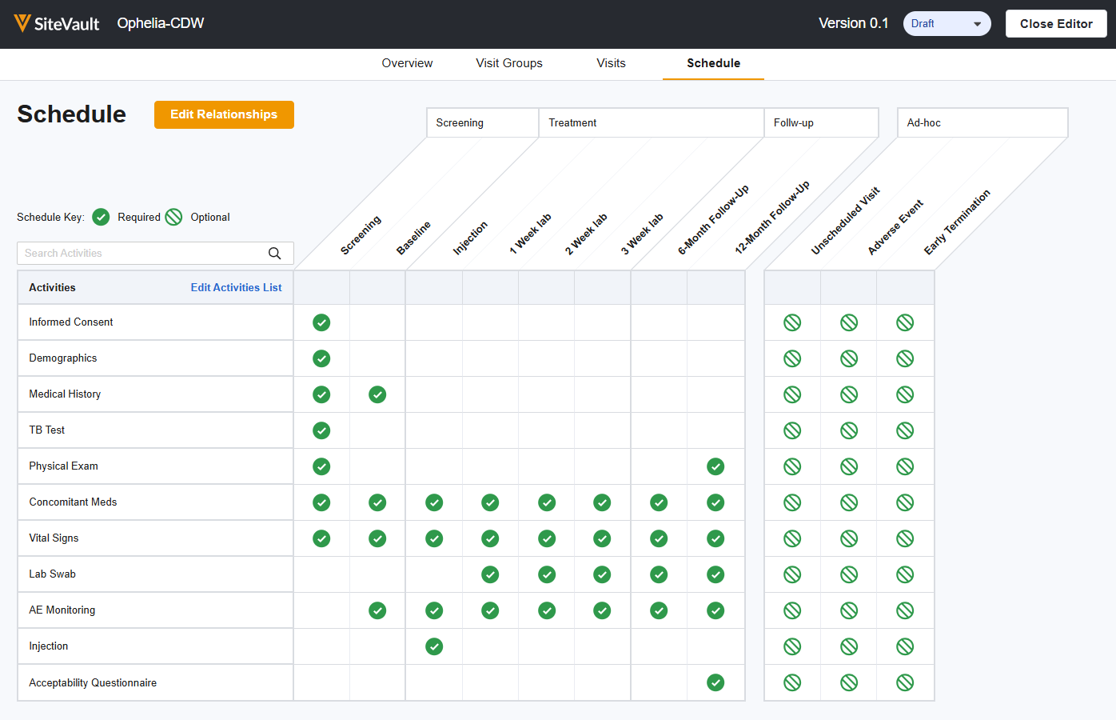
Study schedules are version-controlled, allowing you to apply changes as needed. The version with the Current status is applied to new participants by default. In most cases, existing participants should be updated to the current schedule.
View or Edit a Study Schedule
Access the Study Schedule using one of the three navigation routes listed below. You can choose to view or edit an existing schedule (which launches the Schedule Editor). Use the Study Setup section of CTMS Help to walk you through the different areas of the schedule.
- Study List > Study Action Menu > Study Schedule
- Study > View Study Details > Actions Menu > Study Schedule
- Study > Schedules > Schedule Builder
Create a Study Schedule
To create a schedule, complete the steps below.
- Navigate to Study Schedule using one of the methods listed above.
- Select Create New Draft
- Select from one of the following:
- Generate Schedule with Veeva AI (Coming soon in August/September 2026)
- Veeva AI will use the study protocol to generate the first draft of your schedule for you to review. You can edit and refine the draft schedule as needed. For more about this process, see the Veeva AI Schedule Builder section below.
- Select Next.
- Select the Protocol Document and specify the Protocol Version.
- Select Build Draft Schedule. You may navigate away from the page as the build occurs in the background; SiteVault will display a system notification and send an email when the draft is complete. When the build process completes, access the Study Schedule and select Edit. See the Veeva AI section below for review steps.
- Build Your Own Schedule
- Select Next.
- Generate Schedule with Veeva AI (Coming soon in August/September 2026)
- Complete the Schedule Overview.
- Select the Edit icon to open the Version Details Panel and update as needed:
- Protocol Document: Link the protocol document that is associated with this study.
- Protocol Version: Select the version of the document that is associated with this version of the schedule.The current approved version will populate by default.
- Coverage Analysis: Enable to expose the Coverage Analysis grid, which allows you to classify Activities as Sponsor Paid, Routine Cost (Q1), Routine Cost (Q0), or Non-Billable (NB).
- Description: Include any helpful information about this version of the schedule.
- Arms: Create the study arms that are associated with this version of the schedule. Once defined, the Visit Group Diagram will offer the ability to add the arms to branches.
- Work through the rest of the Schedule Editor tabs to build or review the schedule. Progress to the next page in SiteVault Help for support through the build/review process.
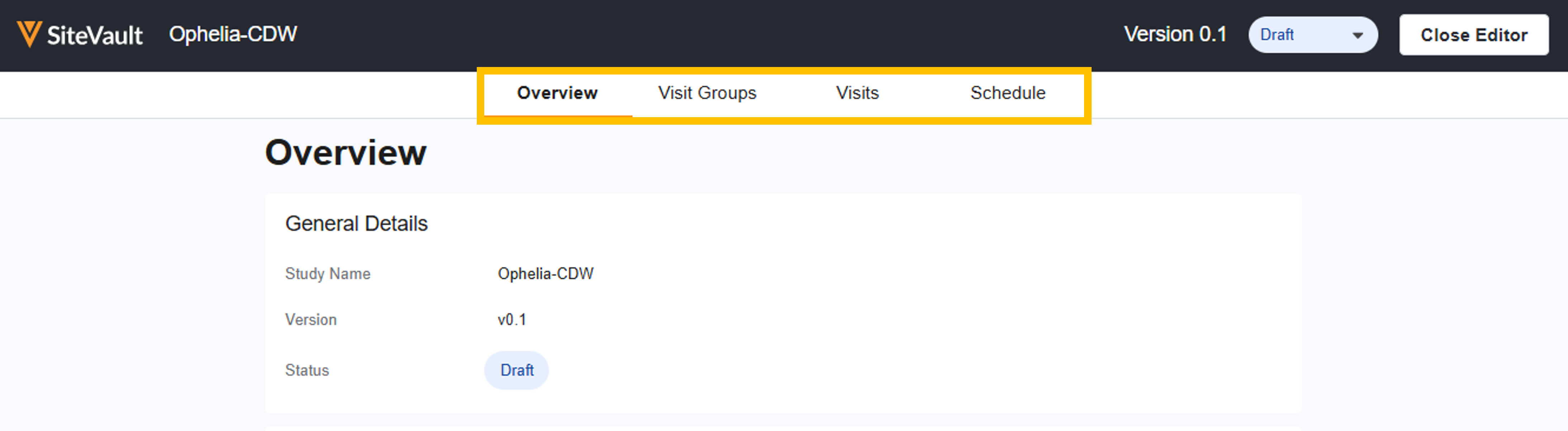
Note Study Schedules and Budgets are versioned independently. When a new version of the schedule is made Current, billable items for participants will automatically generate based on the new schedule's activities, even if a new budget version is not created. However, if a schedule change impacts the items you intend to bill for, or how much you should be paid, always create a new budget version.
Veeva AI Schedule Builder
User Expectations & Required Actions
Note: An AI-generated schedule is always created in Draft state and is not ready for immediate production use without site staff review.
When using Veeva AI to generate your initial draft, you must review, edit, and verify the schedule before progressing it to the Current status. Work through each tab along the top of the Schedule Editor to review and edit the schedule.
Recommended Coordinator Verification Checklist
- Review Visit Groups:
- Open the generated draft schedule.
- Verify visit groups, branching logic, and follow-up groups match the protocol flow.
- Open the edit drawer for each Visit Group and enter missing fields
- Ensure all visits are present and are in their appropriate visit groups.
- Review Visits & Windows:
- Verify visit target dates and early/late window allowances against the protocol text.
- Adjust any visit offsets as necessary to match your scheduling preferences
- Review & Adjust Activities:
- Review the list of activities in the Schedule grid. Combine or adjust activities to align with your site’s operational standards (e.g., combining separate lab entries).
- Toggle optional procedures from Required to Optional.
- Note activity repetitions and add counts.
How Veeva AI Builds Your Schedule
The Veeva AI Schedule Builder extracts data directly from the protocol’s Schedule of Events (SoE) table to build the schedule. It’s important to understand what the tool will and will not do so you know your next steps.
Please note that it can be difficult for Veeva AI to properly analyze and interpret dense or rotated tables. Tables with rotated page orientations or highly compressed grids on a single page may experience off-by-one visit assignment errors.
| Category | What it WILL do | What it WILL NOT do |
| 1. Visit Groups |
|
|
| 2. Visits |
|
|
| 3. Schedule (Activities) | Extracts all protocol procedures and populates the activity matrix grid.
|
|