- Administrators and Site Staff with the Financial Management Extended Permission
Overview
Received payments are recorded in SiteVault and linked to the corresponding invoices and/or individual billable items. Invoice statuses are automatically updated to Paid in Part or Paid in Full based on payment activity. Billable items statuses are automatically updated from Accrued to Paid once added to a payment. You can remove a billable item from a payment by changing its status back to Accrued.
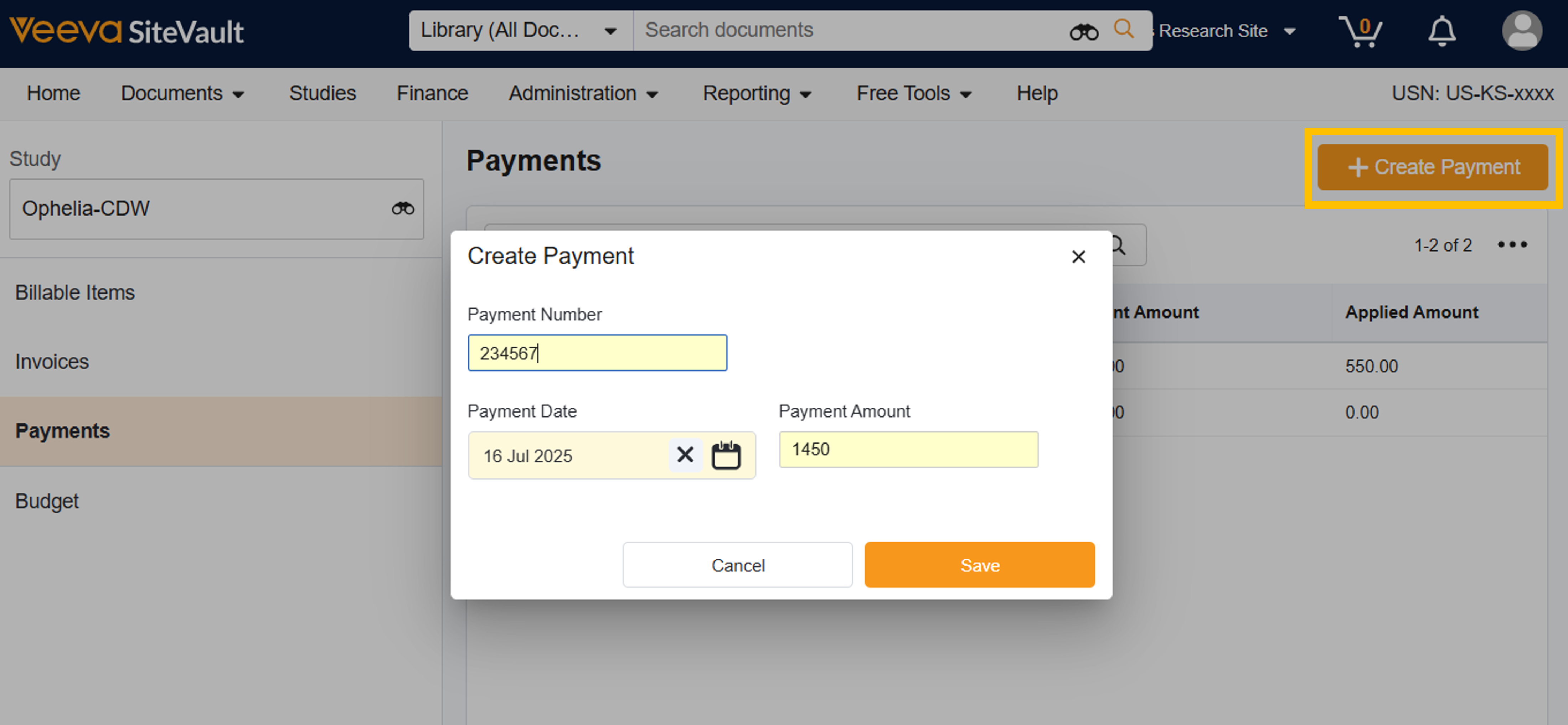
Create a Payment
To create a payment, complete the steps below:
- Navigate to Finance > Budgets & Billing > Select Study
- Select Payments.
- Select + Create Payment.
- Enter the Payment Number.
- Enter the Payment Date.
- Enter the Payment Amount.
- Select Save. You can add invoices to reconcile this payment or navigate away.
Associate an Invoice or a Billable Item with a Payment
To associate an invoice or a billable item with a payment, complete the steps below.
- Navigate to Finance > Budgets & Billing > Select Study
- Select Payments.
- Create a new or access an existing payment.
- To associate an invoice with the payment, select + Billable Item > By Invoice
- Select one or more invoices to associate with the payment.
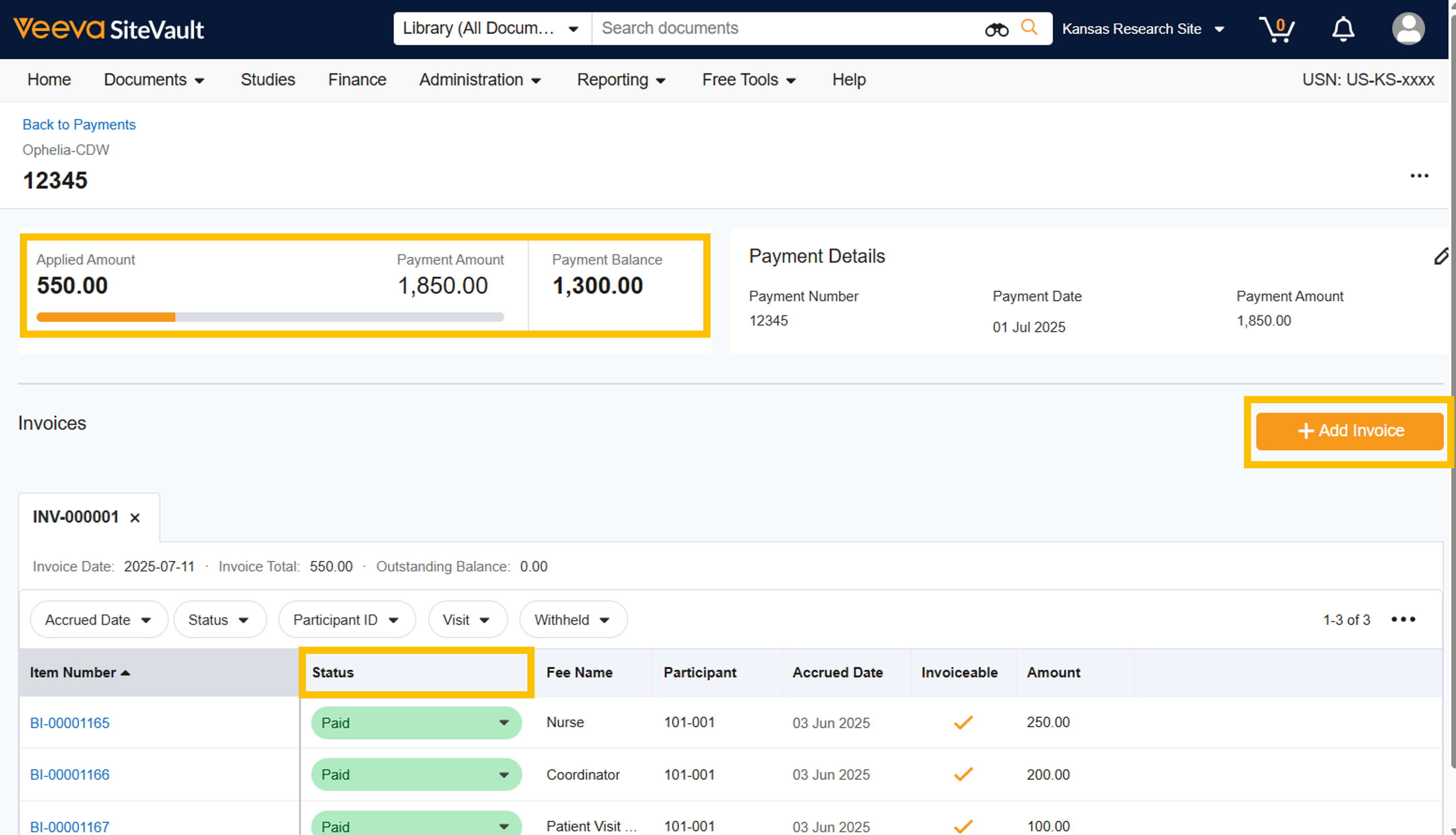
- Select Save. A tab for each invoice is added to the Billable Items section of the payment.
- If the sponsor explicitly did not pay for one or more specific line items, you can manually change the item status back to Invoiced to indicate an outstanding amount.
- To associate one or more billable items with the payment, select + Billable Item > By Item
- Select one or more items to associate with the payment.
- Select Save. A Billable Items tab is added to the Billable Items section of the payment.
- Select Save. The invoice status will update upon saving.
- NOTE: All billable items on the selected invoice(s) will be marked as Paid. Invoiced billable items that were not paid by the payment must be manually changed back to Invoiced.
- The top section of the payment screen will display the Applied Payment amount versus the Payment Amount. This helps you track how much of the received payment has been reconciled with billable items and highlights any remaining balance or overpayment for reconciliation with the sponsor.
Remove Invoices or Billable Items from a Payment
Remove a Billable Item from a Payment
-
Billable Item Tab: Change the status of the item from Paid to Accrued.
-
Invoice Tab: Change the status of the item from Paid to Invoiced.
Remove all Billable Items from a Payment
Select the X on the Billable Items tab to remove all items from the payment, reverting all associated items back to the Accrued status.
Remove an Invoice from a Payment
Select the X on the associated invoice tab to remove the entire invoice from the payment, reverting all associated items back to the Invoiced status.