- Administrators and Site Staff with the Financial Management Extended Permission
Overview
Invoices are created from selected billable items to assist with tracking billing progress and requesting payment from the sponsor. Invoices are not issued but instead used as a method to easily group and export billable items into your site’s financial process/system (.csv).
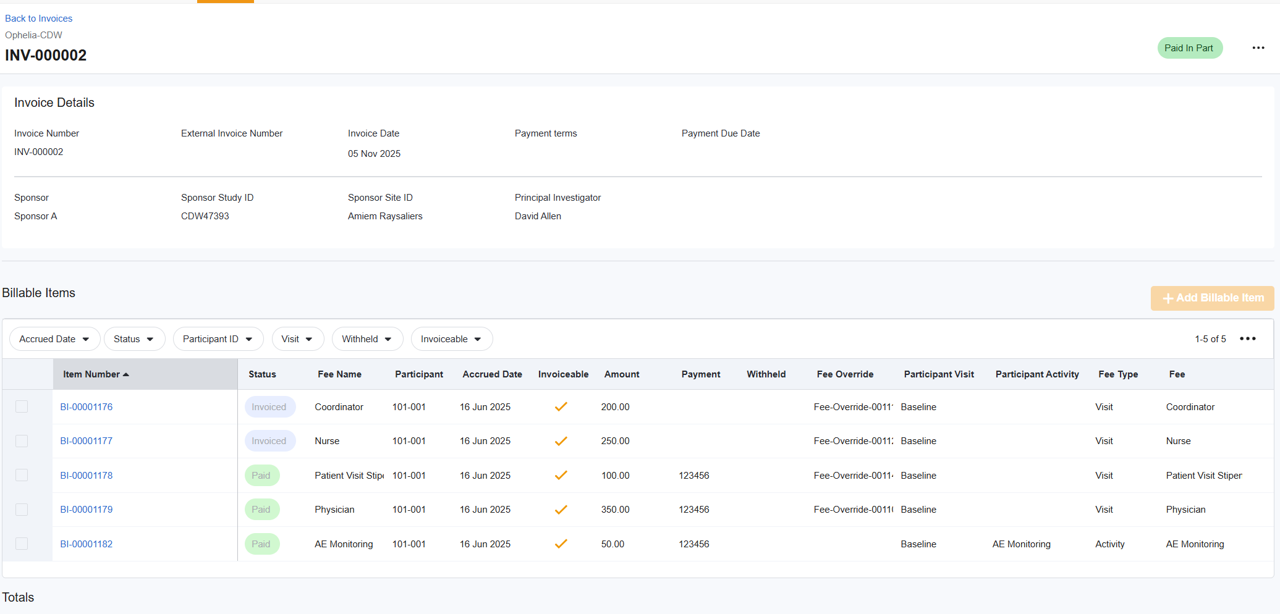
Invoice Grouping and Detail
While SiteVault provides itemized billable items, sponsors often require invoices to be grouped (ex., by patient, by visit, or as a summary). Utilize the export feature to manipulate the data to meet sponsor-specific invoicing requirements.
Create an Invoice
You can initiate a new invoice from Finance > Billable Items or Finance > Invoices. Once the billable items are selected, the remaining steps are the same regardless of where you created the invoice.

To create an invoice, complete the steps below:
- Use one of the following methods to start a new invoice:
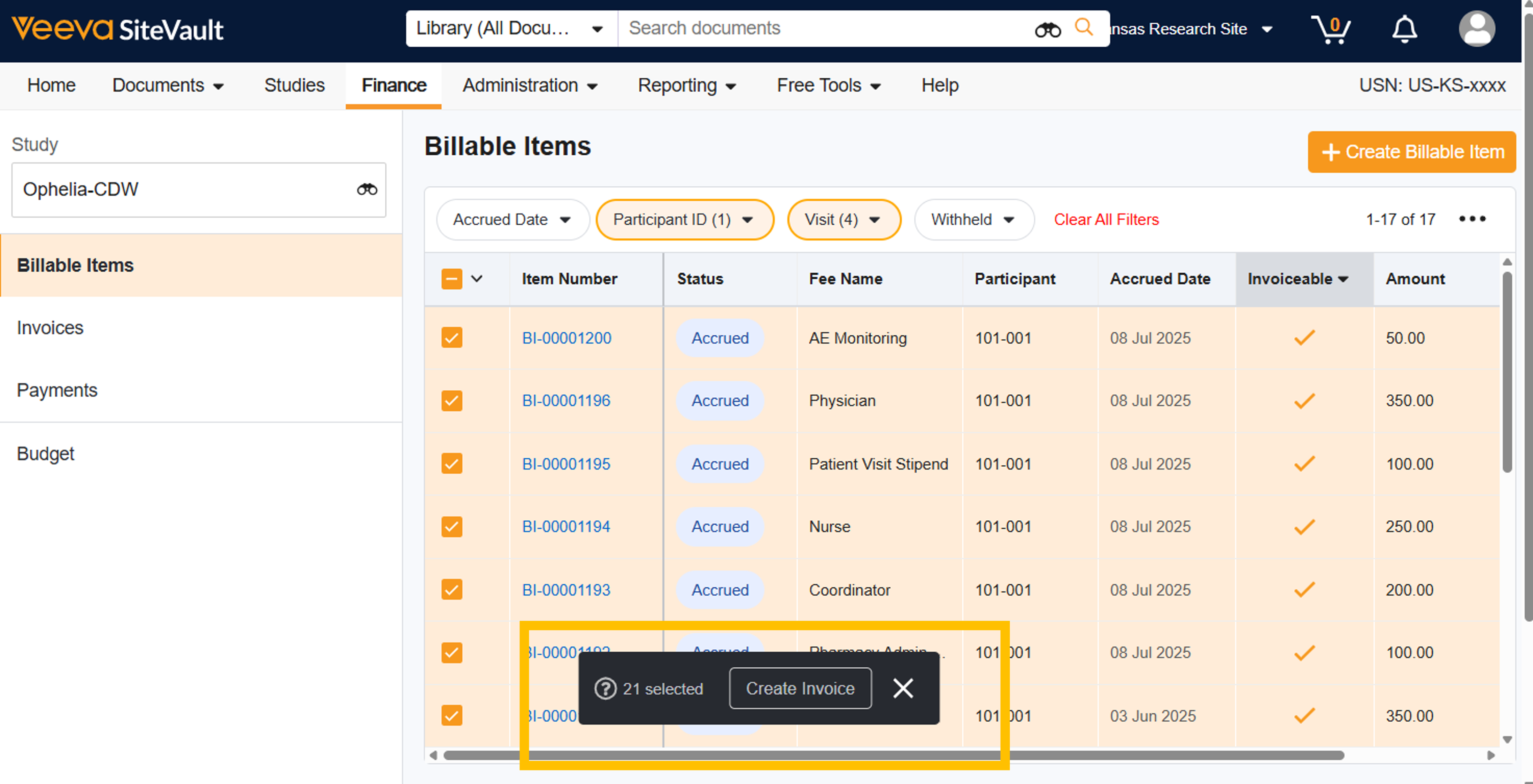
- From Billable Items: Select one or more billable items to include, then select Create Invoice from the bulk menu at the bottom of the screen.
- From Invoices: Select + Create Invoice, then + Add Billable Item. Select one or more billable items to include in the invoice and Save.
- Review Invoice Details for accuracy. Select the Edit icon (pencil) to update the following fields:
- Invoice Number: This field is auto-generated but can be edited.
- External Invoice Number: This is an optional field to accommodate sites using an external billing system and need to include an additional invoice number.
- Purchase Order Number: This is an optional field to populate if a purchase order number is associated with the invoice.
- Invoice Date: The Invoice Date is required to mark an invoice as Sent.
- Payment Terms: The selected payment terms are applied to the invoice date to populate the Payment Due Date field.
- Review the list of billable items and adjust as necessary.
- Remove Billable Item: Select one or more items (Accrued or Invoiced) and select Remove from Invoice from the bulk menu or hover to the right of an item number and select the X. Removing items will update the outstanding balance.
- Add Billable Item: Select + Billable Item. Select one or more items to add to the invoice. Select Save.
- Additional Steps:
- Export Billable Items: Select All Actions > Export Billable Items to export the invoice’s billable items to CSV. You can further manipulate or combine the data with other billing information in an external system for generating the final invoice document.
- Mark as Sent: If you are ready to submit the billable items (using the exported data), change the invoice status to Sent. All billable items associated with this invoice will automatically update from Accrued to Invoiced, indicating that the sponsor has been notified of these outstanding fees.