Who can complete this task?
- Administrators and Site Staff with the Financial Management Extended Permission
Overview
Received payments are recorded in SiteVault and linked to the corresponding invoices. Invoice statuses are automatically updated to Paid in Part or Paid in Full based on payment activity. Once a billable item is associated with an invoice or payment, it cannot be changed.

Create a Payment
To create a payment, complete the steps below:
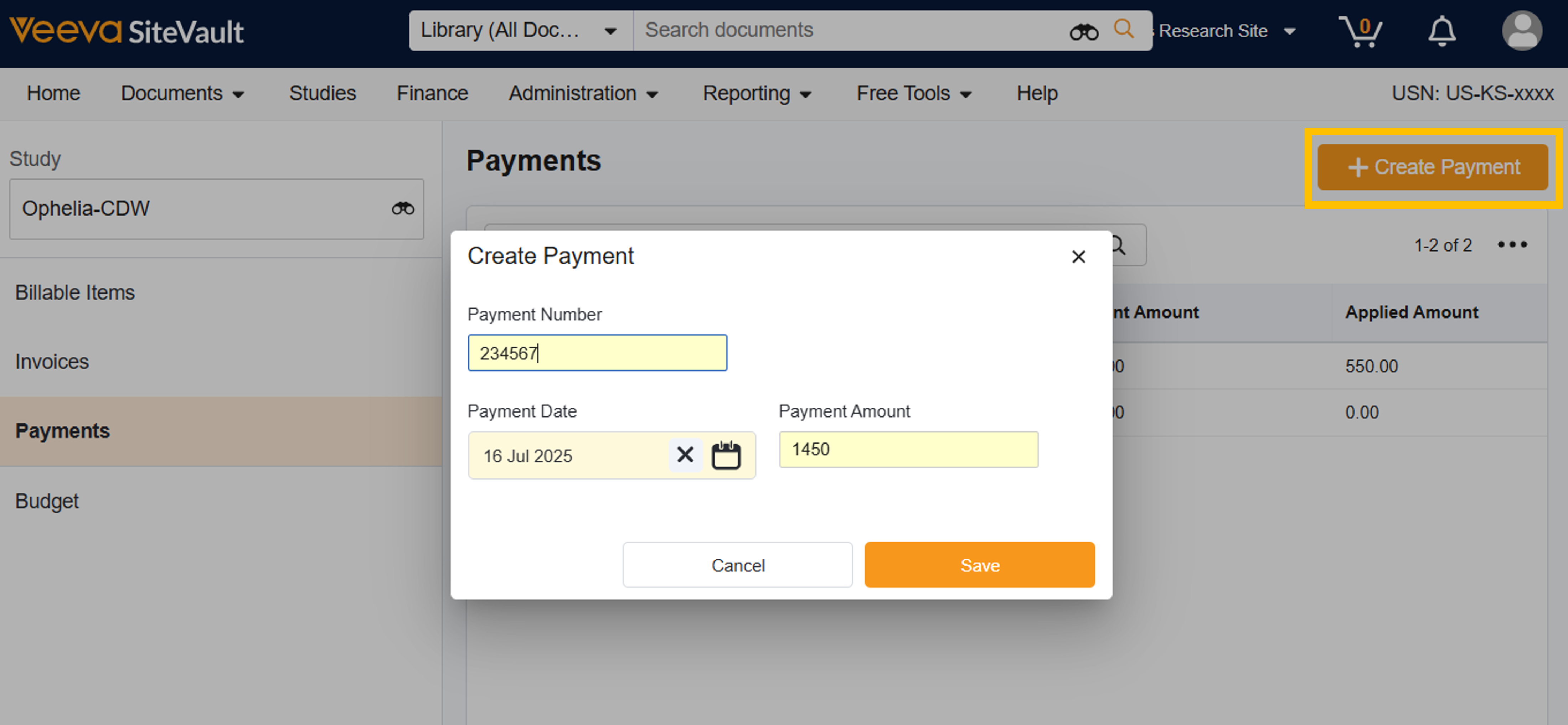
- Navigate to Finance > Payments.
- Select + Create Payment.
- Enter the Payment Number.
- Enter the Payment Date.
- Enter the Payment Amount.
- Select Save. You can add invoices to reconcile this payment or navigate away.
Associate Invoices with a Payment
- Create a new or access an existing payment.
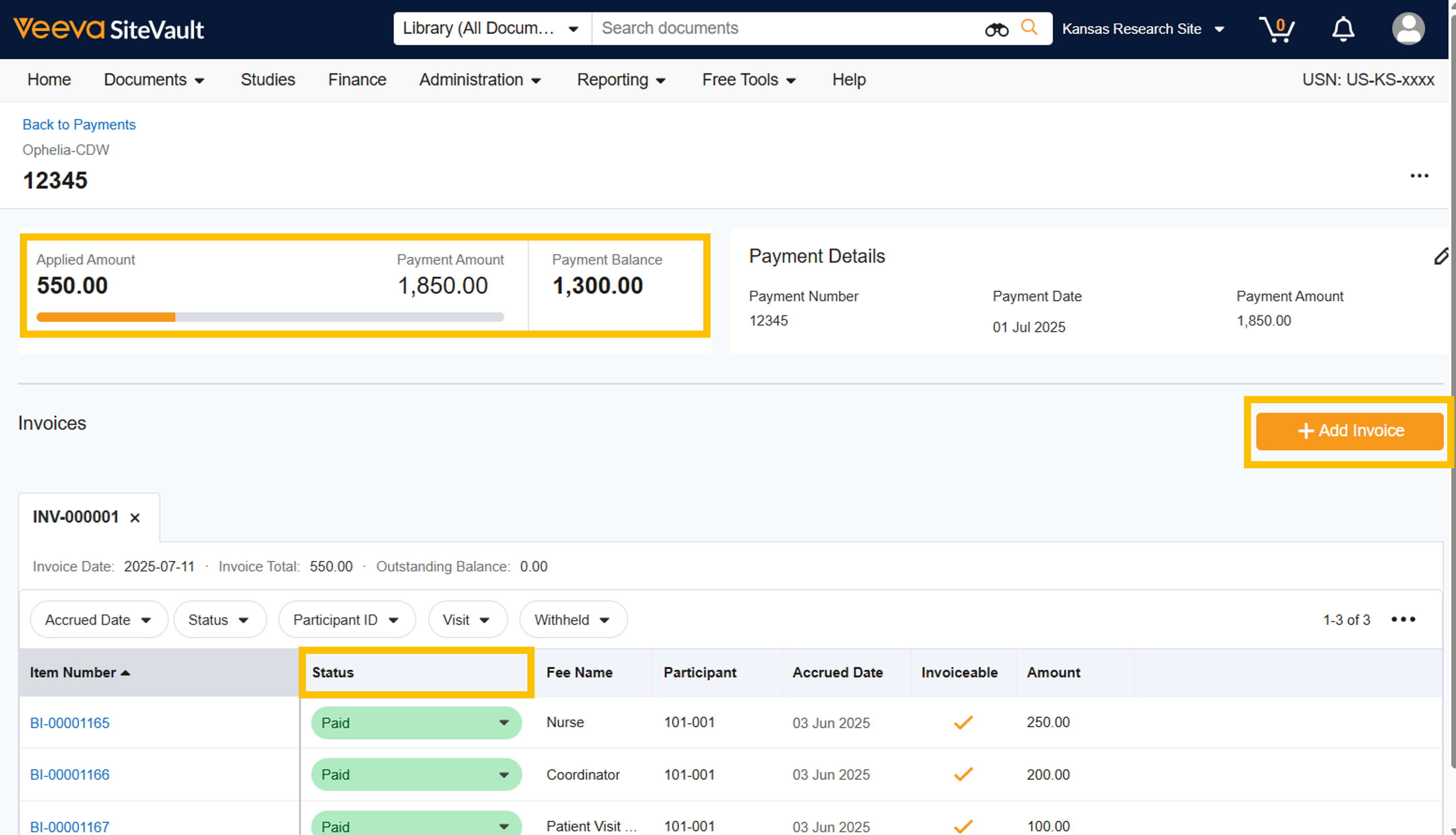
- Select + Add Invoice.
- Identify and select one or more invoice(s) to associate with the payment.
- If the sponsor explicitly did not pay for one or more specific line items, you can manually change the item status back to Invoiced to indicate an outstanding amount.
- Select Save. The invoice status will update upon saving.
- NOTE: All billable items on the selected invoice(s) will be marked as Paid. Billable items that were not paid by the payment must be manually changed back to Invoiced.
- The top section of the payment screen will display the Applied Payment amount versus the Payment Amount. This helps you track how much of the received payment has been reconciled with billable items and highlights any remaining balance or overpayment for reconciliation with the sponsor.