Overview
The MyVeeva for Patients user can enable Push Notifications for mobile devices and can update the Alarms & Reminders setting for Android devices.
See the workflows below for more information on each.
Updating the Notification Preferences
The user completes the steps below.
| Step | Task | Example Image (Select an Image to Enlarge) |
|---|---|---|
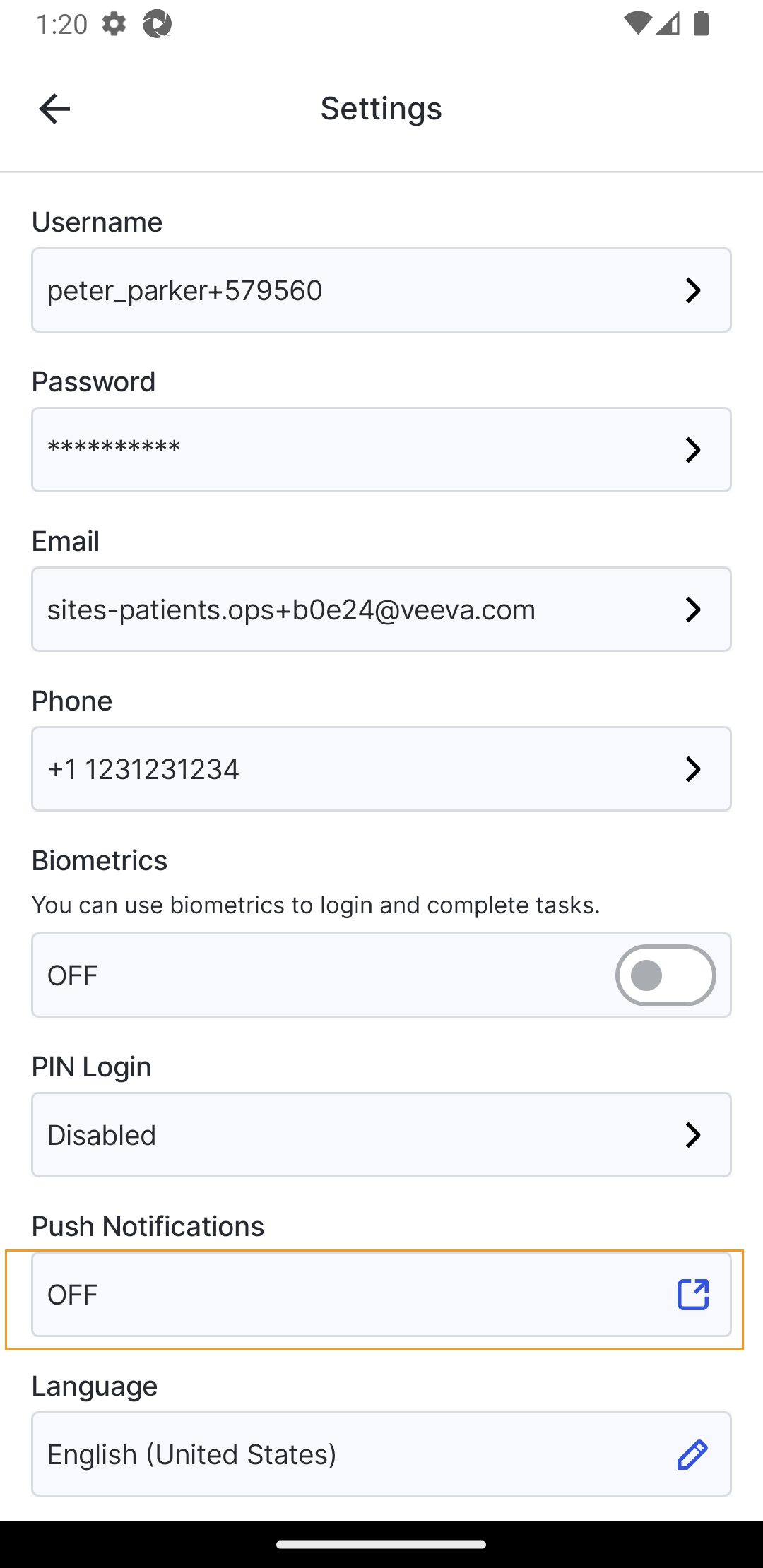
| 1 | In the Account page, on the Settings page, select the Push Notifications field. The app settings in your phone open. |
|
| 2 | Turn on push notifications according to your device settings. | Varies by operating system. Follow the prompts for your device to allow the settings. |
Updating the Alarm Preferences (Android Only)
Some Android devices need to turn on Alarms & Reminders to make sure that phone notifications are displayed to warn users of survey due dates, upcoming visits, and other critical information.
The user completes the steps below to turn on Alarms & Reminders.
| Step | Task | Example Image (Select an Image to Enlarge) |
|---|---|---|
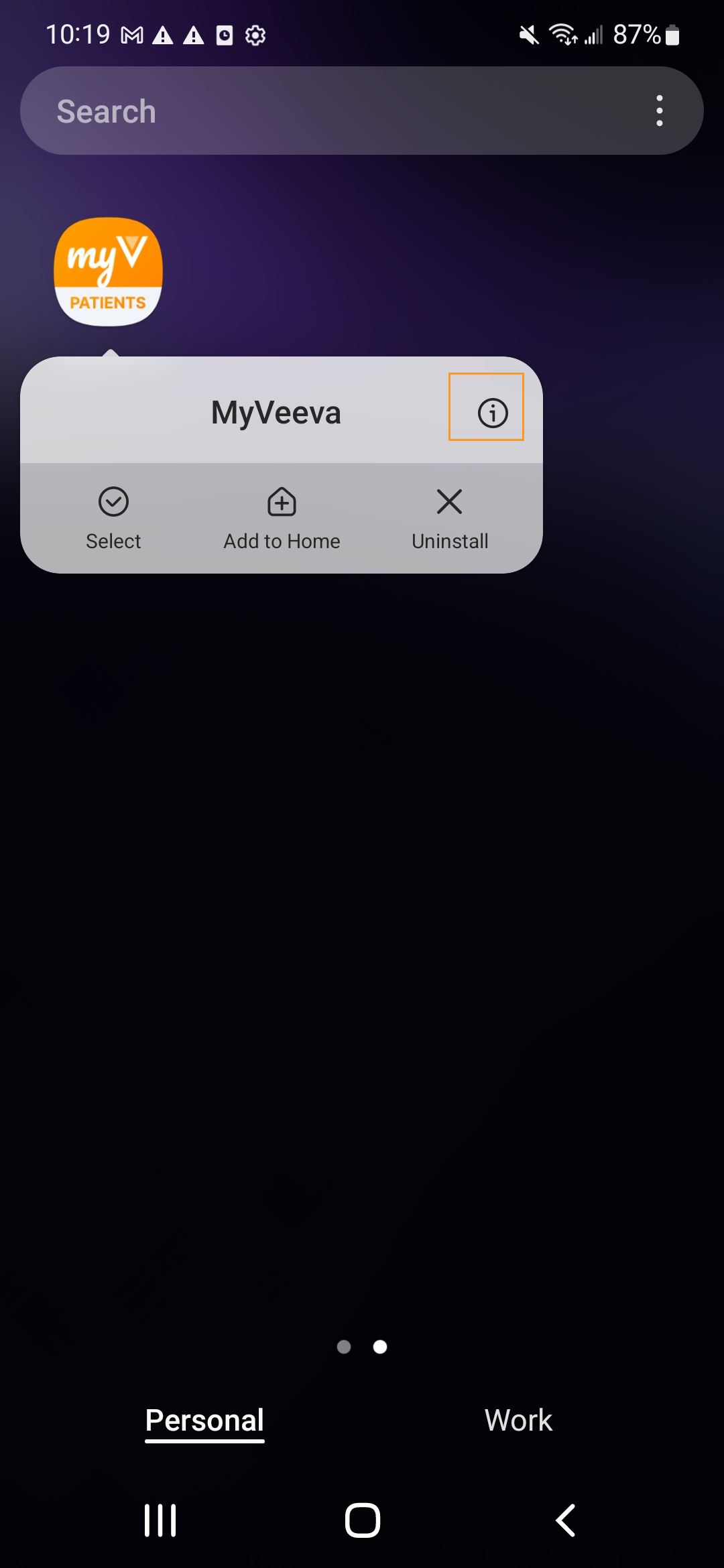
| 1 | Long press the MyVeeva app icon and tap App Info. |
|
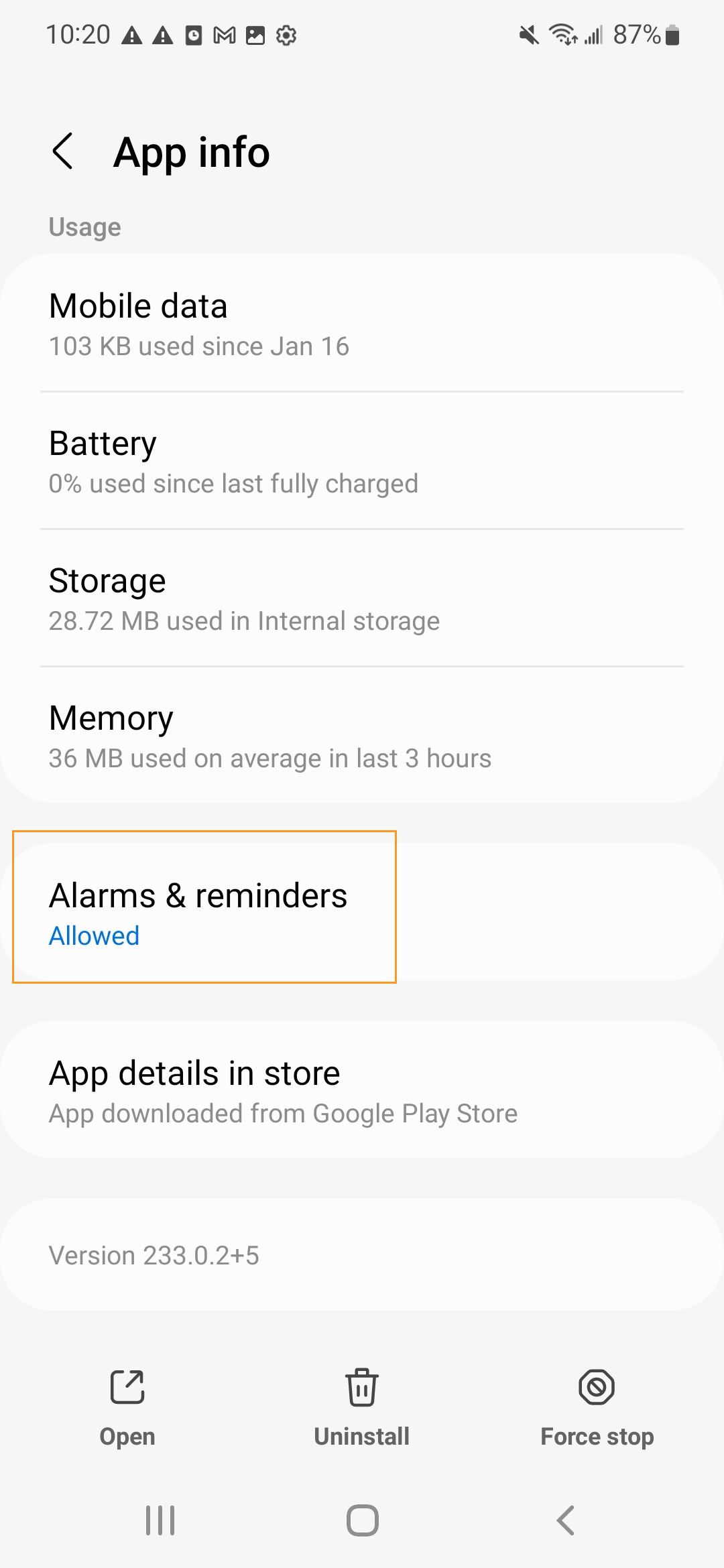
| 2 | In the Advanced section, tap Alarms & Reminders. |
|
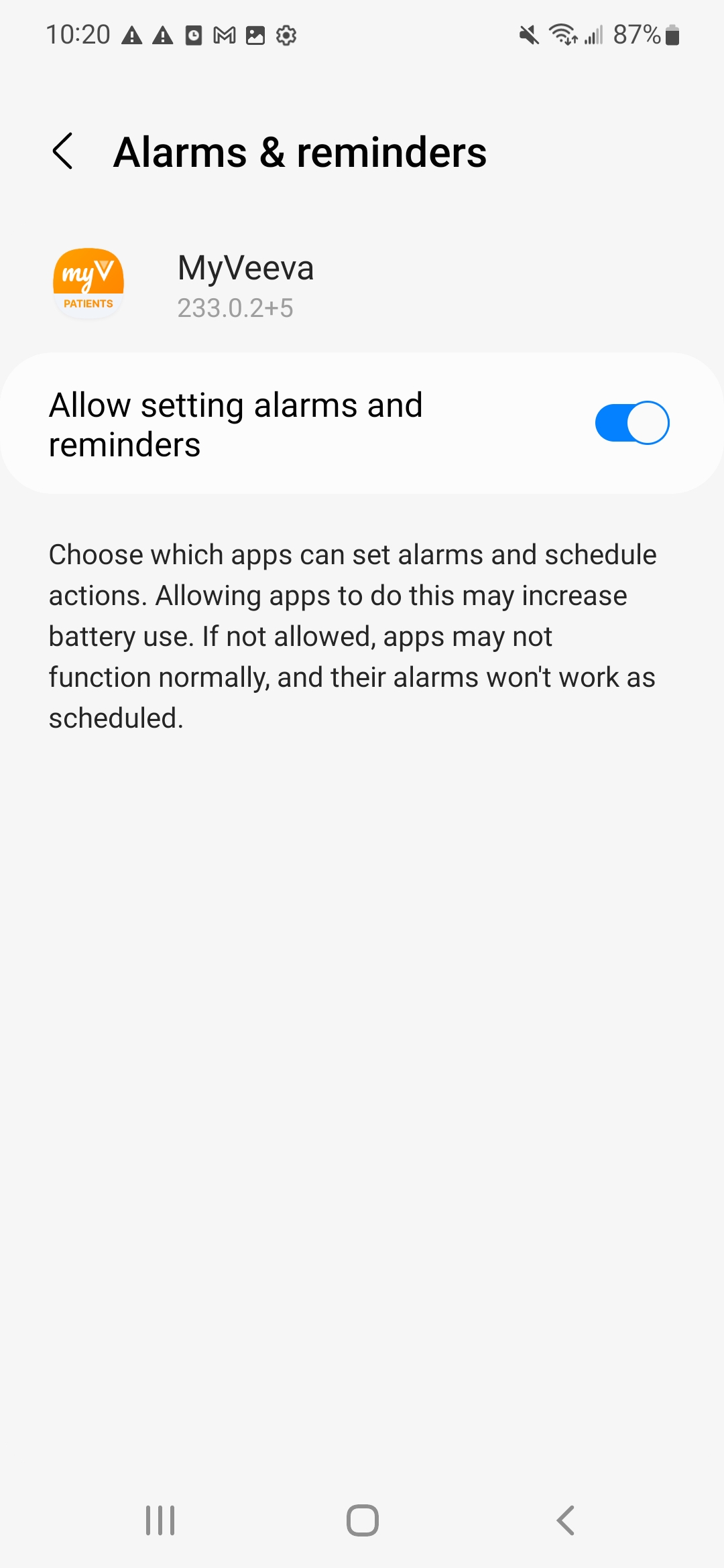
| 3 | Enable the Allow setting alarms and reminders setting. |
|
Troubleshooting
| Problem | Possible Cause | Possible Fix |
|---|---|---|
| MyVeeva user is not receiving email notifications. |
|
|
