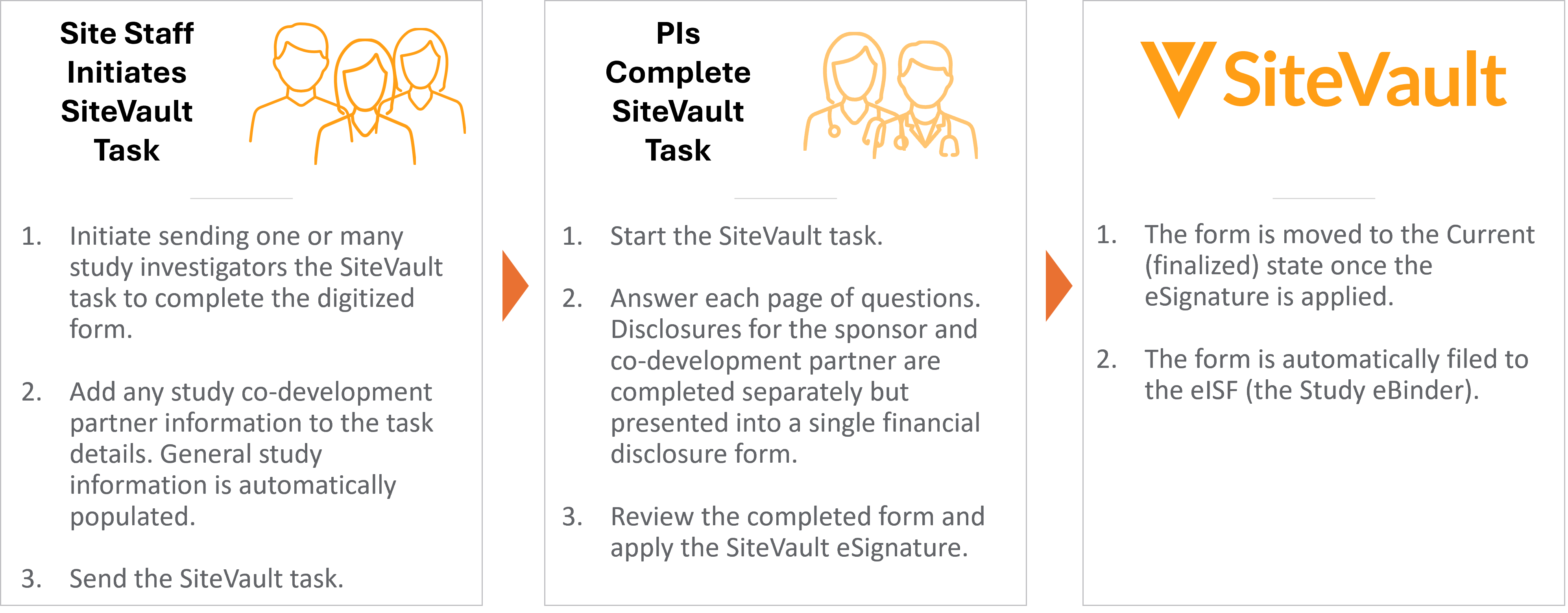
SiteVault provides a digitized process to generate, distribute, and collect standard financial disclosure forms (FDF) from investigators - all within SiteVault. This tool is in addition to the ability to upload a Financial Disclosure Form.
To learn more about the FDF workflow and how to discuss it with your sponsors, see SiteVault Solution for Financial Disclosure Forms or download the FDF Feature Summary.
- Coordinators can initiate the financial disclosure form (FDF) task workflow for a single investigator or multiple investigators simultaneously.
- Key study and investigator information is automatically inserted, minimizing manual data entry.
- Before sending the task, staff users can optionally add up to 10 co-development partners, ensuring disclosure questions are included for all relevant organizations.
- Investigators will receive a SiteVault task to answer disclosure questions, provide comments for “Yes” responses, and eSign the document directly within SiteVault or via Vault Mobile.
- SiteVault will automatically use version stacking, maintaining a clear and accessible document history.
Send an FDF Task
To initiate a financial disclosure form task, complete the steps below.
- Access the study.
- Select the Action menu associated with the Investigator requiring an FDF task (or checkmarks to select multiple investigators).
- Select Request Financial Disclosures.
- Review the study details. If an update is required, select Cancel and update the study information. Then restart this process.
- Enter as many Co-Development Partners as needed (10 maximum).
- Select Continue to issue the task.
- You will receive a notification when the task recipient has completed the task.
- Note: Each recipient can have only one active FDF workflow at any given time. If a revised request is required, the previous FDF task workflow for the recipient must be completed or canceled before the action is available again.
Complete an FDF Task
To complete a financial disclosure form task, complete the steps below.
- Select the link in the task email notification or from the SiteVault Home task list.
- Review the Study & Investigator Information.
- Select Next.
- Respond to each question in the Sponsor Information section.
- Select Next.
- If necessary, respond to each question in any Co-Development Partner sections.
- Select Next or Complete.
- Upon form completion, the completed financial disclosure form is generated for your review.
- Select Complete to finish the task. Note: If any task information is incorrect or missing, choose Do Not Approve and advise the task requestor of the needed updates.
- Select one of the following:
- Approve: The document state is moved to Current and the completed and signed document is filed to the Study eBinder.
- Do Not Approve: The document remains in the Draft state and the task initiator is notified that the form/task was rejected.
