Overview
If a participant has been enrolled in more than one study that uses MyVeeva, they can switch between sets of study information in the app. The To Do and Study pages only show information related to the selected study, so users will need to switch between the accounts to view the relevant information for each study. If they access surveys from notifications, the study the notification is for will automatically open to take them to the correct survey. Use the workflow below to guide them on how to manually switch between studies.
Switching between Studies
The user completes the steps below.
| Step | Task | Example Image (Select an Image to Enlarge) |
|---|---|---|
| 1 | Log in to your MyVeeva for Patients account. | See Logging in to MyVeeva for Patients for images. |
| 2 | On the Account page, select My Studies. |
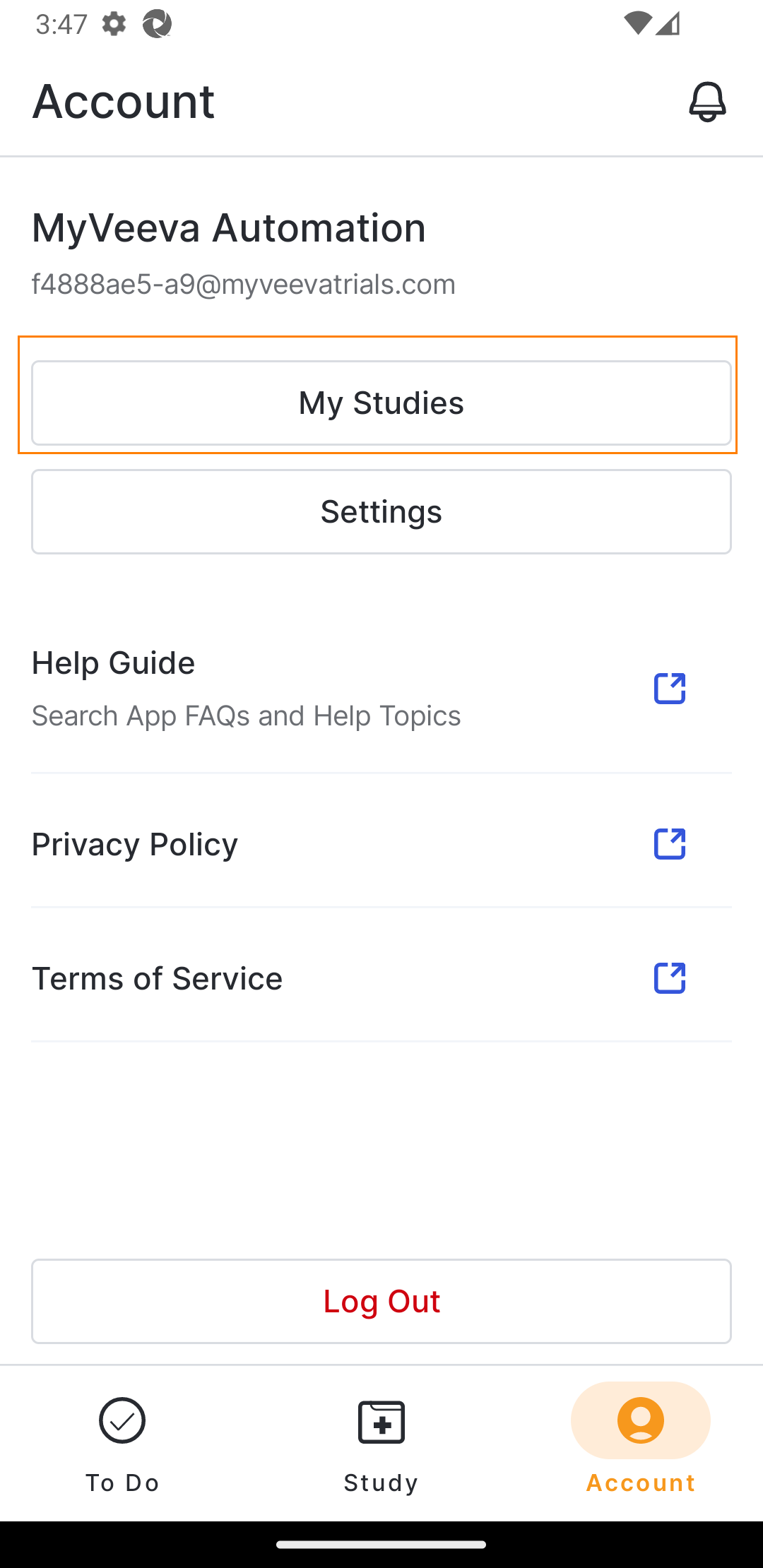
|
| 3 | Select the study from the My Studies list to open it. |
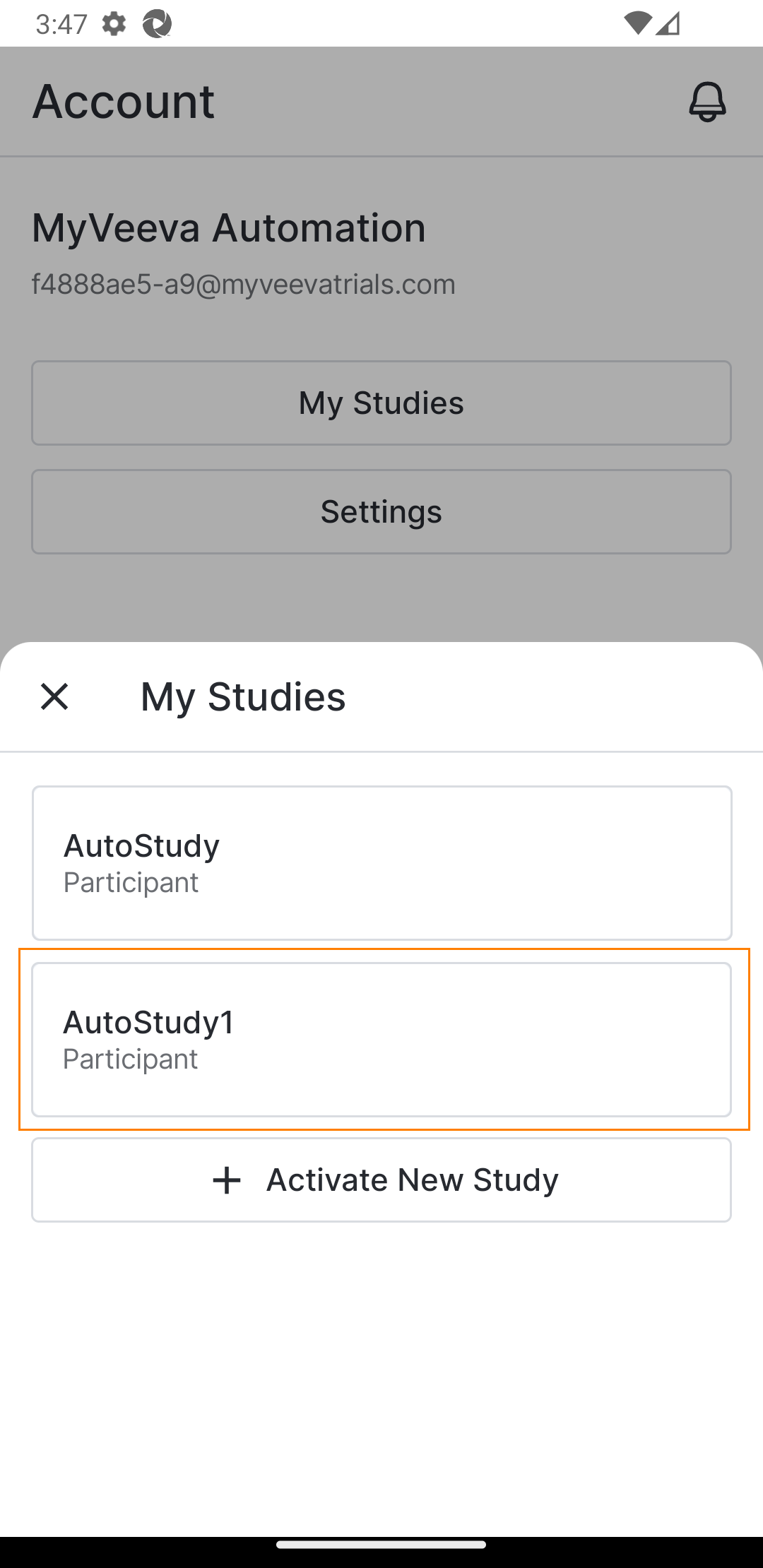
|
Troubleshooting
| Issue | Possible Reasons |
|---|---|
| User Does Not See the Study They Want to View | They did not register for the other survey in MyVeeva. See Adding Another Study to an Existing Account for information on how to complete this process. |
