Who can complete this task?
- Administrators and Site Staff with the Financial Management Extended Permission
Overview
Your sponsor may require you to bill per activity or per visit; SiteVault CTMS can accommodate either approach. This article walks you through each step of the process of creating participant fees by activity or visit. For additional guidance, watch the demonstration below.

Participant Fees are the fees associated with a participant’s visit. Participant fees include Activity Fees and Visit Fees.
- Activity Fee: A specific cost negotiated between you and the sponsor for a particular activity or procedure performed during a visit (ex., a lab test, a physical exam). These are itemized costs rather than a flat fee per visit.
- Visit Fee: Costs associated with a participant visit that are not activity-specific but are collected on a per-visit basis (ex., stipends, physician fees, or nurse fees). For a roll-up fee (a single fee per visit regardless of individual activities), you would typically create one visit fee line item (ex., Visit Fee Roll-up) and input the negotiated per-visit amount for each visit.
- The Invoiceable column is a property of the fee that indicates whether you expect to invoice the sponsor for this fee, or if payment will be received automatically (ex., through an EDC tool).
- This flag does not change how fees are calculated or generated.
- A billable item is still created regardless of whether it’s marked as invoiceable. Billable items will inherit the invoiceable property from its associated fee.
- You can track fees that you expect to be paid automatically by marking such fees as not invoiceable.
Participant Fee Navigation
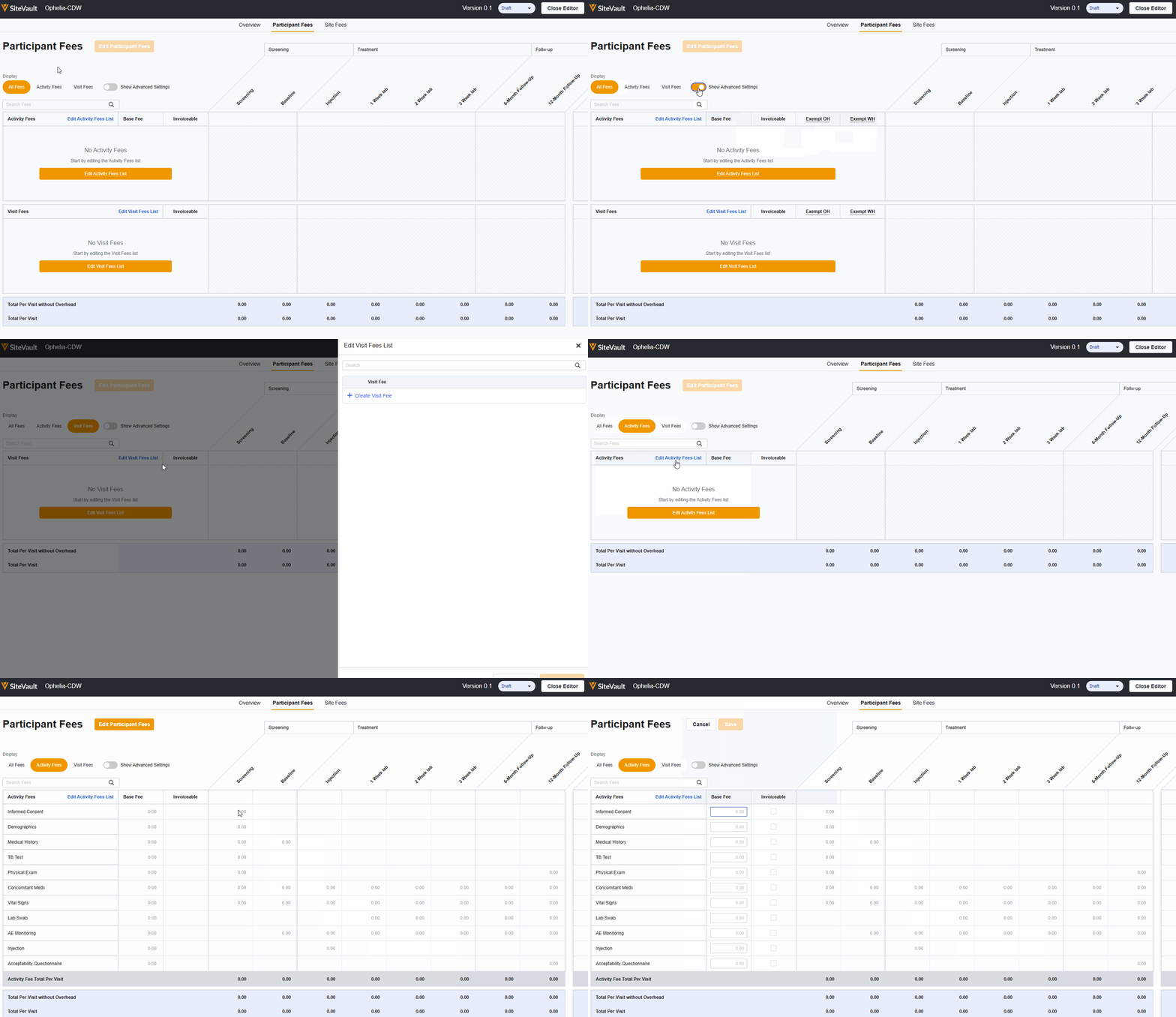
Add Activity Fees
To add activity fees to your budget, complete the steps below:
- From within the study budget, navigate to Participant Fees. The table displays visits across the top and blank rows for Activity Fees and Visit Fees. Studies using coverage analysis will display NB (Not Billable) or RC (Routine Cost) in cells where applicable. See Coverage Analysis for more information.
- Select Edit Activity Fees List.
- A list of activities built into your study schedule will appear.
- Select the activities for which you want to create fees.
- Select Save. The selected activities will populate the first column of your Activity Fees table.
- Select Edit Participant Fees. This will make the base fee cells editable.
- Enter the negotiated base fee for each activity in the corresponding visit cell.
- Note: If a repeating activity is expected to occur multiple times in a visit, the system will multiply the base fee (plus overhead) by the expected occurrences.
- Select the Invoiceable checkmark if your site considers the item invoiceable.
- If applicable, toggle the Show Advanced Settings to select to exempt fees from overhead or withholding.
- Enter the negotiated base fee for each activity in the corresponding visit cell.
- Select Save.
Add Visit Fees
To add visit fees to your budget, complete the steps below:
- From within the study budget, navigate to Participant Fees. The table displays visits across the top and blank rows for Activity Fees and Visit Fees. Studies using coverage analysis will display NB (Not Billable) or RC (Routine Cost) in cells where applicable. See Coverage Analysis for more information.
- Select Edit Visit Fees List.
- Select + Create Visit Fee.
- Enter a label for the fee.
- Repeat these steps to create additional visit fees.
- Optionally, arrange the fees by dragging fees to the preferred order.
- Select Save. The fees will populate the first column of your Visit Fees table.
- Select Edit Participant Fees. This will make the cells editable.
- Enter the negotiated base fee for each activity in the corresponding visit cell.
- Note: Select the Invoiceable checkmark if your site considers the item invoiceable.
- If applicable, toggle the Show Advanced Settings to select to exempt fees from overhead or withholding.
- Enter the negotiated base fee for each activity in the corresponding visit cell.
- Select Save.



