The Calendar provides a centralized view of upcoming participant appointments and their assigned resources. At a glance, you can view study activity and staff availability, as well as create and edit participant visits.
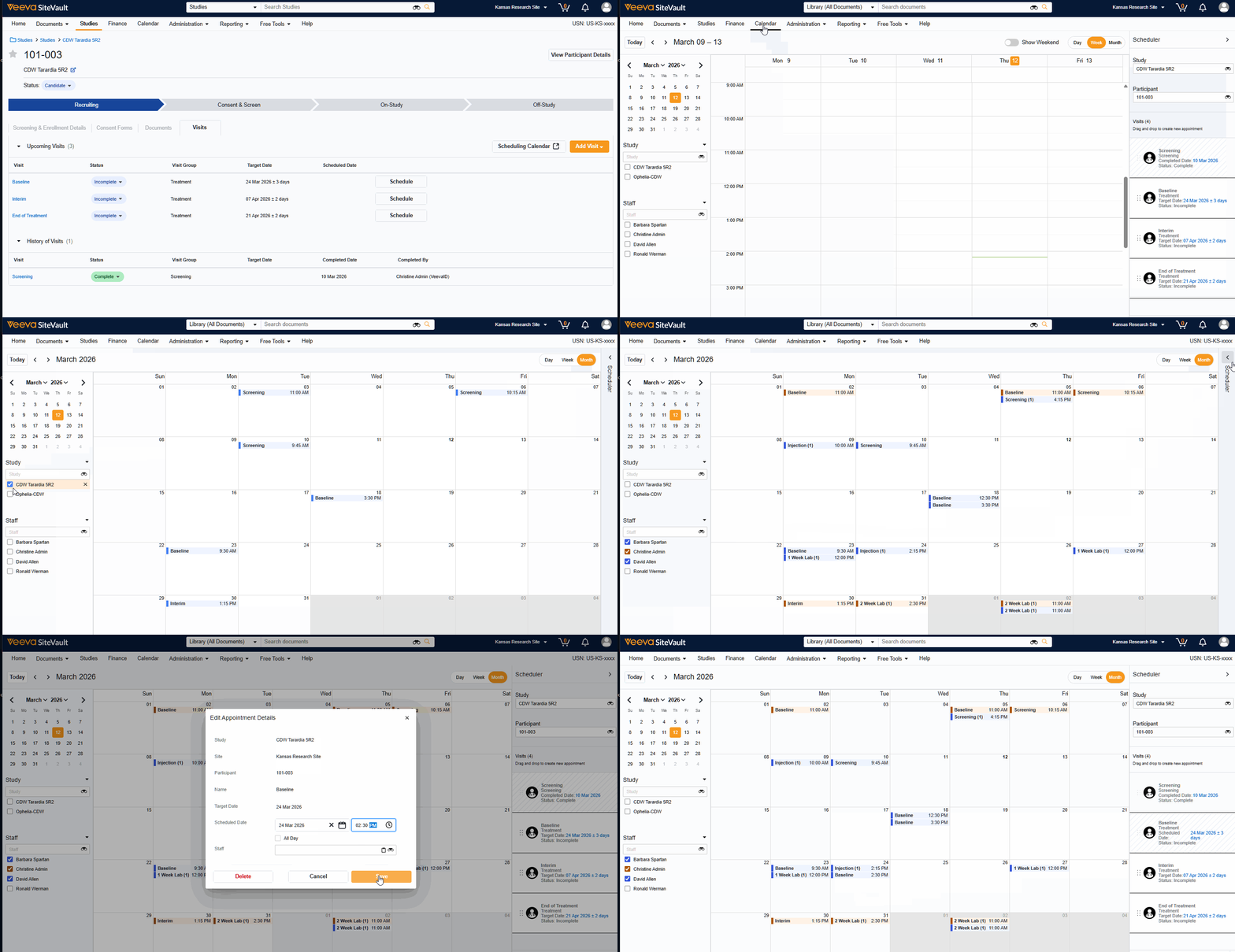
To access the calendar, select the Calendar tab from the main SiteVault menu (top of screen) or by selecting Scheduling Calendar while on a participant’s Visits tab.
The calendar uses your browser’s time zone. If you change your browser’s time zone, your calendar view will adjust to reflect the update.
NOTE: Transitioning to the Visit Calendar
Visits scheduled before the 26R1 release will display on the Calendar as “all-day” Visits. This is because prior to the introduction of the Calendar, it was not possible to specify a time of day when scheduling a Visit. After the release, users can update appointments to specify a time, if desired.
Calendar Views
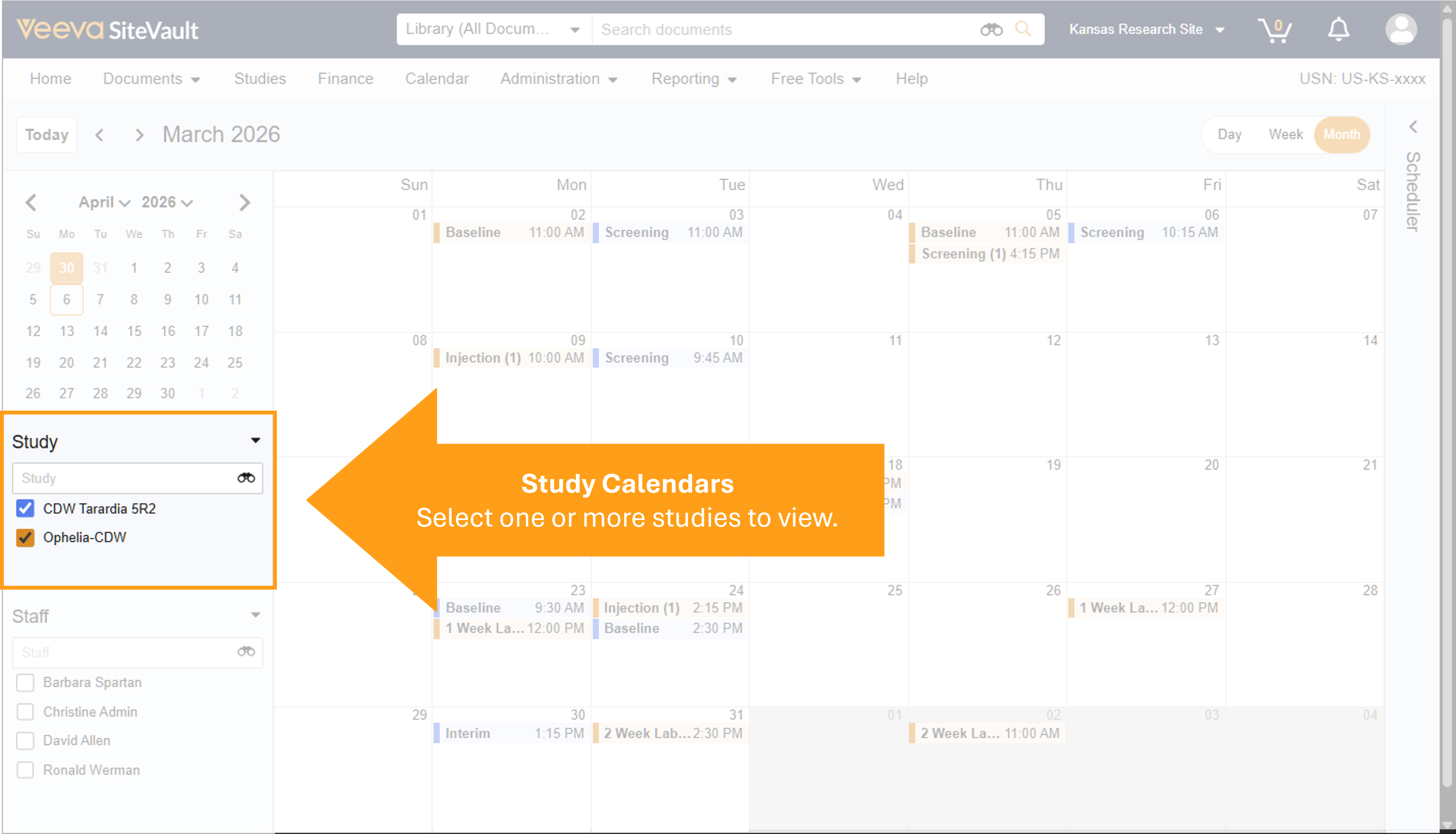
In addition to standard calendar features such as adjustable view timeframes (ex. Day, week, or month) and mini calendar navigation, each user may select one or many study calendars to view. Selected calendars are user-specific, and your preferences will be saved for the next time you visit the calendar page.
Note: Selected views may contain the same appointment. For example, if you select a study calendar and a staff calendar for a team member who has been assigned appointments on that study, then there will be two blocks displayed for each appointment where that staff member is an attendee.
Study Selector
Select studies to view scheduled appointments.
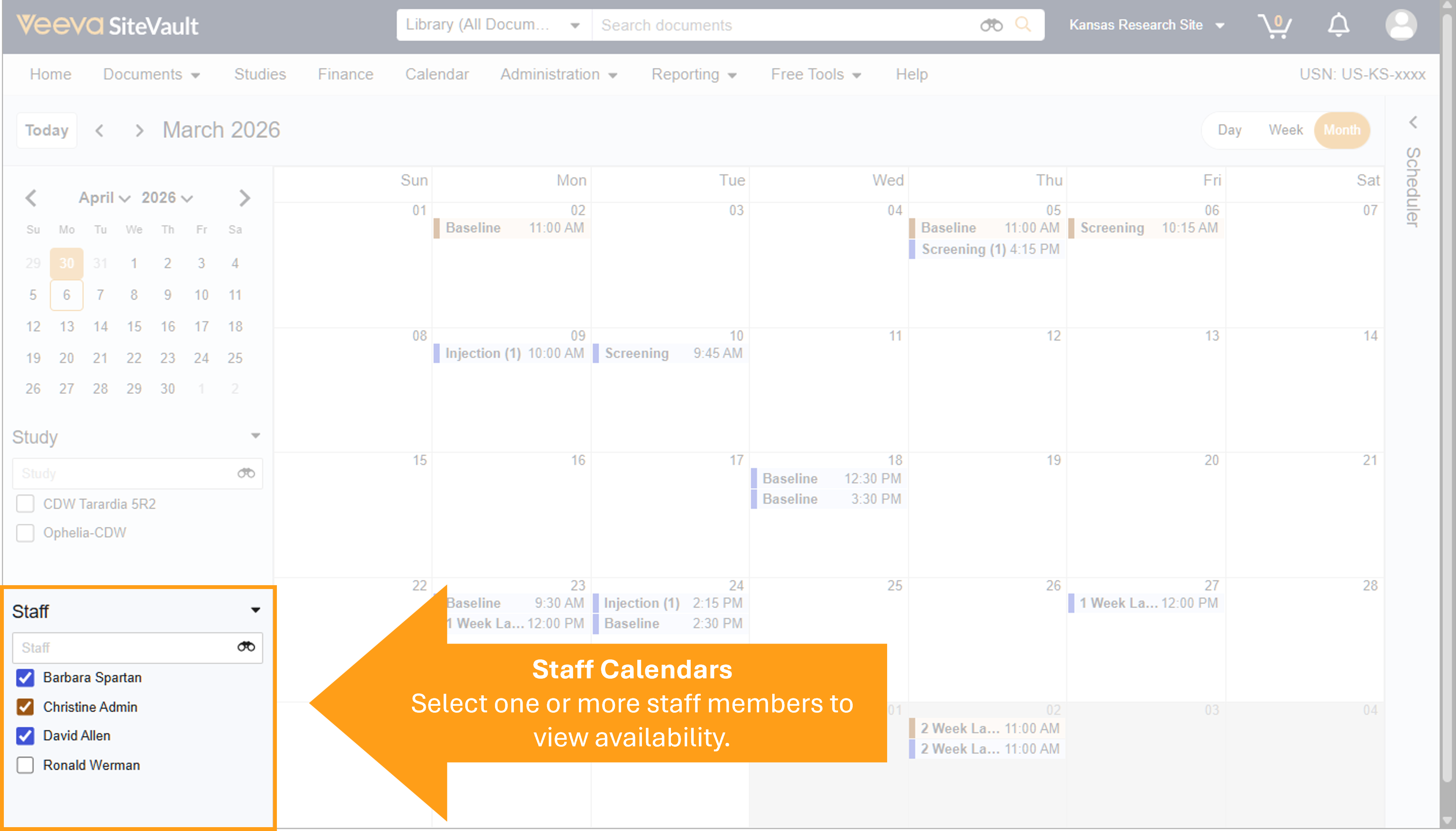
Staff Selector
Select one or more staff members to view their scheduled appointments. If multiple selected staff members are assigned to the same appointment, then the appointment will appear for each selected and assigned staff member.
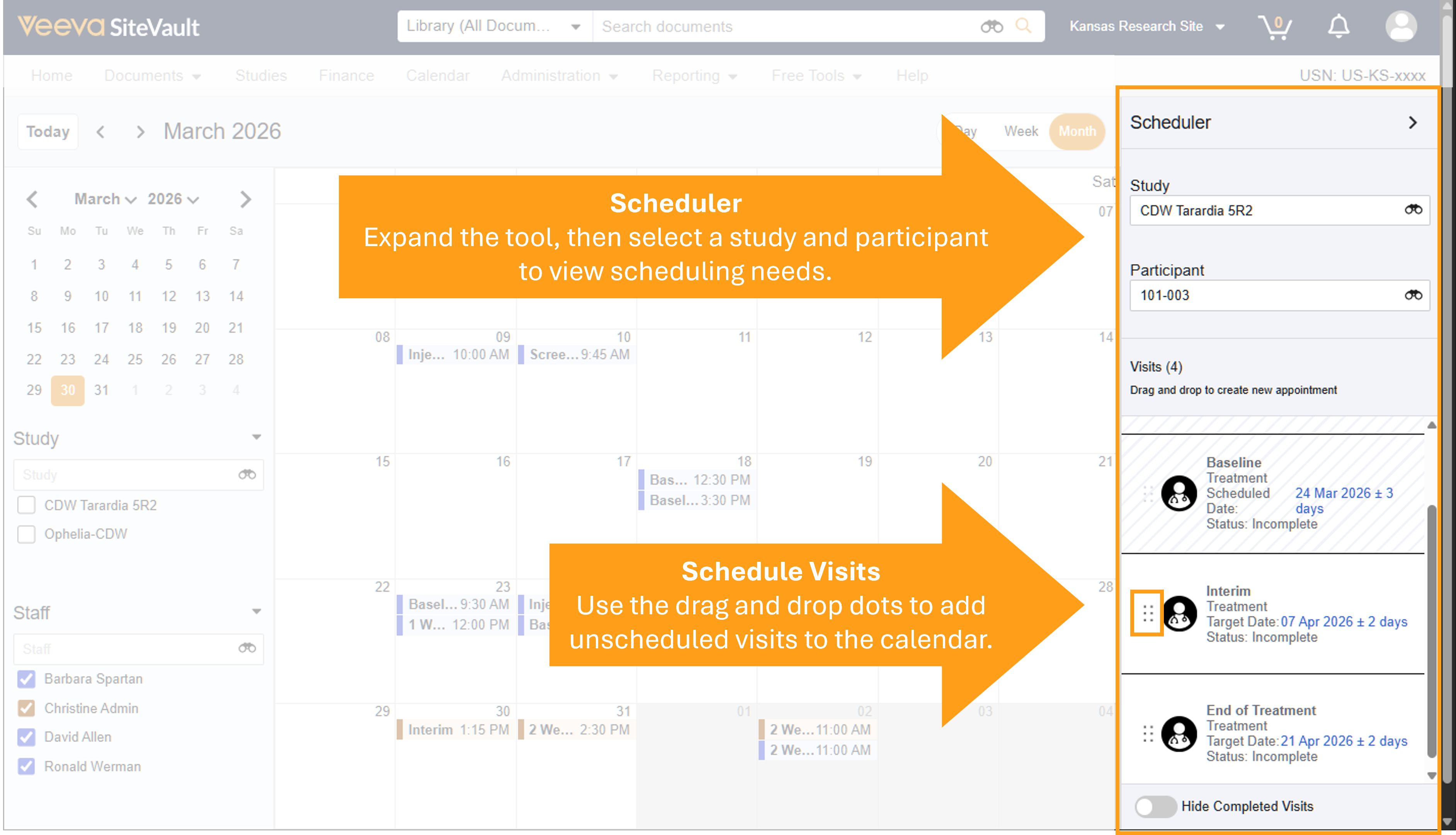
Schedule Visits with the Scheduler
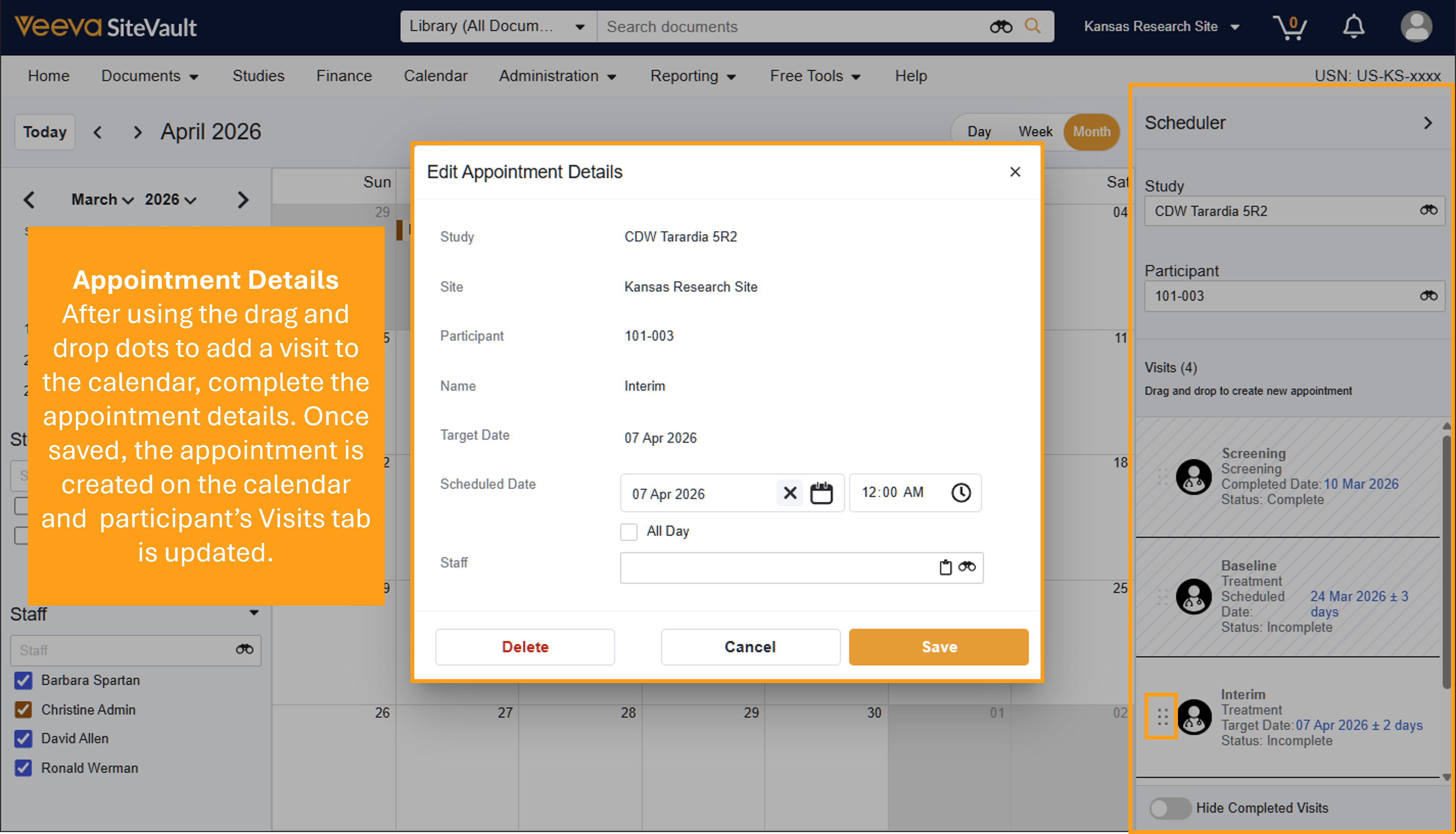
The Scheduler tool in the right panel provides all you need to schedule participant visits for any study. When accessed from Study > Participants > Visits > Scheduling Calendar, the calendar opens prefiltered to the participant’s information.
- From the Scheduler, ensure the correct study and participant are selected.
- Identify an unscheduled visit to schedule and review the Target Date details.
- Use the drag and drop dots to drag the visit to the calendar.
- Complete the date, time, and staff details.
- Select Save.
- To adjust the appointment:
- To move to another timeframe without opening the appointment, drag and drop the appointment to another calendar timeslot.
- Adjust the duration of the appointment by hovering over the calendar appointment and drag the appointment handles (two horizontal lines) as needed.
Adjust Appointment Date/Time or Duration
To adjust the appointment date, time, or duration without opening the appointment:
- Move an appointment to another timeframe by dragging and dropping the appointment to another calendar timeslot.
- Adjust the duration of an appointment by hovering over the calendar appointment and drag the appointment handles (2 horizontal lines) as needed.
Edit Appointment Details
You can edit appointment details from the calendar or from a participant’s Visit tab in the study.
- Select an appointment from the calendar or the participant’s Visit tab.
- Adjust the date, time or assigned staff.
- Select Save.
Delete an Appointment
You can delete an appointment from the calendar or from a participant’s Visit tab in the study.
- Select an appointment from the calendar or the participant’s Visit tab.
- Select Delete.
- Select Save.



