On the participant page, you can see the participant’s compliance metrics, access their details, and perform event and survey activities.
To view a participant’s page, select their participant ID on the Participant’s tab.
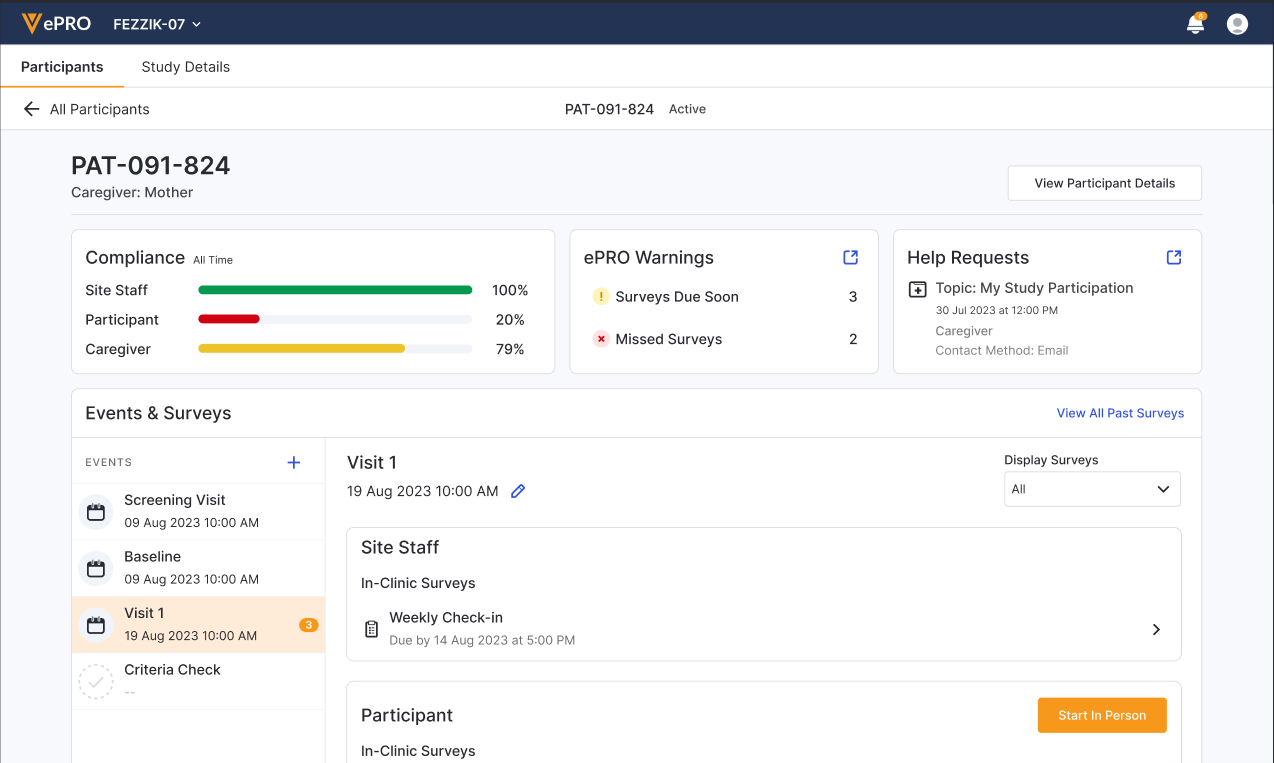
Monitoring Compliance
Viewing Past Surveys
You can view all participant surveys that were completed, missed, transcribed, or intentionally left blank. For As-Needed surveys completed multiple times, each response will be displayed separately. For surveys with multiple parts, each part will also be listed separately.
Complete the following steps to view a list of past surveys:
- Access a participant’s profile.
- Select View All Past Surveys.
The Table View is displayed. You can select Schedule View to view the survey compliance plotted against the study schedule.
Table View
The Table View displays the full list of participant data at one time. This view helps you quickly find specific tasks or missing surveys.
Filtering Past Surveys
Filter the list using the following options above the table:
- Survey: Filter by specific surveys.
- Status: Filter by specific statuses.
- All Filters: Filter further by event name, location, respondent, or date range.
- Clear All Filters: Reset filters to view the entire list again.
Date Range Filter Criteria
When filtering by date range, surveys are displayed based on the following criteria:
- Completed: The datetime when the survey was completed.
- Completed (Late): The datetime when the survey was completed, for surveys answered outside of the expected response window.
- Transcribed: The datetime when the assessment was completed.
- Missed: The datetime when the survey was due.
- Intentionally Left Blank: The datetime when the participant indicated they were intentionally leaving the survey blank.
Viewing Survey Data
If you have access to view a survey, select a survey name to view the submitted data. Depending on your study’s configuration, you may also manage data changes from the Table View.
Schedule View
The Schedule View shows participant compliance directly against the schedule of assessments. The following information is included:
- The surveys configured in the study.
- The events that make surveys available.
- Different markers that represent the survey’s compliance status:
- Green icon with a checkmark: Completed, Transcribed
- Red icon with an x: Missed, Intentionally Left Blank
You can select any survey to open a Details pane with additional compliance information.
Filtering Past Surveys
You can filter the view by the location the surveys were intended to be completed (Remote vs In Clinic).