Veeva eCOA What's New in 26R1
Release Date: April 17, 2026
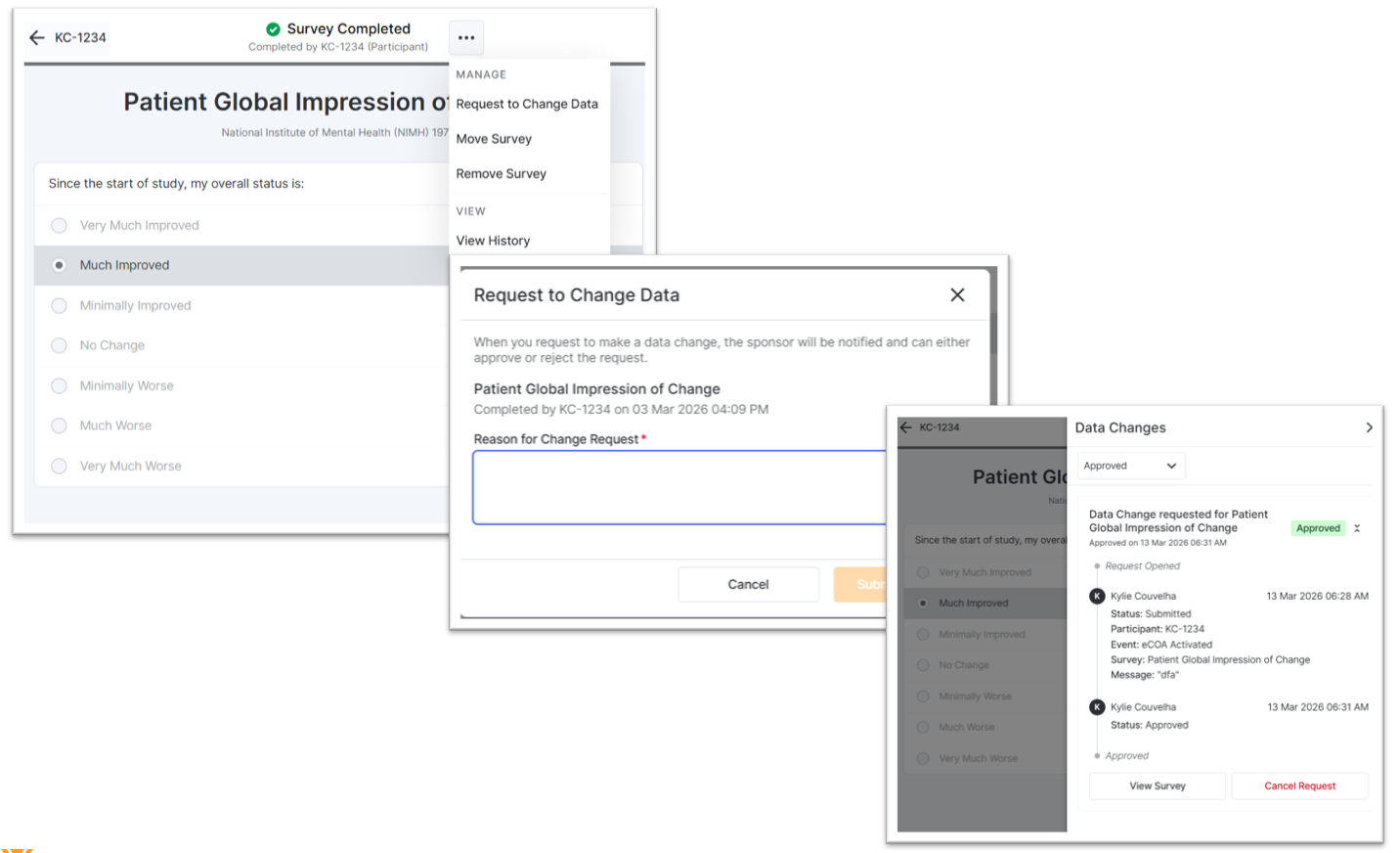
Targeted Data Changes
You can submit data change requests for any survey when data changes are turned off or the time to make changes has passed. The sponsor/CRO reviews, approves, or rejects these requests. Once a data change request is approved, you will be able to make the change to the related survey.
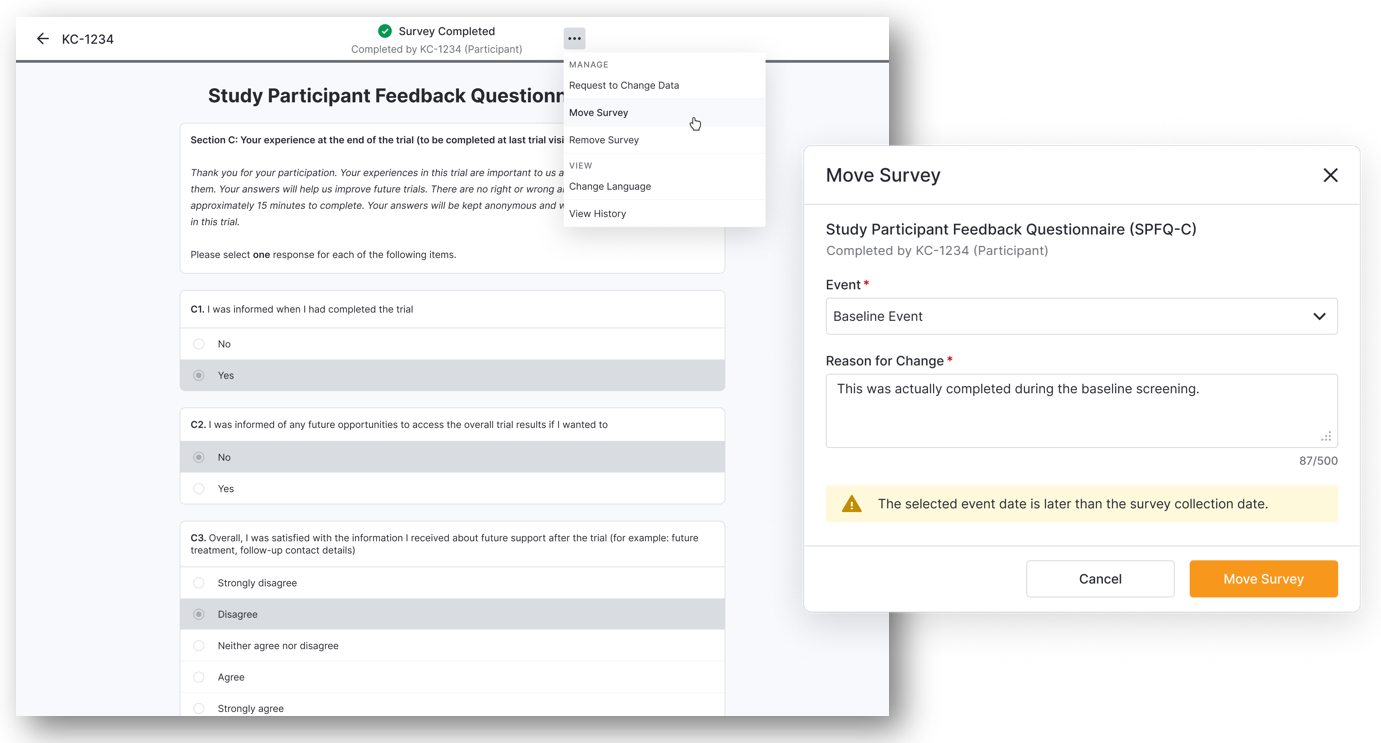
Moving Completed Surveys
You can now move a completed survey to a different event when it was completed at the wrong event. After the survey is moved, we may cancel overlapping available or missed surveys for the event it is moved to and ensure that all changes are tracked for the audit trail. You no longer need to submit data change requests for moving surveys to a different event.
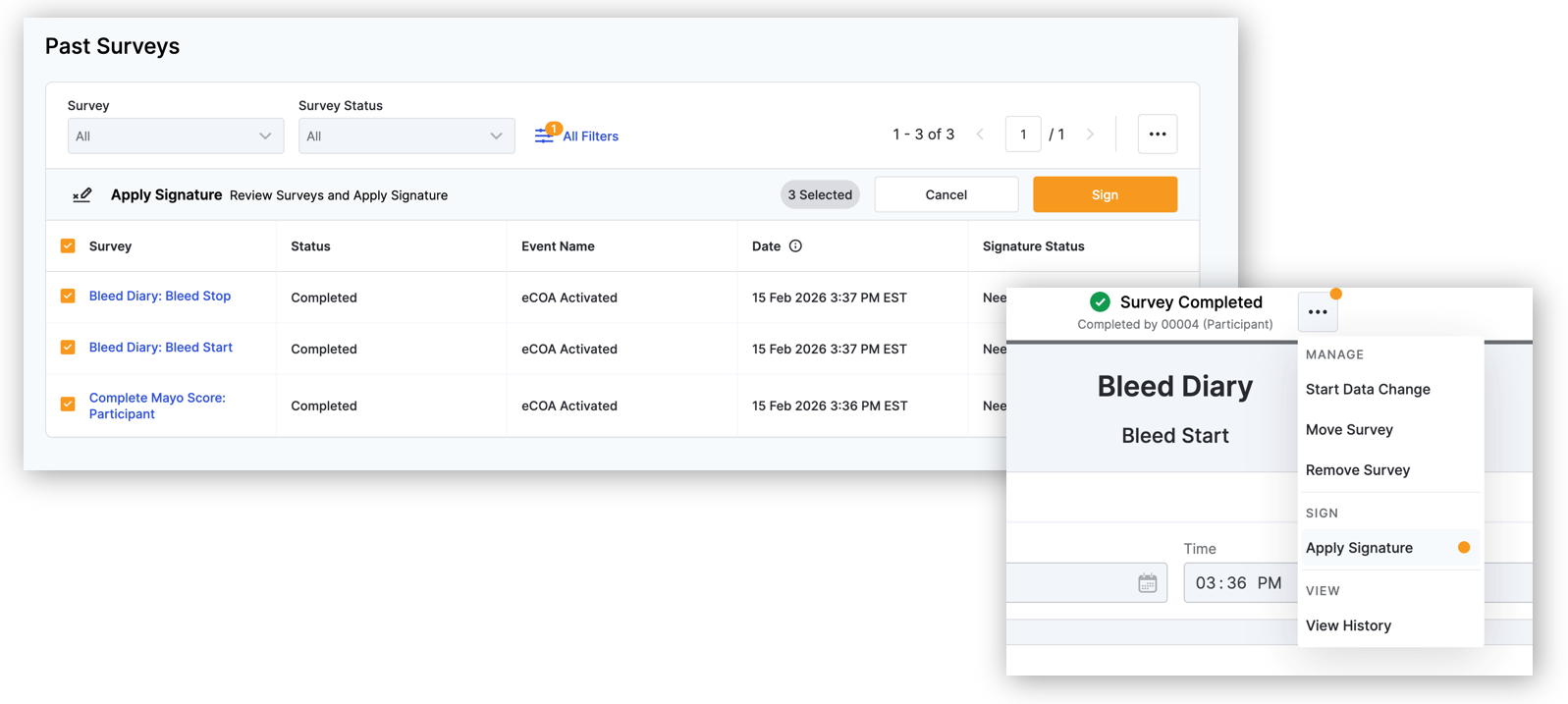
Site Investigator Data Review and Signature
When a sponsor/CRO requires an investigator to review data for completeness and accuracy, investigators can electronically sign using their VeevaID credentials to certify they have reviewed the data.
Sponsor-Controlled Deployment
Sponsors/CROs can deploy and activate an approved study version. If you need to activate a study, the banner will still be displayed at the top of the screen to let you know.
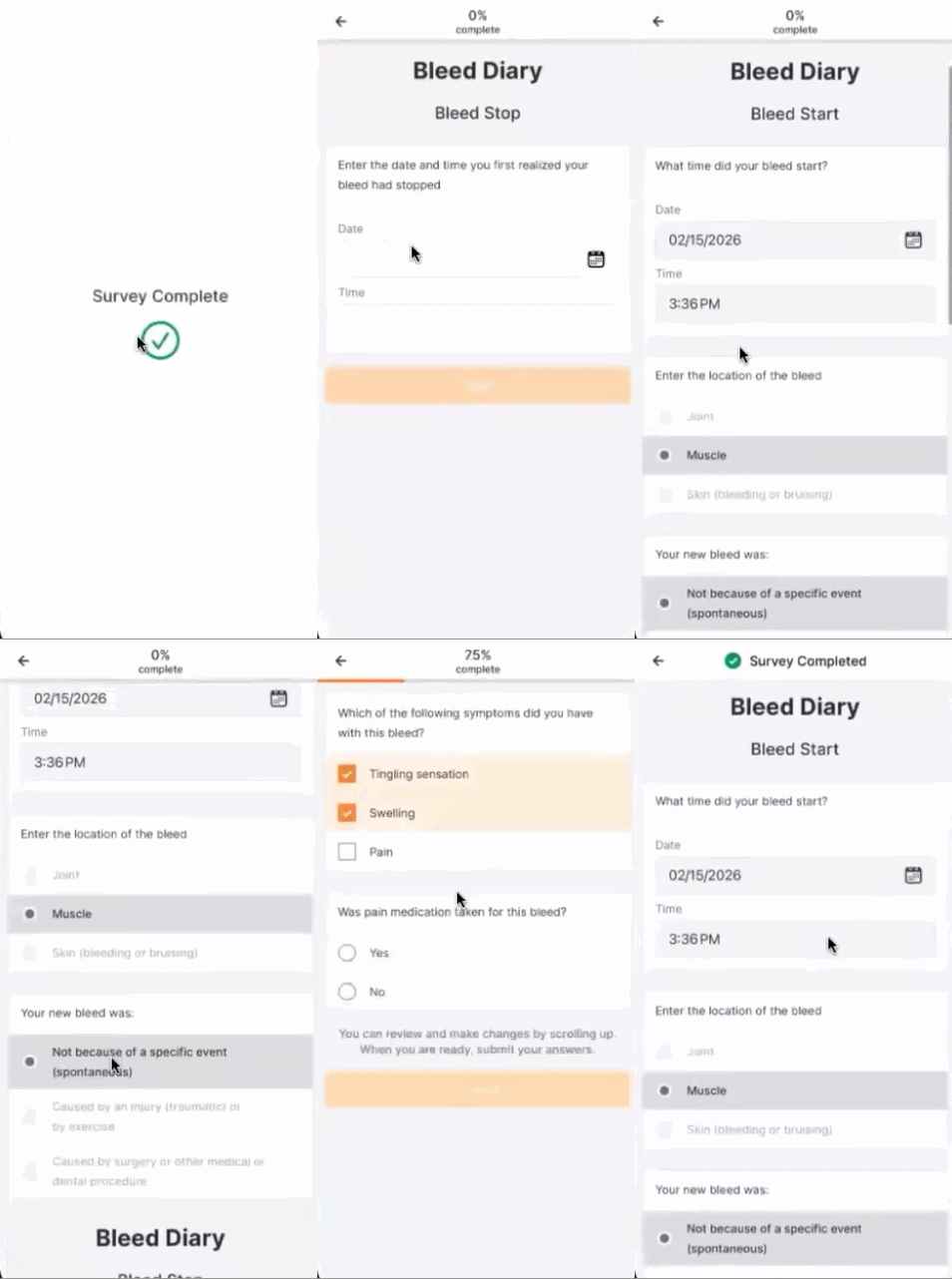
Multi-Part Surveys
Surveys can be configured by the sponsor/CRO to have more than one part. When completing a survey with more than one part, you will be able to submit and view previous parts. When changing survey data, you can select which parts to perform the change on.
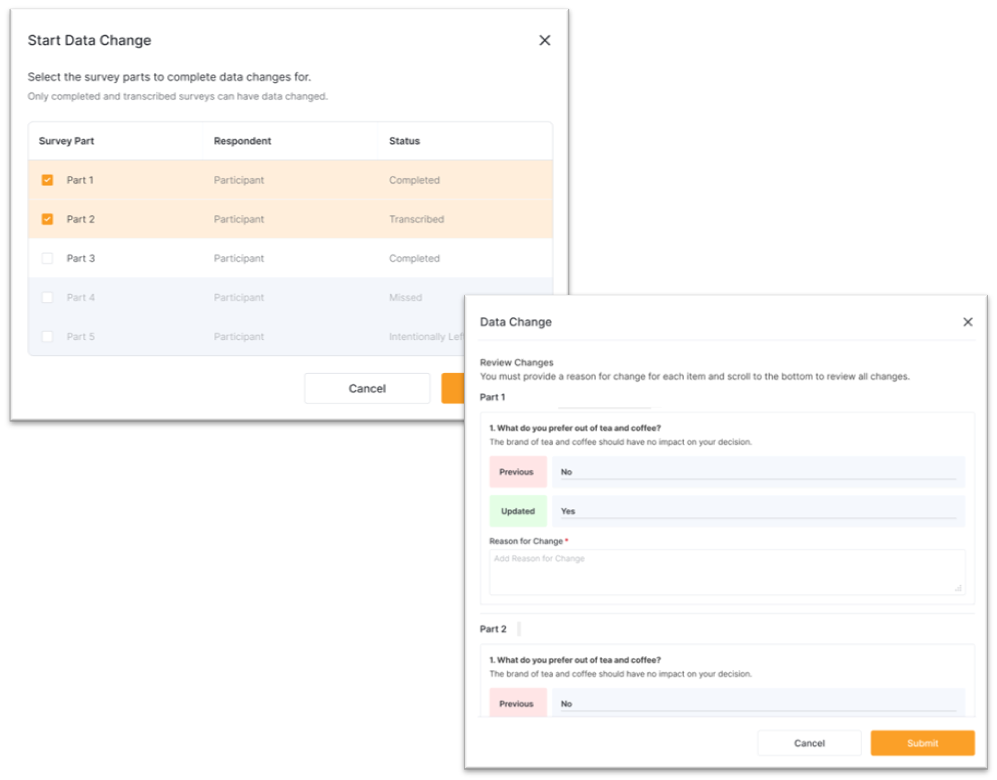
Composite Surveys
Composite surveys are configured by the sponsor/CRO to have a different respondent for each part. When viewing a composite survey, you will see parts completed by different respondents, such as participants and other site staff. When changing survey data, you can select which parts to perform the change on.
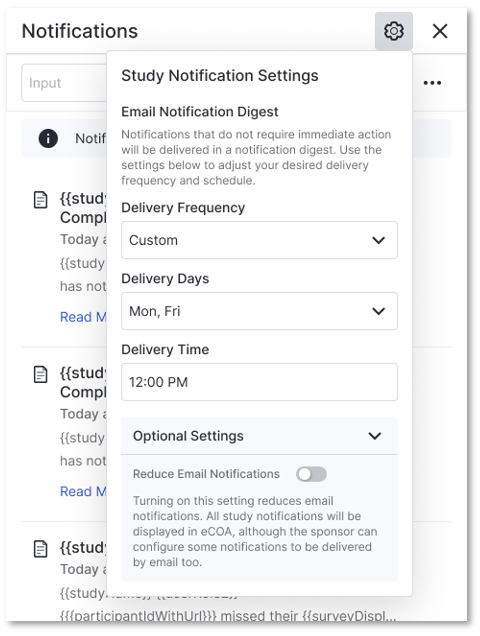
Notification Digests for Sites
eCOA can now combine eligible email notifications into summary digests to reduce your email volume. You receive a daily digest by default. You can update the frequency and delivery timing in your profile settings.
Attachment Uploads in eClinRO Surveys
When an eClinRO survey is configured to include it, you can upload files, such as cognitive assessments, directly to the survey. Supported formats include PNG, JPEG, and PDF.
Site Timezone for Site Activities
All of your study activities now use your site's timezone instead of your personal user timezone. We record survey completion times, event datetimes, and validations based on your site's location. This ensures accurate data for eClinRO and in-person survey completions.
Site Notification Emails Language Changes
We now send email notifications only in supported site languages based on your study site's country. Supported languages are Italian (Italy), Japanese (Japan), Chinese (Simplified, China), and English (all other countries).
General Usability and UI/UX Enhancements
This release includes updates for improved usability:
- Email notifications use supported site languages only.
- The survey display filter defaults to All when you view surveys on the Events list.
No release notes match the selected filters.



