Overview
Users can answer survey questionnaires in this app, and their answers are confidential. The surveys become available based on the event dates you select. When the user needs to complete a survey, they receive a notification for it in their email or app. The specific notifications they receive depend on how the sponsor has configured the study and the user’s push notifications.
See the following information about survey availability:
- Surveys are only displayed for today and tomorrow.
- Users can also view the list of surveys they completed today, but they cannot open them.
- Surveys with due dates further out are not displayed until they are due within one day of when the user is viewing the app.
- When available, training surveys are displayed at the top of the page in a banner. The surveys function the same as a standard survey, but the data is not included in the Survey Data report.
- When available, as-needed surveys in the “Complete As Needed” section can be completed as many times as the user needs.
Previewing Surveys
If you want to preview the questions the participant or caregiver is seeing, use the Study Preview. You can interact with any part of the survey preview, including submission.
- In the Study Details tab, select Preview Study.
- If the study design includes groups, select groups according to the participant you are trying to preview the surveys for and select Continue.
- Find and select the survey you want to preview. The survey opens in a new tab, and you can interact with it as a respondent would.
Starting a Survey
The user completes the steps below.
| Step | Task | Example Image (Select an Image to Enlarge) |
|---|---|---|
| 1 | Open the To Do page and select the survey. | 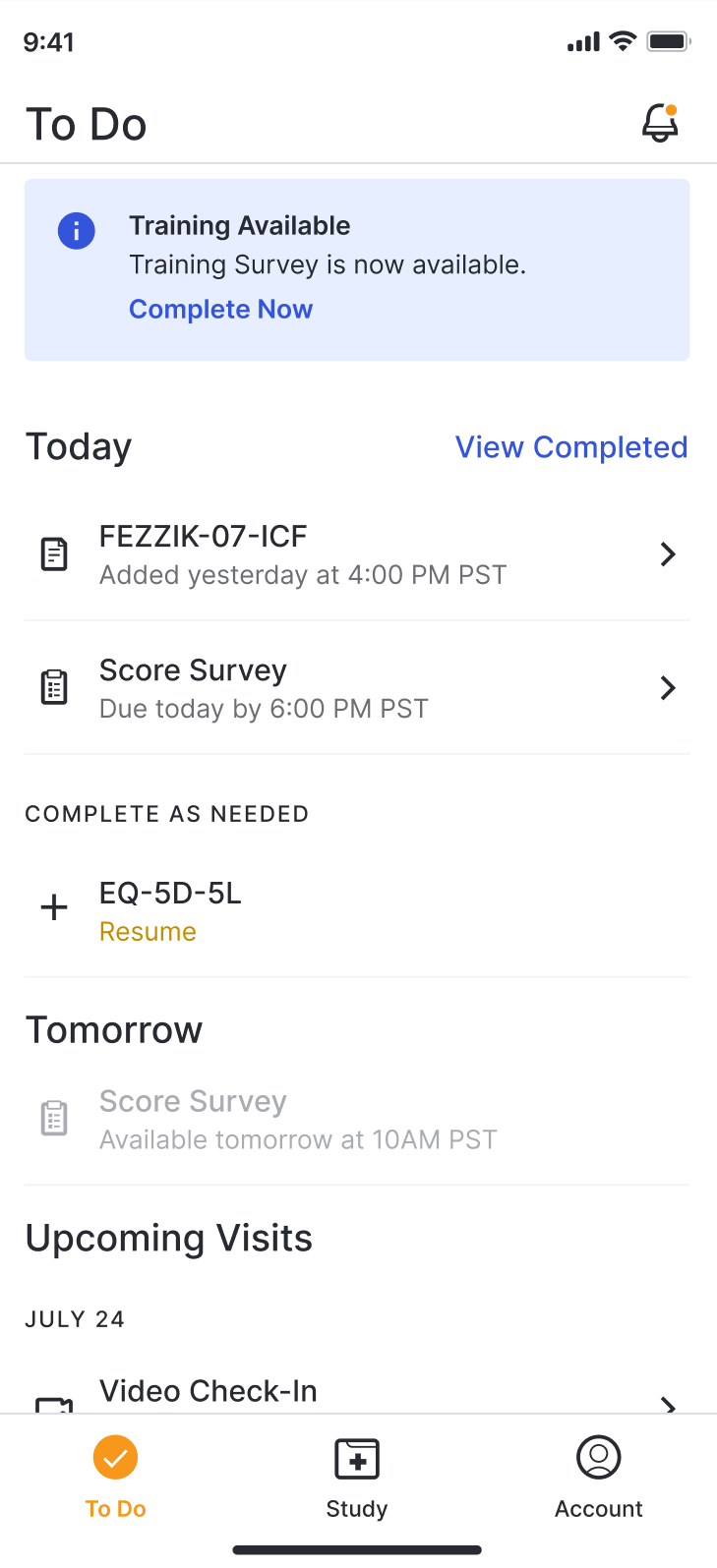
|
| 2 | If answering a diary survey, select Add New Diary. | Preview the survey for images. |
| 3 | Answer the survey questions. You can scroll up to view questions you’ve already answered. | Preview the survey for images. |
| 4 | Select Submit. Your survey answers are sent to your study team. | Preview the survey for images. |
Working With Repeating Questions in a Survey
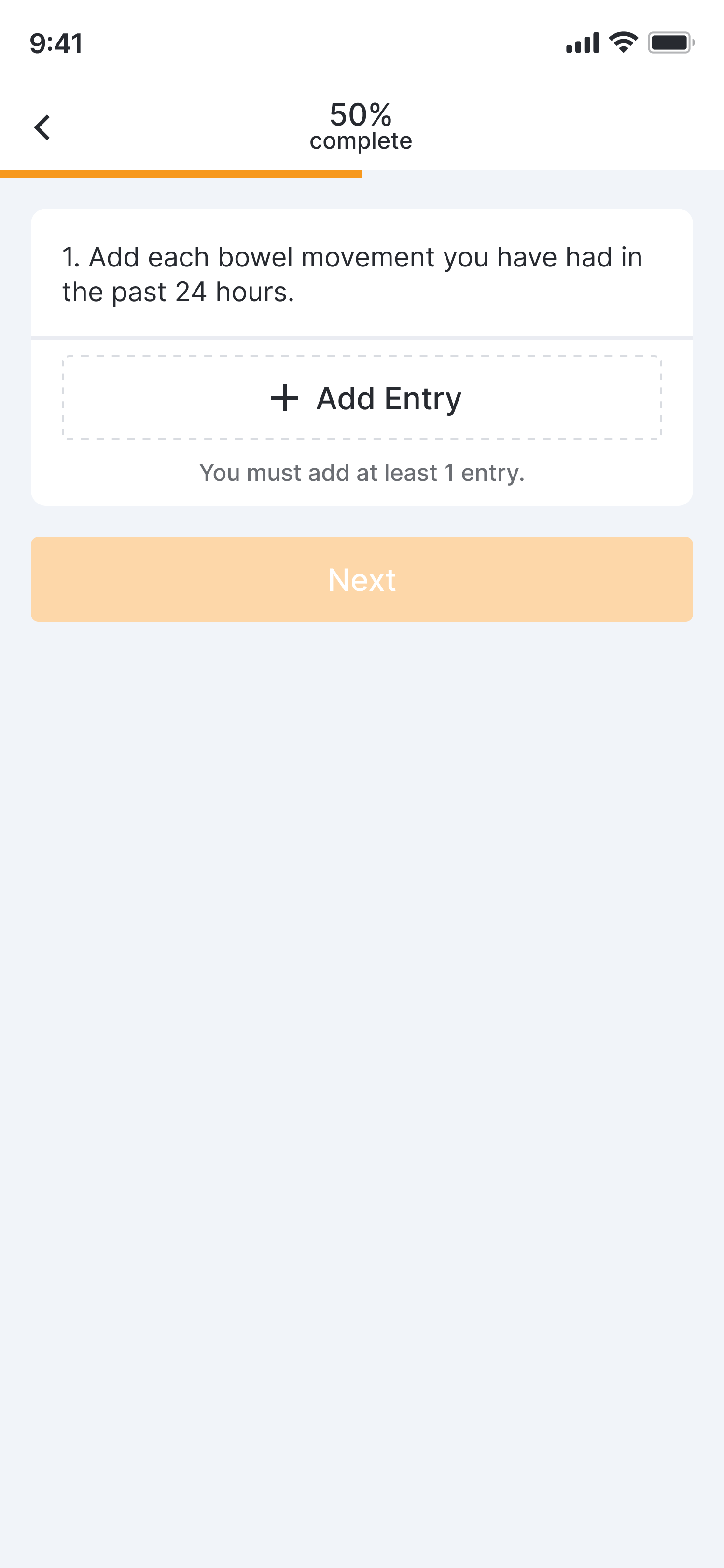
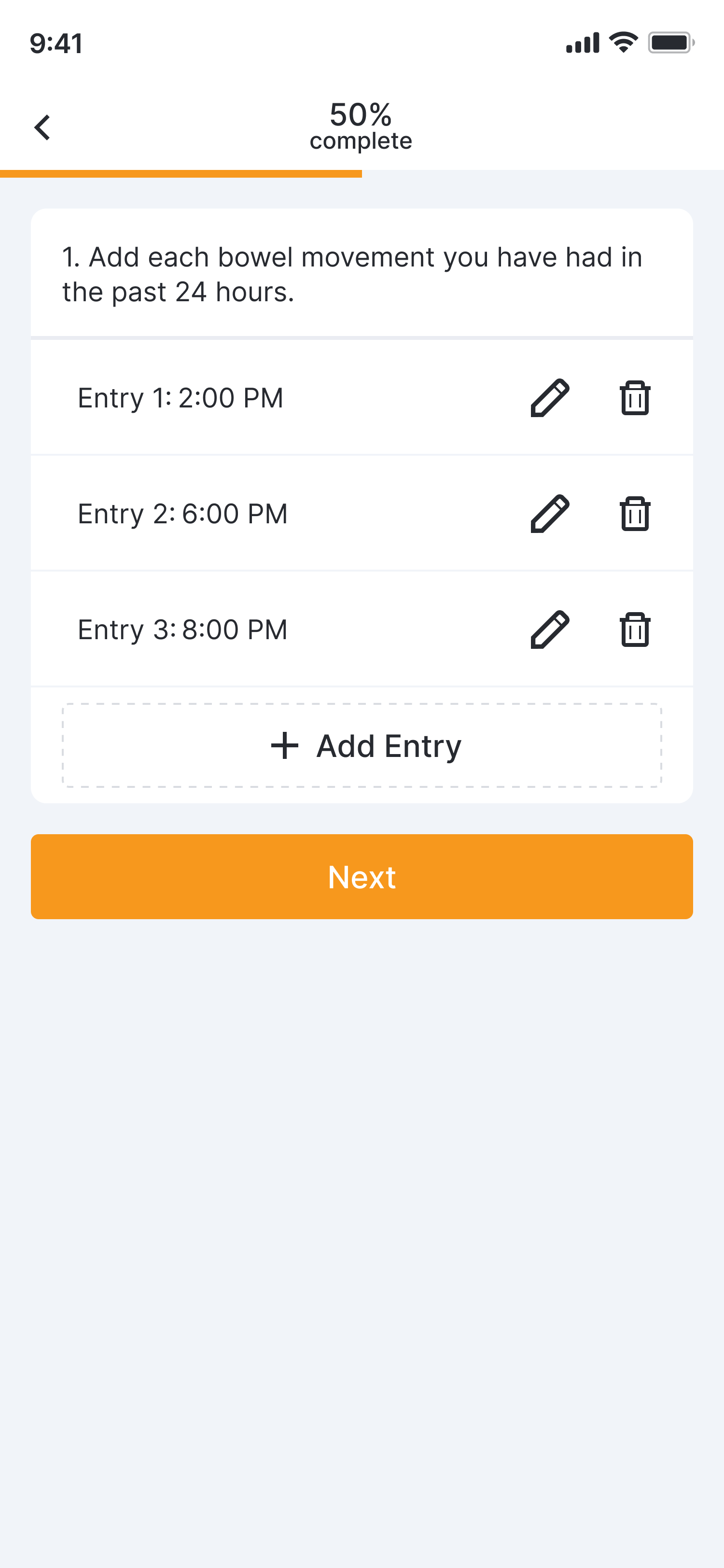
If a survey includes repeating sets of questions, the respondent can choose to answer the set multiple times. This functionality allows the same set of data to be collected multiple times.
The user completes the steps below:
| Step | Task | Example Image (Select an Image to Enlarge) |
|---|---|---|
| 1 | Select the + Add Entry button. |
|
| 2 | Answer the question and select Next to continue to the next in a set of questions, or Done if you answered all questions. | Preview the survey for images. |
| 3 | Repeat Steps 1-2 for all responses you want to add. | Preview the survey for images. |
| 4 | (Optional) You can edit or delete previous responses by selecting the Edit Entry icon ( ) or the the Delete Entry icon ( ) or the the Delete Entry icon ( ). ). |
|
| 5 | Select Next or Submit to continue with the survey. | Preview the survey for images. |
Working with Interactive Images in a Survey
Pain Detect Questions
Note Visually impaired participants will need assistance when answering this question type because human-friendly labels and keyboard navigation may not be supported on all platforms.
The user completes the steps below.
| Step | Task | Example Image (Select an Image to Enlarge) |
|---|---|---|
| 1 | Select a side of the body. | 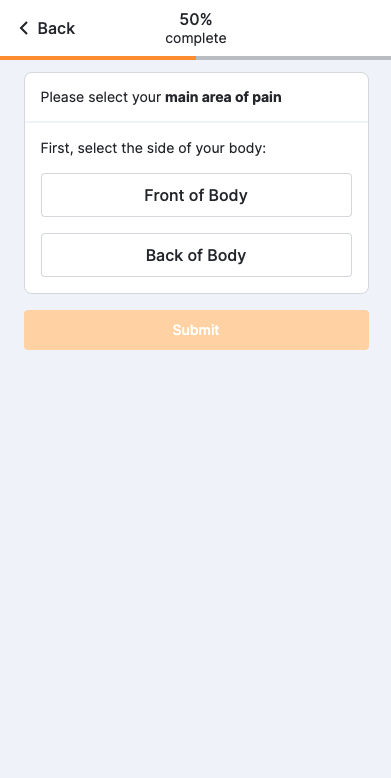
|
| 2 | Select the area on the body that applies to the question.
|
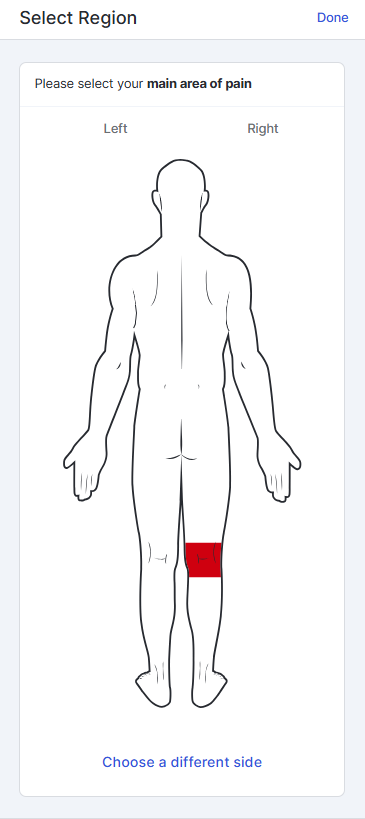
|
| 3 | Close the screen by selecting Done or Close (X). Your body part selection is saved. | Preview the survey for images. |
| 4 | Continue answering questions in the survey. | Preview the survey for images. |
Note If an area is unavailable to select, a related body map question has already been answered that prevents you from selecting that area. Update your response to the other question if needed.
Joint Count Questions
The user completes the steps below.
| Step | Task | Example Image (Select an Image to Enlarge) |
|---|---|---|
| 1 | Select Make Selection. | 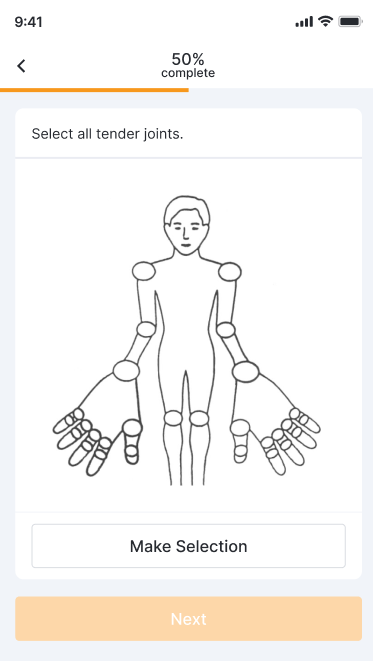
|
| 2 | Select the joints that answer the question, and select Done or Close (X). |
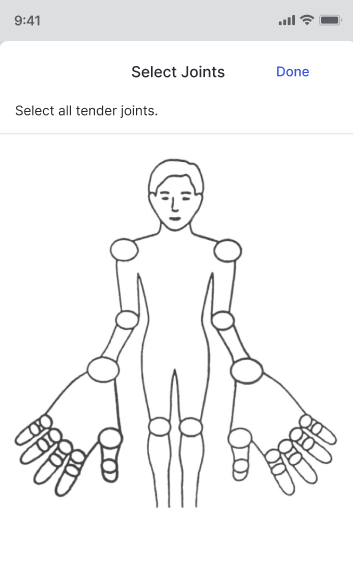
|
| 3 | (Optional) To change your selection, select Change Selection, select or deselect joints, and select Make Selection again. | 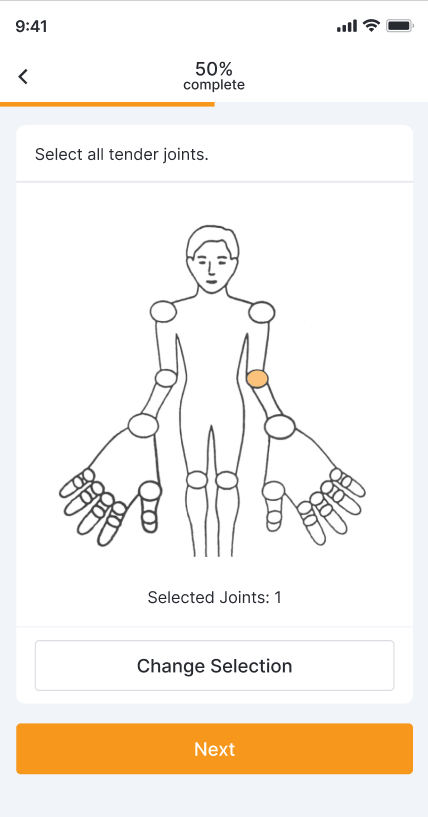
|
| 4 | Continue answering questions in the survey. | Preview the survey for images. |
Free Draw Questions
The user completes the steps below.
| Step | Task | Example Image (Select an Image to Enlarge) |
|---|---|---|
| 1 | Select Draw Response. | 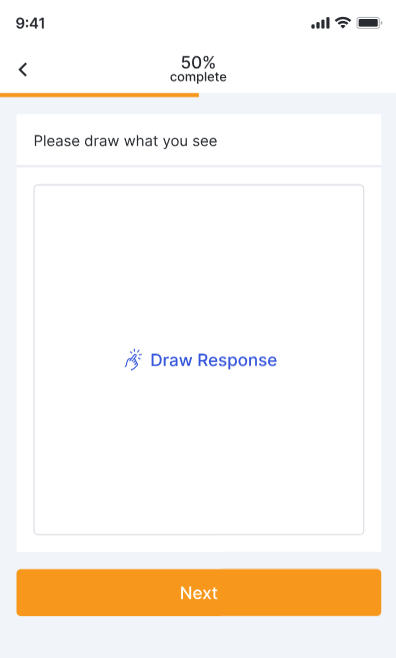
|
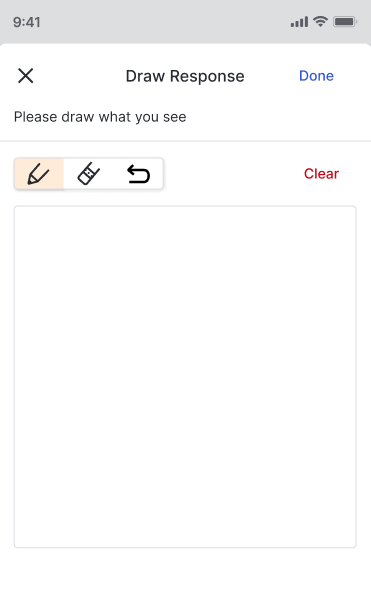
| 2 | Draw your answer to the question in the box, and use the following icons as needed:
|
|
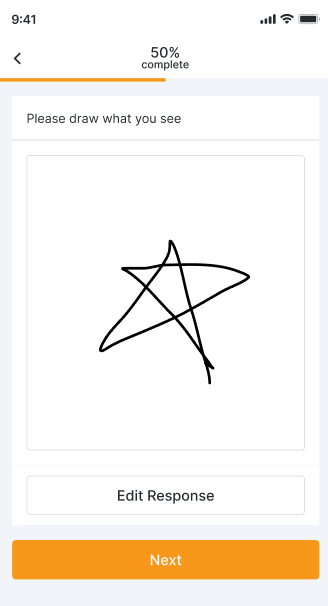
| 3 | (Optional) To change your selection, select Edit Response, and use the following icons as needed:
|
|
| 4 | Continue answering questions in the survey. | Preview the survey for images. |
Resuming a Survey
The user completes the steps below.
| Step | Task | Example Image (Select an Image to Enlarge) |
|---|---|---|
| 1 | On the To Do page, select the survey you want to resume. | 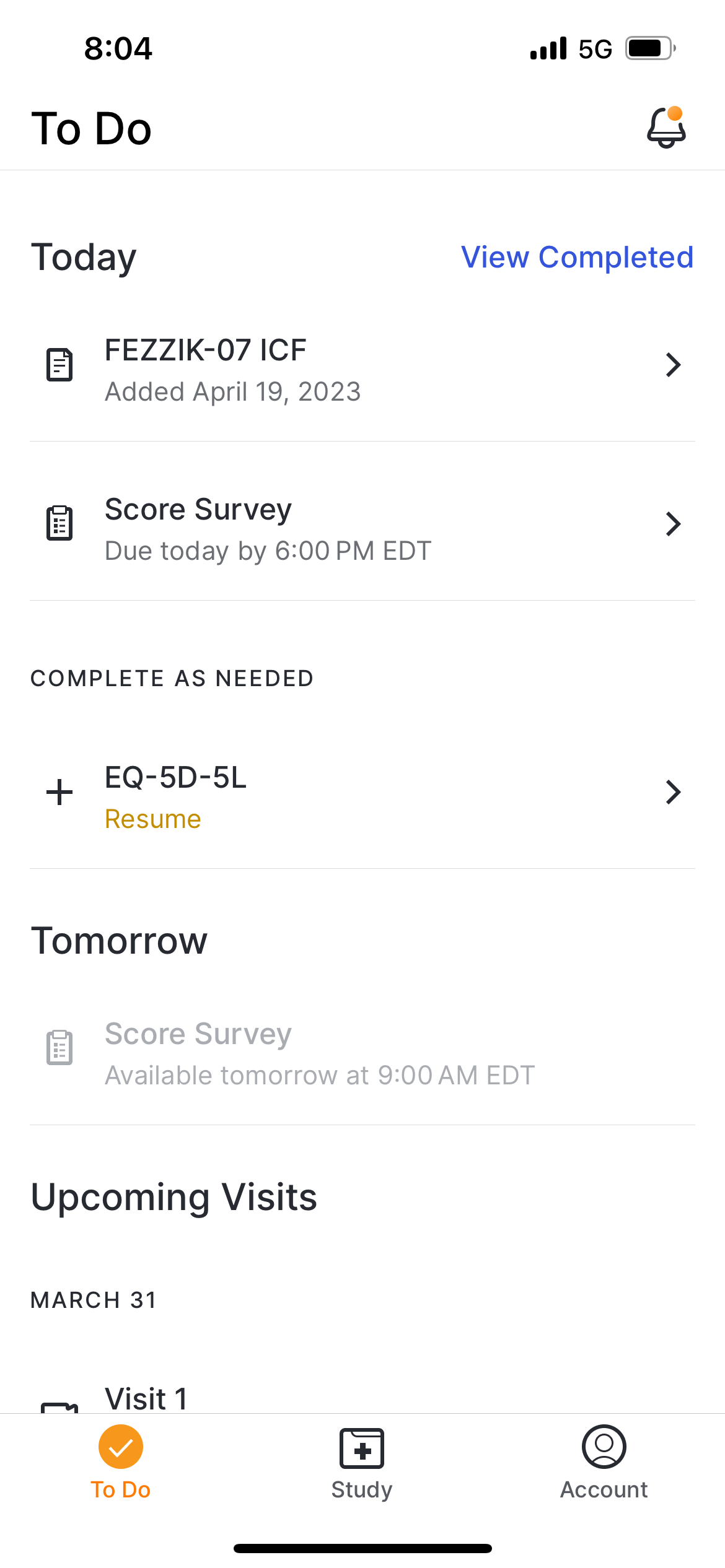
|
| 2 | If answering a diary survey, select the diary entry you want to resume. | Preview the survey for images. |
| 3 | Answer the survey questions. You can scroll up to view questions you’ve already answered. | Preview the survey for images. |
| 4 | Select Submit. Your survey answers are sent to your study team. | Preview the survey for images |
Viewing Completed Survey Diary Entries
Depending on study configuration, users may be able to view completed survey diary entries. The user cannot change the selections they made when viewing a completed survey.
The user completes the steps below to view submitted diary entries.
| Step | Task | Example Image (Select an Image to Enlarge) |
|---|---|---|
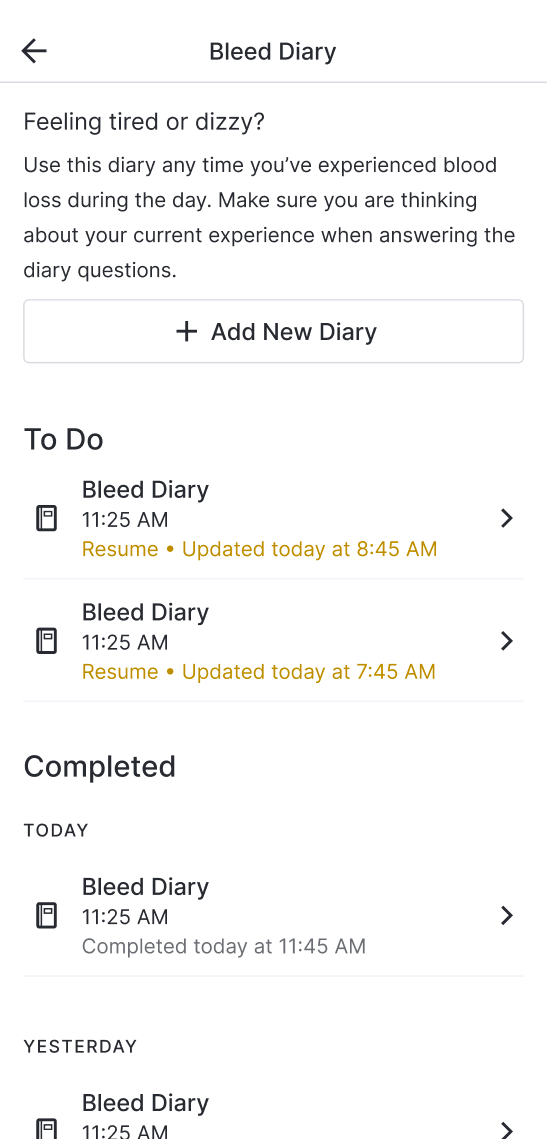
| 1 | Open the To Do page and select the diary you want to see in the Complete As Needed section. That diary window opens. | 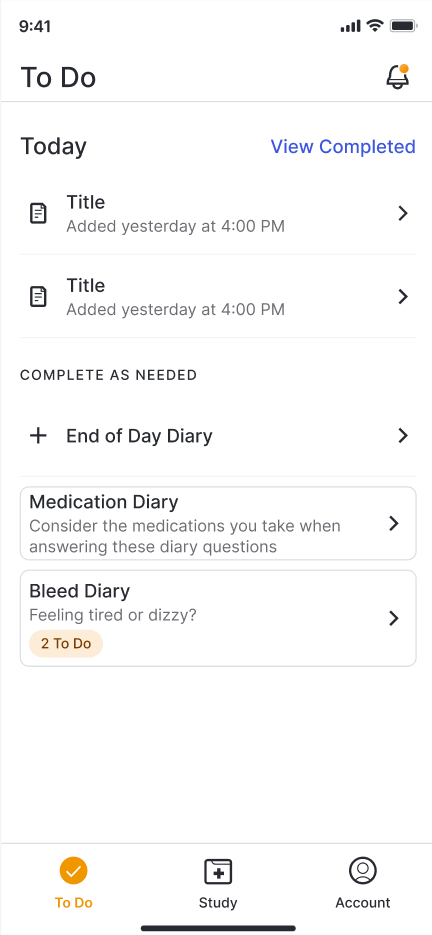
|
| 2 | Scroll down and select the completed diary entry you want to see. The diary opens. | Preview the survey for images. |
| 3 | When you are finished viewing, select the back button at the top of the page ( ). ). |
Preview the survey for images. |
Troubleshooting
| Issue | Possible Reasons |
|---|---|
| User Does Not See Surveys When They Log In |
|
| User Cannot Find Survey to Resume | The survey due date passed. |



