Who can complete this task?
- Administrators and Site Staff with the Financial Management Extended Permission
Overview
Billable items are the services and activities your site provided during a study that can be charged to the sponsor, as defined by the study budget.
The Billable Items tab provides a comprehensive list of all billable items.
- Participant Fees (Activity and Visit) will automatically generate billable items as participant visits are completed.
- Site Fees may be used to generate billable items on an ad hoc basis throughout the invoicing and payment reconciliation processes.
- When creating site fees, overhead and withholding fields default to exempt but can be edited as needed.
- Custom billable items can be created at any time to document non-budgeted billing adjustments such as pass-through costs, credits, and fee adjustments.
- Use filters to group billable items for efficient tracking and invoicing.
- Once a billable item is associated with an invoice or payment, it cannot be changed.
- Export options are available from the Actions menu.
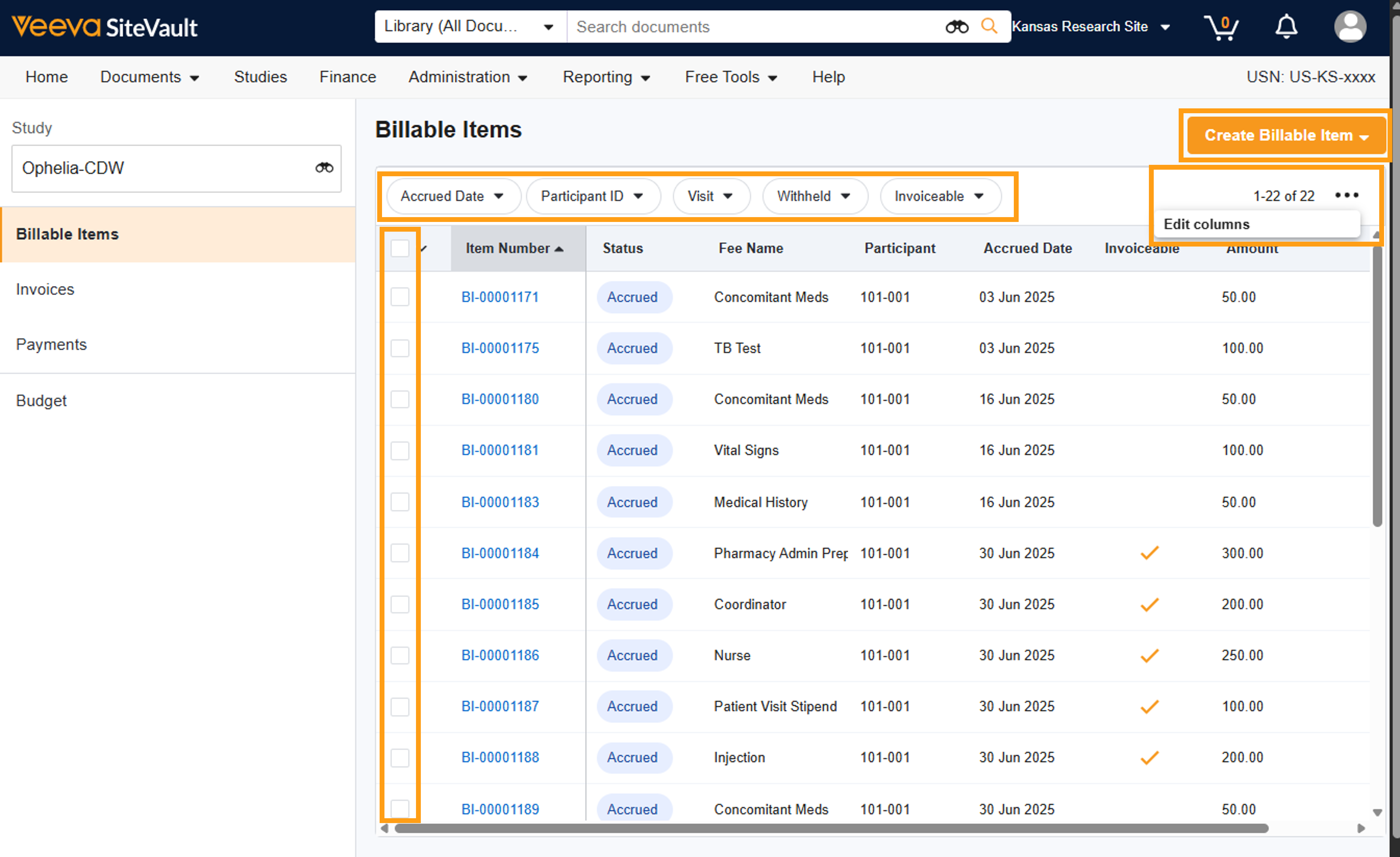
Review Billable Items
To review billable items, complete the steps below:
- Navigate to Finance > Budgets & Billing > Select Study > Billable Items.
- The table displays billable items, including accrued date, participant ID, visit, and withheld amounts (if applicable).
- Utilize the Actions menu to Edit Columns and customize your view. These settings will be retained between logins.
- Use the filters at the top of the table to sort and manage the displayed items:
- Accrued Date: Limit your view to a specific accrual date range.
- Participant ID: View fees tied to a specific participant.
- Visit: Limit your view to one or more specific visits.
- Withheld: Include or exclude the withheld portions of each billable item.
- If your site uses withholding, add the Withheld column and filter out withheld items when creating invoices, as these will not be paid immediately.
- Invoiceable: Filter your results based on whether or not a billable item is Invoiceable.
Create Billable Items
Beyond visit-driven fees, you can manually create billable items (ad-hoc costs like startup fees) from the list of available Site Fees or create a custom billable item for adjustments such as pass-through costs, credits, and fee adjustments.
To create billable items, complete the steps below:
- Navigate to Finance > Budgets & Billing > Select Study > Billable Items.
- Select + Create Billable Item.
- Select one of the following:
- Custom Billable Item: Complete the required fields and optionally associate the item with a participant or visit, then save.
- From Site Fee:
- Select the corresponding checkboxes of billable items to create.
- Specify a quantity for each selected item if applicable.
- Update the accrued date to reflect when the fee was expected to occur.
- Select Save.
- Note: Custom-created billable items are automatically set to Invoiceable.
