Who can complete this task?
- Administrators and Site Staff with the Financial Management Extended Permission
Overview
Once you have your study schedule in place, you’re ready to set up your study budget.
The budget is the negotiated agreement between you and the sponsor that documents how you are compensated for work throughout the trial. The budget typically includes compensation for scheduled activities, unscheduled activities, and other direct and indirect costs.
- The system supports multiple budget versions. If the budget is renegotiated or the schedule changes, you can create a new version. Each new version builds off the prior version, so you don’t have to start over with every revision.
- The effective date of a budget determines which budget version is used when visits are moved to the Completed status.
- Newly created budgets are associated with the current version of the study schedule. You cannot create a budget until a current version of the study schedule exists.
- Once a budget is made current, it cannot be altered. To make changes, you must create a new version.
- Study Schedules and Budgets are versioned independently. When a new version of the schedule is made Current, billable items for participants will automatically generate based on the new schedule’s activities, even if a new budget version is not created. However, if a schedule change impacts the items you intend to bill for, or how much you should be paid, always create a new budget version.
Access the Budget
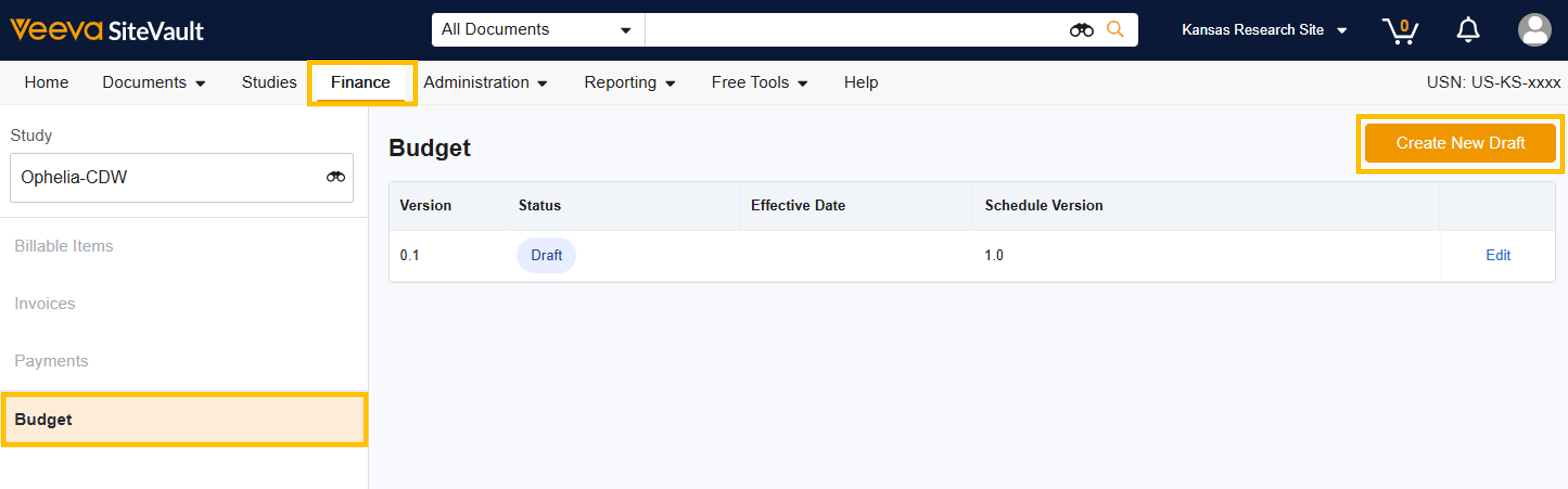
To create a study budget, complete the steps below:
- Navigate to Finance.
- Select the study.
- Select Budget.
- If no budget exists, select Create New Draft.
Complete Budget Overview
The Budget Overview contains high-level information and key parameters for your budget.
The following fields can be completed at any time during the budget creation process. The effective date must be present to move the budget to the Current state.
- Effective Date: This is a required field when the budget becomes current.
- Description/Notes: Enter a high-level description or notes about the budget.
- Currency: Defaults to US dollars, but is editable.
- Overhead Rate: This is a flat percentage applied to fees that you can use to account for indirect costs (ex., building costs, uncompensated staff time). Enter a percentage (ex., 30%).
- Withholding Rate: A percentage held back by the sponsor from each fee owed to a site, typically paid at the end of the trial. If withholding applies to a fee, the system will generate two billable items: one for the immediately owed amount and one for the withheld amount.
- Include Coverage Analysis: When enabled, the Coverage Analysis tool allows users to precisely define billing responsibilities for each study activity as either Sponsor Paid, Routine Cost, or Not Billable on the Coverage Analysis tab. The tab also provides a space to capture activity-specific billing notes and Current Procedural Terminology (CPT) codes. Once designations and notes are saved, the system uses this information to update the Participant Fees table so that items designated as Routine Cost or Not Billable are not billed to the sponsor.



