Digital Delegation Quick Start Guide
A simple walk through of the concepts and steps for managing responsibilities and delegations.
Understanding & Managing Responsibilities & Delegations
Understand how to use responsibilities not only to keep your delegations log current, but to stay on top of all of your site and study processes.
This guide walks you through the digital delegation process in SiteVault. To access the content in this guide as well as more helpful tools, see the Digital Delegation section of SiteVault Help.
Pro Tip: To launch linked pages without losing your place in the guide, right-click links and select to open in a new tab.
SiteVault Help
SiteVault Help is packed with detailed articles, FAQs, and even video tutorials to answer any questions that might come up along the way. Getting comfortable with our help system will be a valuable skill as you continue to use SiteVault.
- Explore the site to become familiar with navigating the different sections.
- Use the search bar to quickly find answers to specific questions.
- Use the Chat widget to reach out for additional support.
Additional Support
If you need assistance, please reach out to our Site Support team.
Standard Responsibilities
SiteVault provides you with 24 standard responsibilities in Administration > Responsibilities. This is the master list that will be available to tailor at the study level.
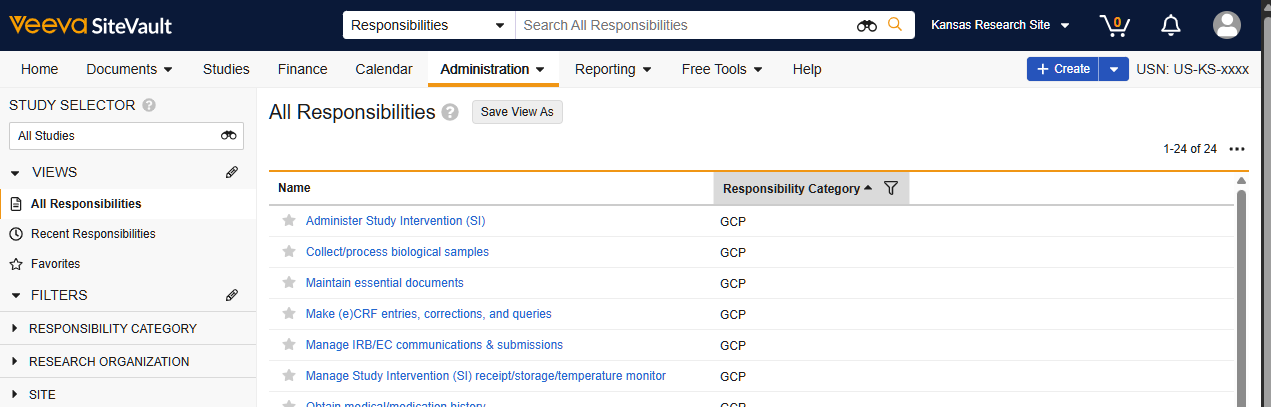
Customize the Master Responsibilities List
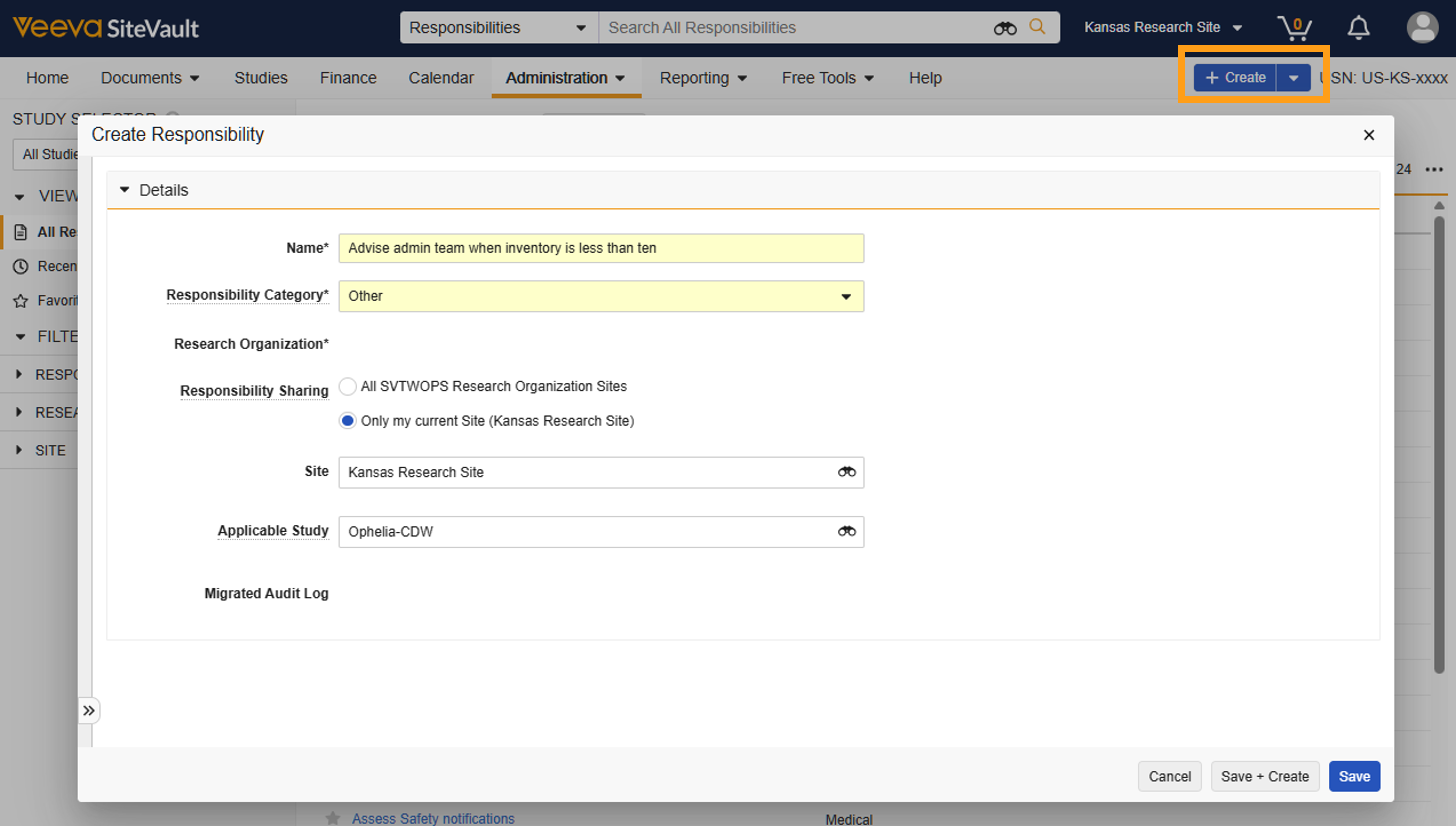
Also at Administration > Responsibilities, you can add custom responsibilities to the master list. Set the responsibility sharing permissions to be organization-wide, site-specific, or limited to a single study.
Assign Person Responsibilities for all Studies
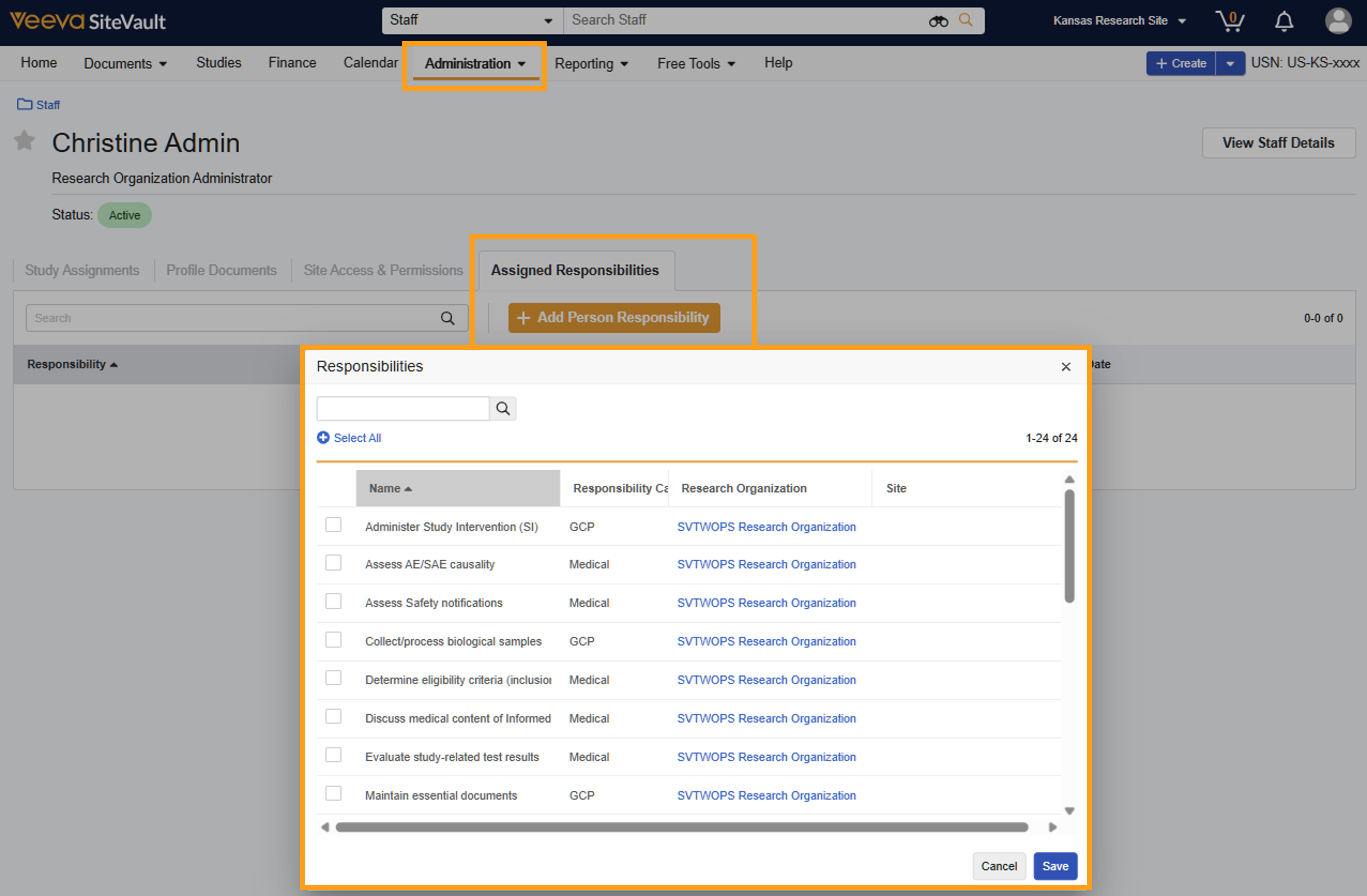
If your site has staff who have certain responsibilities on every study, you can assign those responsibilities to their site user record to automatically delegate at the study level.
Select the user from Administration > Staff, select Assigned Responsibilities, then select the responsibilities to delegate for every study. These default delegations can be adjusted at the study level.
Enable Digital Delegation on the Study
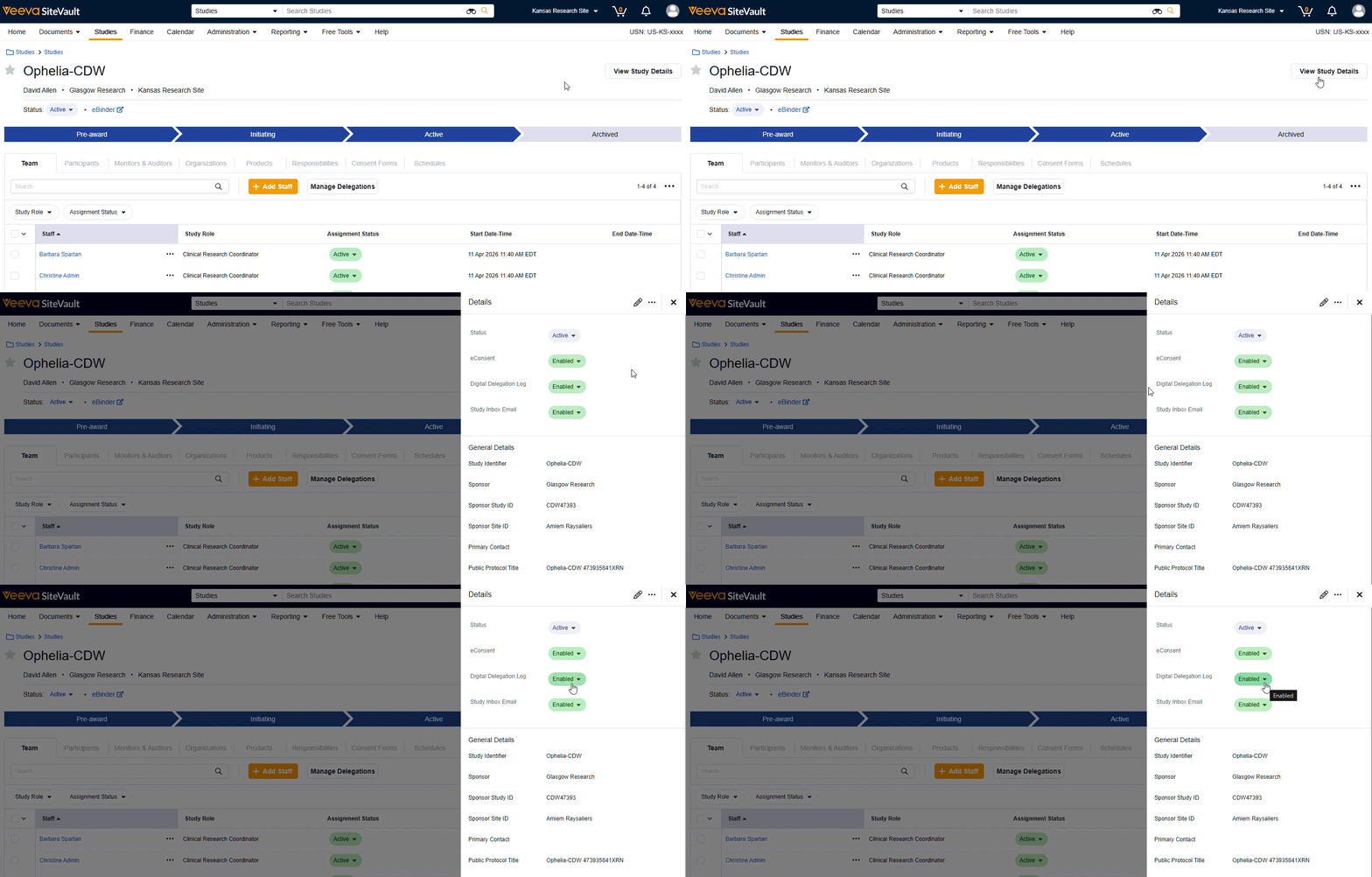
On the Study > View Study Details panel, select Enabled from the Digital Delegation Log dropdown. This will add the Responsibilities tab and Manage Delegations button to your study view.
Study Responsibilities
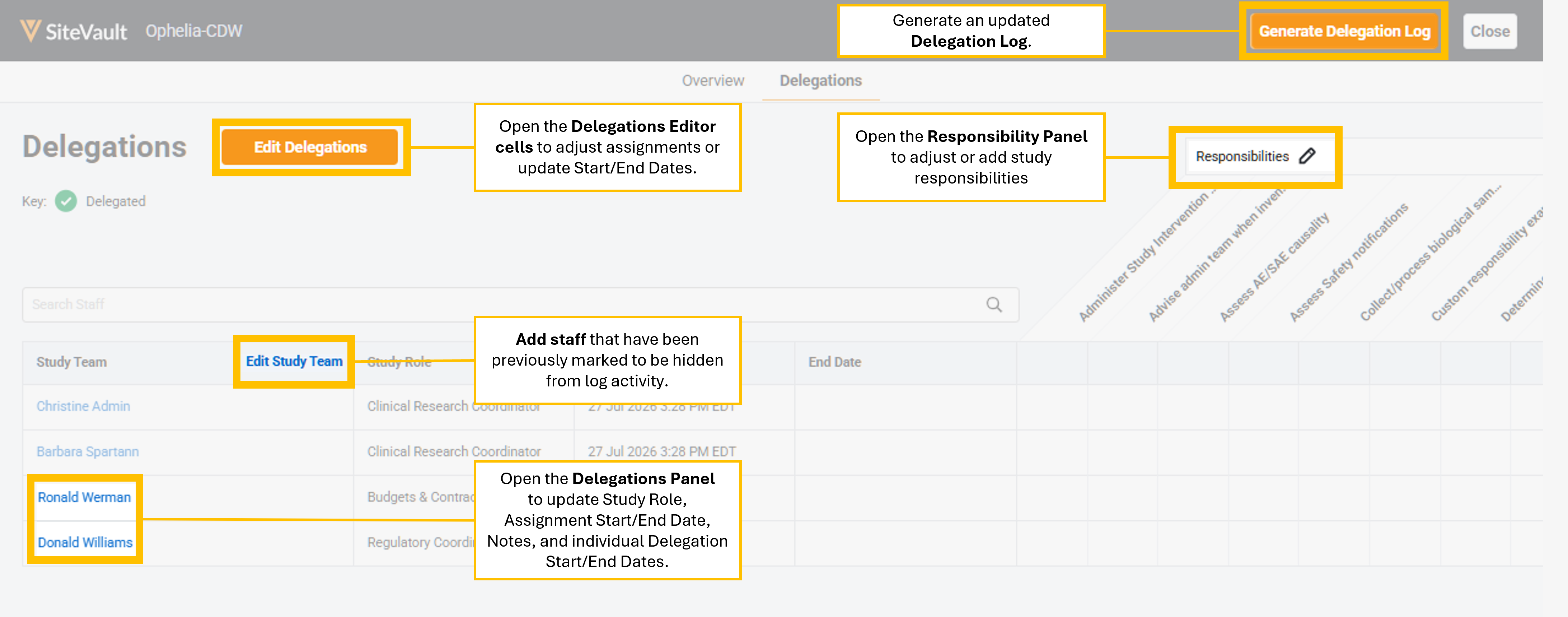
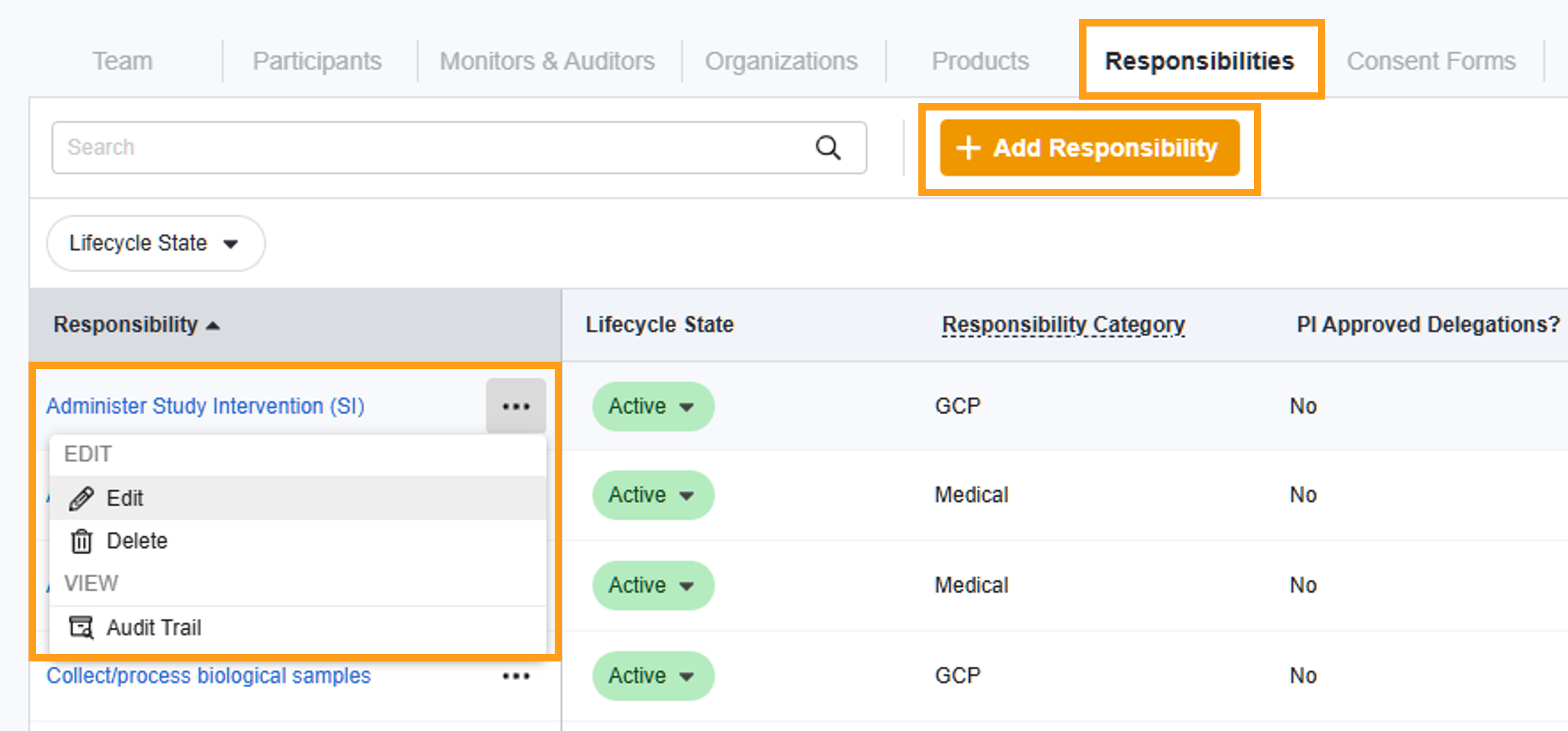
Study > Responsibilities displays the master list of responsibilities from Administration > Responsibilities. Here, you can edit or disable study-level responsibilities as needed without affecting other studies. Select + Add Responsibility to create new responsibilities for the study. You can also update Study Responsibilities from the Delegations Editor by selecting the Responsibilities edit icon (pencil).
Create Delegations by Assigning Responsibilities
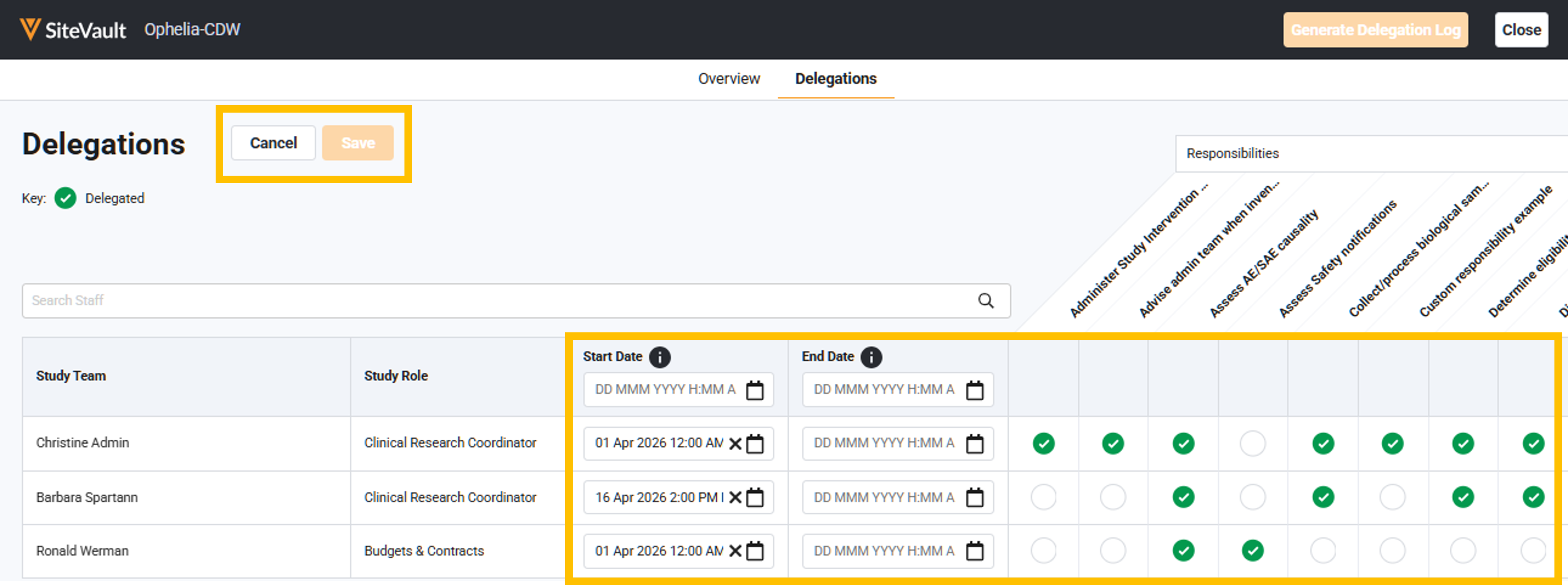
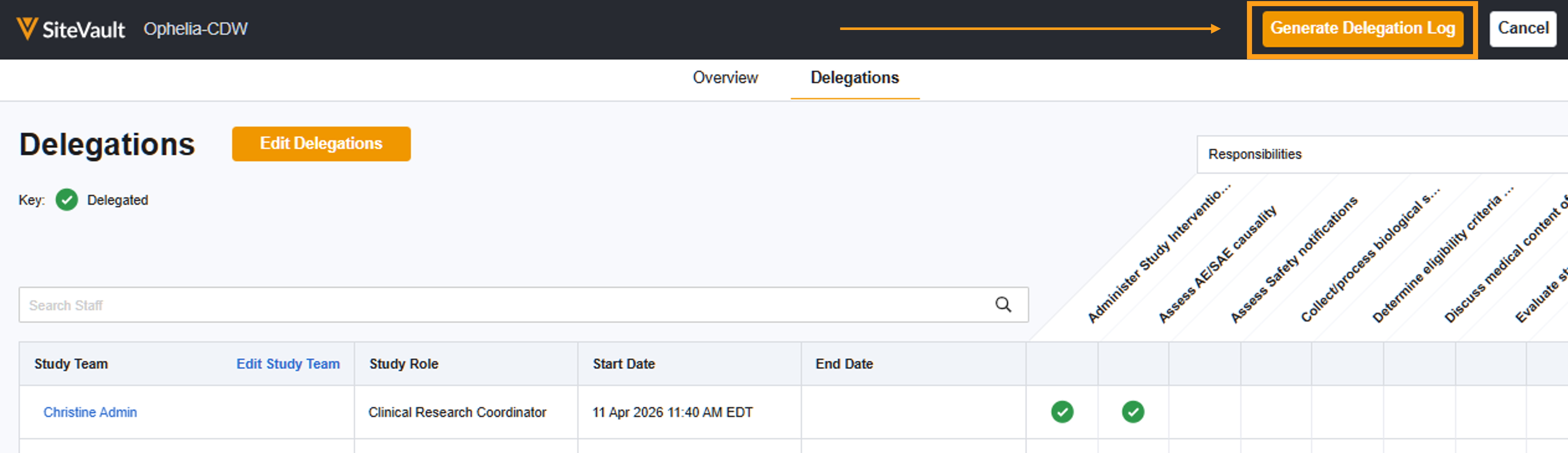
Once you have curated your study’s Responsibilities list, access the study’s Team tab, and select Manage Delegations to access your Delegations Editor. Select Edit Delegations and apply checkmarks to the intersections where staff records meet with their responsibilities. Person responsibilities assigned to staff for all studies will already have a checkmark.
Update delegation Start and End Dates to indicate the designated timeframes for staff members to own a responsibility.
Adjust Delegation Timeframes
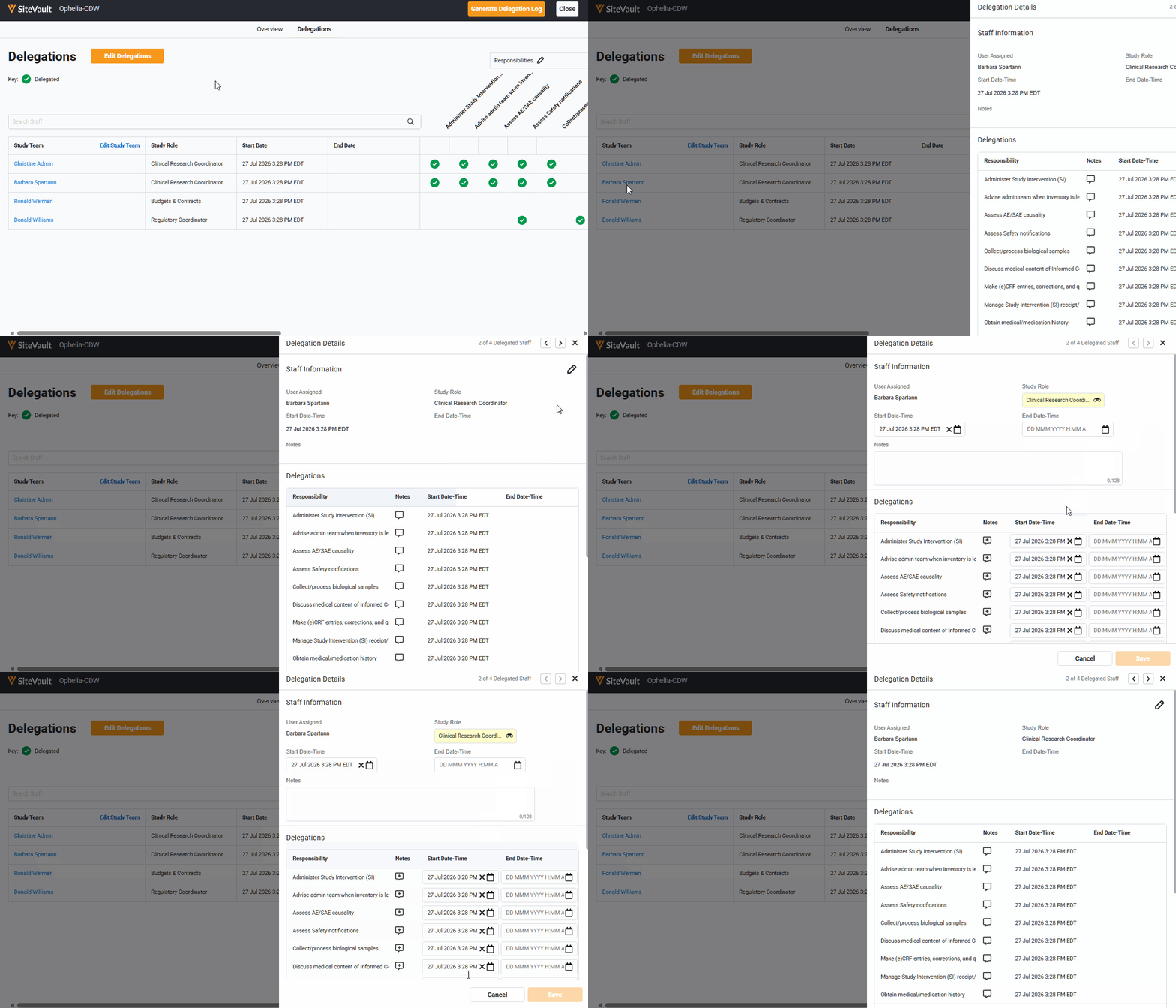
From the Delegations Editor, you can select a study team member and review or edit their delegation specifics. For example, if one delegation should end on a specific day, you can update the individual delegation’s End Date. The delegation End Date should also be used when a Staff user is removed from a study team or leaves the site. Using this field rather than changing Study Team Assignment to Inactive ensures that the Delegation Log retains a more complete audit log for the transfer of responsibility.
Generate the DoA Document
Select Generate Delegation Log from the Delegations Editor (Study > Team > Manage Delegations). You can return to the editor to make adjustments as many times as needed, then generate the log again. The delegations will only be sent for acceptance or approval when you initiate the action. Once you save any changes and generate the log, use the clickable Table of Contents to easily navigate and review.
Approve Delegations
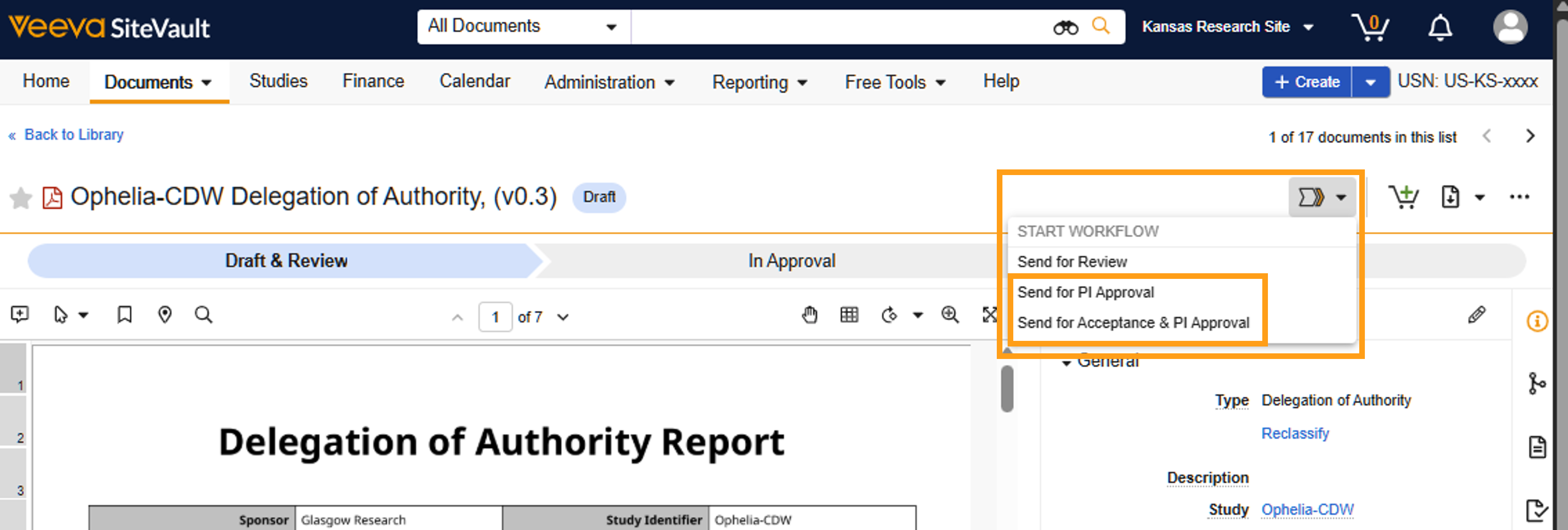
Based on your study needs, you can choose to send the delegations for staff acceptance and then to the PI for approval OR to just send directly to the PI for approval.
If staff acceptance is required, you can select exactly who receives the acceptance task; once all acceptances are in, the PI approval will automatically be initiated. If any staff member chooses to reject, a manual intervention is necessary to initiate the PI approval. This is to ensure that any delegations affected by the rejection are managed prior to initiating the PI approval.
Once the PI approves the delegations, the document status is updated to Current.
Additional Resources
To access the content in this guide as well as more helpful tools, see the Digital Delegation section of SiteVault Help.
If you need assistance, please reach out to our Site Support team.