Who can complete this task?
- Administrators and Site Staff with the Study Schedule Design & Management Extended Permission
Overview
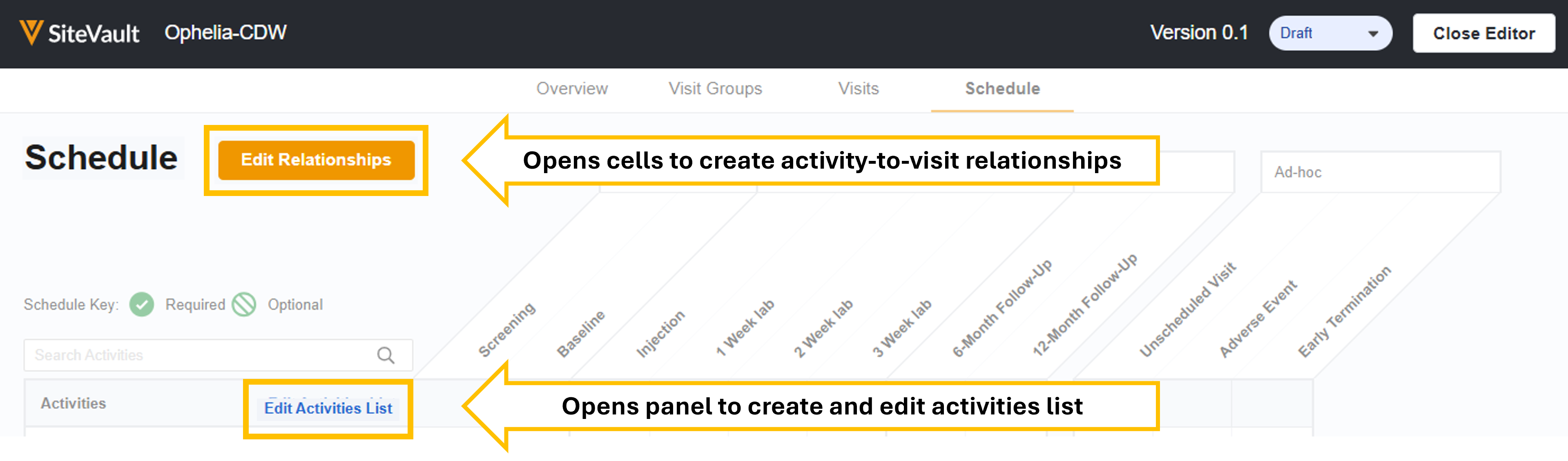
The Activities tab allows you to specify study activities and create relationships to the visits in which the activities occur.
Add Activities
Add all relevant activities from your protocol.
To add activities to your schedule, complete the steps below:
- Within the Schedule Editor, navigate to the Schedule tab. Your defined groups/phases and visits are listed along the top.
- Select Edit Activities List.
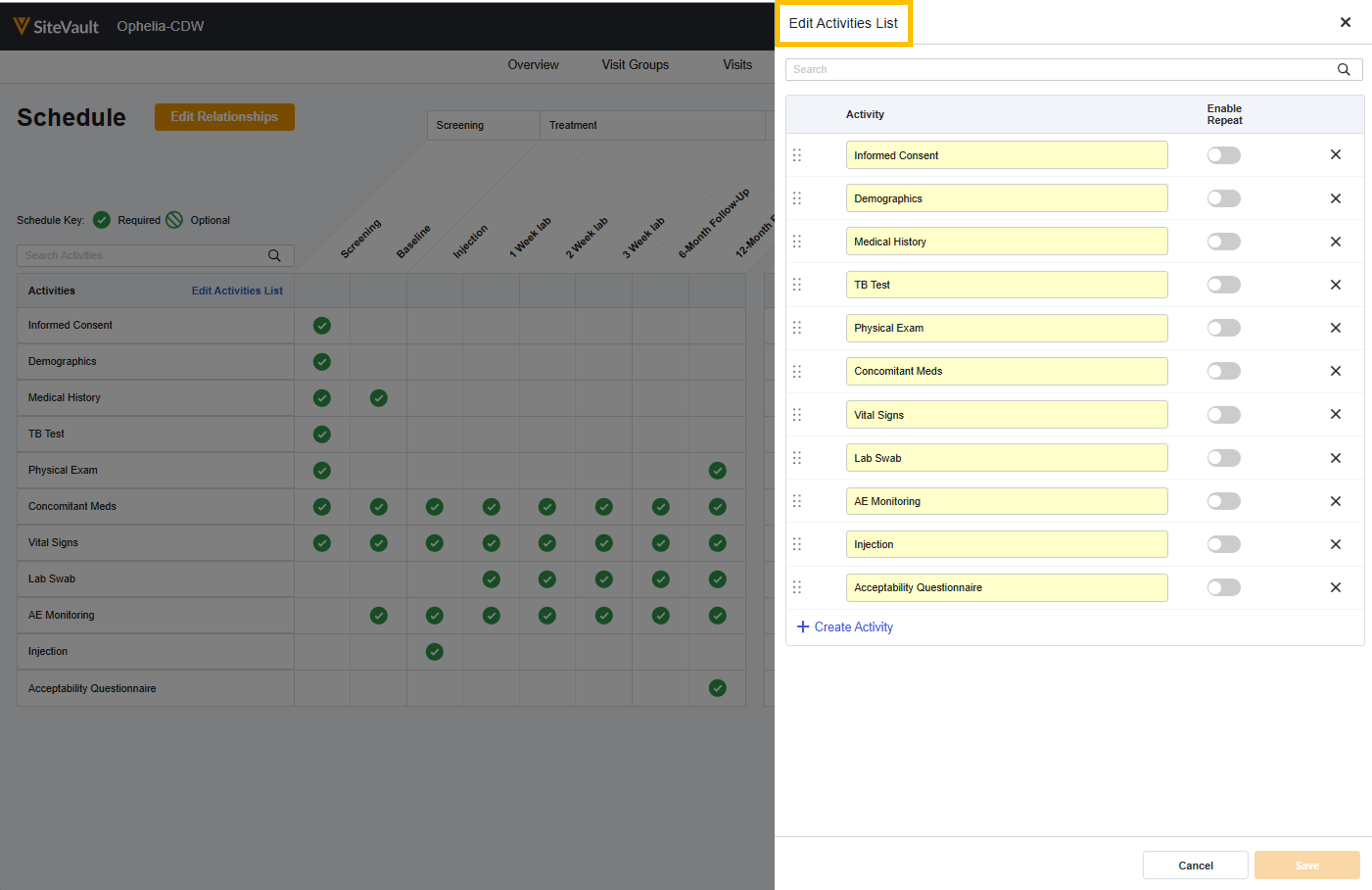
- Select + Create Activity.
- Enter a name for the activity.
- Enable the repeat option if an activity (ex., a pregnancy test, a physical exam) is expected to be repeated at any visit.
- When a repeatable activity is required for a specific visit, you will have an option to specify the expected number of repetitions for that activity within that visit.
- Repeat these steps for every relevant activity.
- Select Save.
Add Relationships
The visits groups and related visits are displayed along the top of the schedule. Activities are listed along the left. Use the cell tools to indicate when activities should be included in a visit.
To add relationships to your schedule, complete the steps below:
- Within the Schedule Editor, navigate to the Schedule tab. Your defined groups/phases and visits are listed along the top.
- Select Edit Relationships.
- Select a cell to indicate that the activity should occur in the associated visit.
- A single click indicates a required activity.
- A second click indicates an optional activity.
- Continue clicking to cycle through options.
- If the activity is required and repeatable, you are prompted to define the expected number of repetitions for that activity within that specific visit.
- Repeat these steps for each activity.
- Select Save.



