The Document Library displays all documents that you have access to in SiteVault. With a site selected in the vault selector, SiteVault displays all documents from all studies to which you have access across the site, including any research organization-level documents. With a research organization selected in the selector, SiteVault displays all documents across all sites to which you have access.
The Library includes tools to annotate and share documents. Administrators can initiate workflows for document review, eSignature, training, and copy certification. Users can review each document’s previous version and the related audit trails.
Library vs. eBinders
SiteVault provides several ways to store and access your documents.
-
The Document Library provides visibility into all of your documents (to which you have access) across all studies, offering many ways to search and save customizable views. For more insight on library capabilities, select a document and open the All Actions menu. The options will change based on the document type and status.
-
The Study eBinder presents documents by the study, grouped by document type to allow visibility into overall study progress and document needs. You can complete most document actions from the Study eBinder. The eBinder tools are specifically designed to save you time and clicks while working on a specific study.
-
The Site eBinder provides a tool to manage your site’s non-study-related documentation and functions in a similar manner to the Study eBinder.
Navigation and Tools
To get started, navigate to the Documents > Library tab. Once in the library, you can use the Study Selector and other filters to quickly find the documents you need.
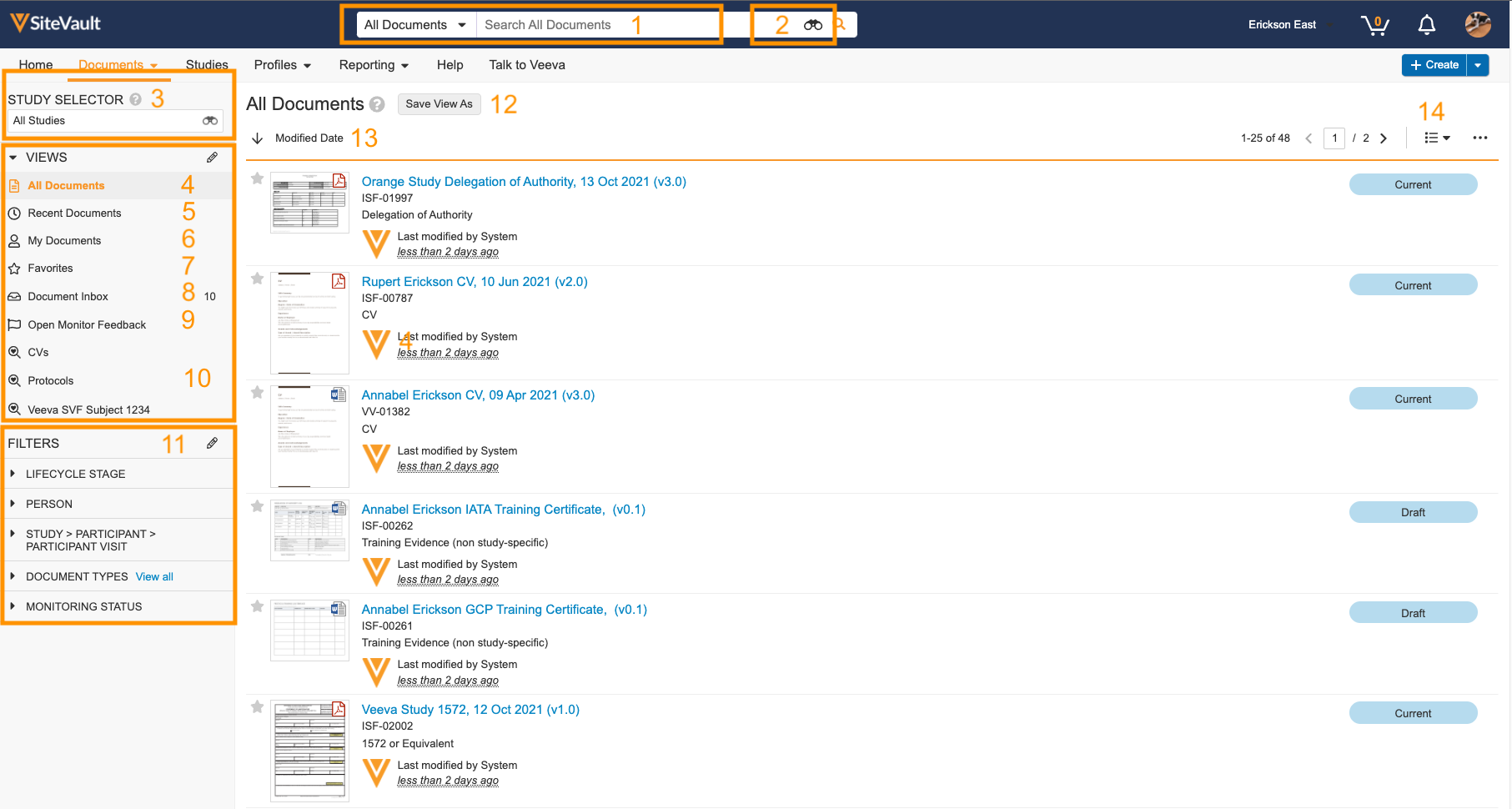
1 |
Basic Document Search | Used to perform basic searches for documents such as by name, document number, site, or study. |
2 |
Advanced Document Search | Used to perform advanced searches for documents such as searching the content of documents. |
3 |
Study Selector | Quickly filter the documents by a particular study. |
4 |
All Documents | Displays all documents to which you have access. |
5 |
Recent Documents | Displays the documents you’ve viewed recently. |
6 |
My Documents | Displays the documents you’ve created. |
7 |
Favorites | Displays the documents you’ve favorited. |
8 |
Document Inbox | Displays unclassified documents to which you have access. |
9 |
Open Monitor Feedback | Displays documents that have been returned to your site from a monitor. |
10 |
Saved Views | Your saved views. |
11 |
Filters | Used to filter the current list of documents. |
12 |
Save Views | Used to create or edit saved views. |
13 |
Sort Documents | Used to sort the list of documents by creation date, modified date, document name, or document number. |
14 |
Layouts | Used to change the layout of the Library, including Detail, Thumbnail, Compact, and Grid layouts. |



