Who can complete this task?
- Administrators & Site Staff
Overview
When you’re ready to schedule visits with the participant, you can choose to schedule one or more upcoming visits. To ensure appointments occur within the required timeframes, the future target dates are calculated as you assign scheduled dates and complete visits.
Visits can be scheduled from the participant’s Visit tab or the Calendar.
Schedule Visits
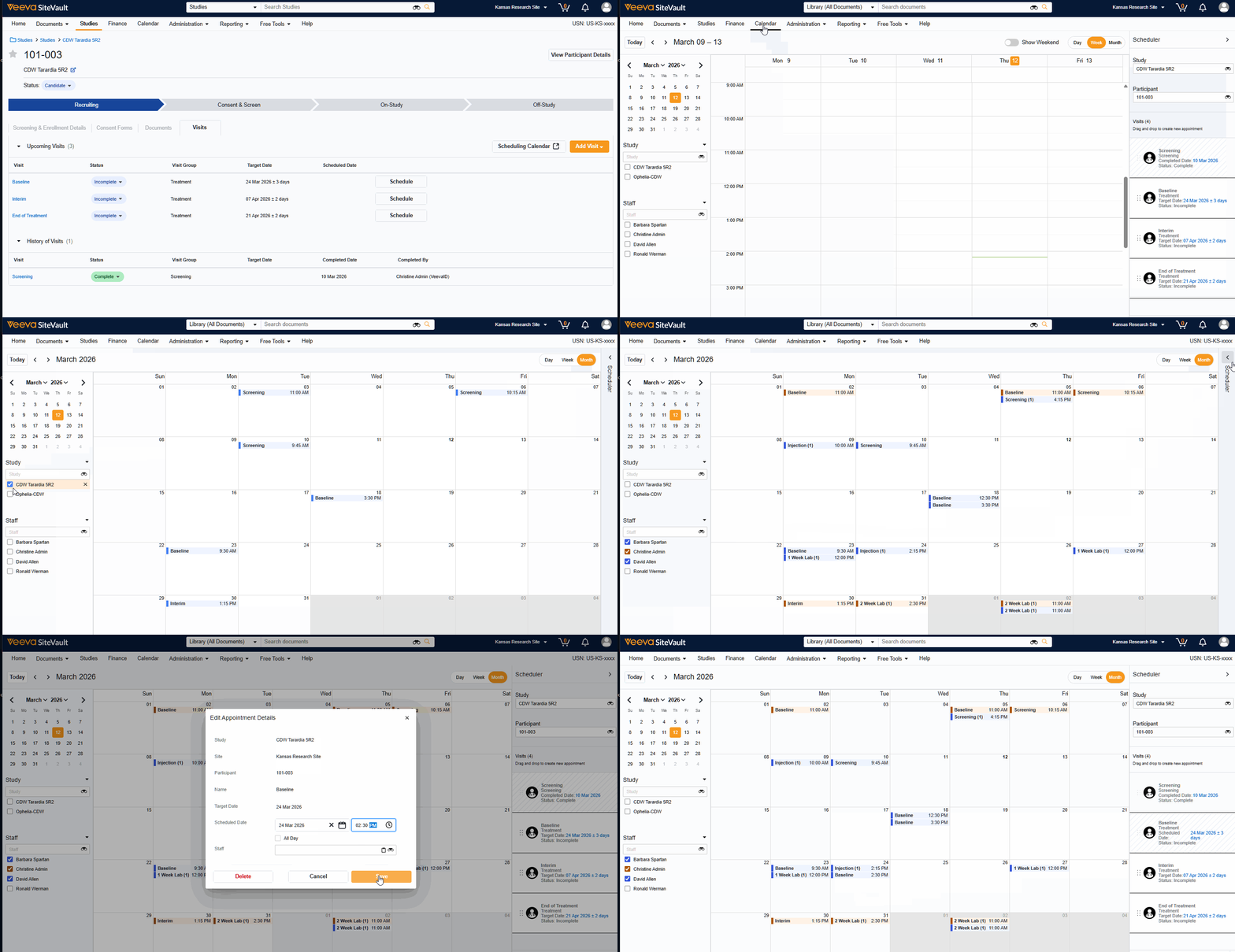
To schedule participant visits, complete the following steps:
- Navigate to Studies > Select Study > Participants.
- Select the participant.
- Select Visits.
- If there are no visits listed in Upcoming Visits, you need to add a visit (select Add Visit).
- Use the Target Date column to identify the acceptable timeframe for the visit.
- Select one of the following:
- Schedule button.
- Scheduling Calendar. The calendar is prefiltered to the participant’s information.
- Use the Staff Selector to view staff availability.
- Use the drag and drop dots to drag an unscheduled visit to the desired date.
- Complete or adjust the date, time, and staff details.
- Select Save.
- Optionally, schedule future visits by repeating the action for upcoming visits.
Note: Transitioning to the Visit Calendar
Visits scheduled before the 26R1 release will display on the Calendar as “all-day” Visits. This is because prior to the introduction of the Calendar, it was not possible to specify a time of day when scheduling a Visit. After the release, users can update appointments to specify a time, if desired.
