- Administrators
SiteVault allows you to automate the filing of documents from Site Connect’s Document Exchange directly into your Study eBinder. By choosing to automate document filing, you reduce the need for manual downloads, ensuring that important study documents are available in your eISF as soon as they are pushed from your sponsor or CRO’s Vault.
Automatic filing settings are managed at the site level (Administration > Sites) and apply to all of your connected studies. However, you can apply an override at the study level if specific studies require a different approach.
SiteVault defaults to automatically filing Completed CRFs and Expedited Safety Reports document types; you can add or remove document types to suit your site’s auto-filing needs. To review the list of document types eligible for auto-file, see the Can receive from Sponsor/CRO? column on the Site Connect Site Documents Types spreadsheet or navigate to Administration > Sites > Site Connect Automatic Document Filing Settings > + Add Auto-file Document Type.
Site-Level Auto-File Settings
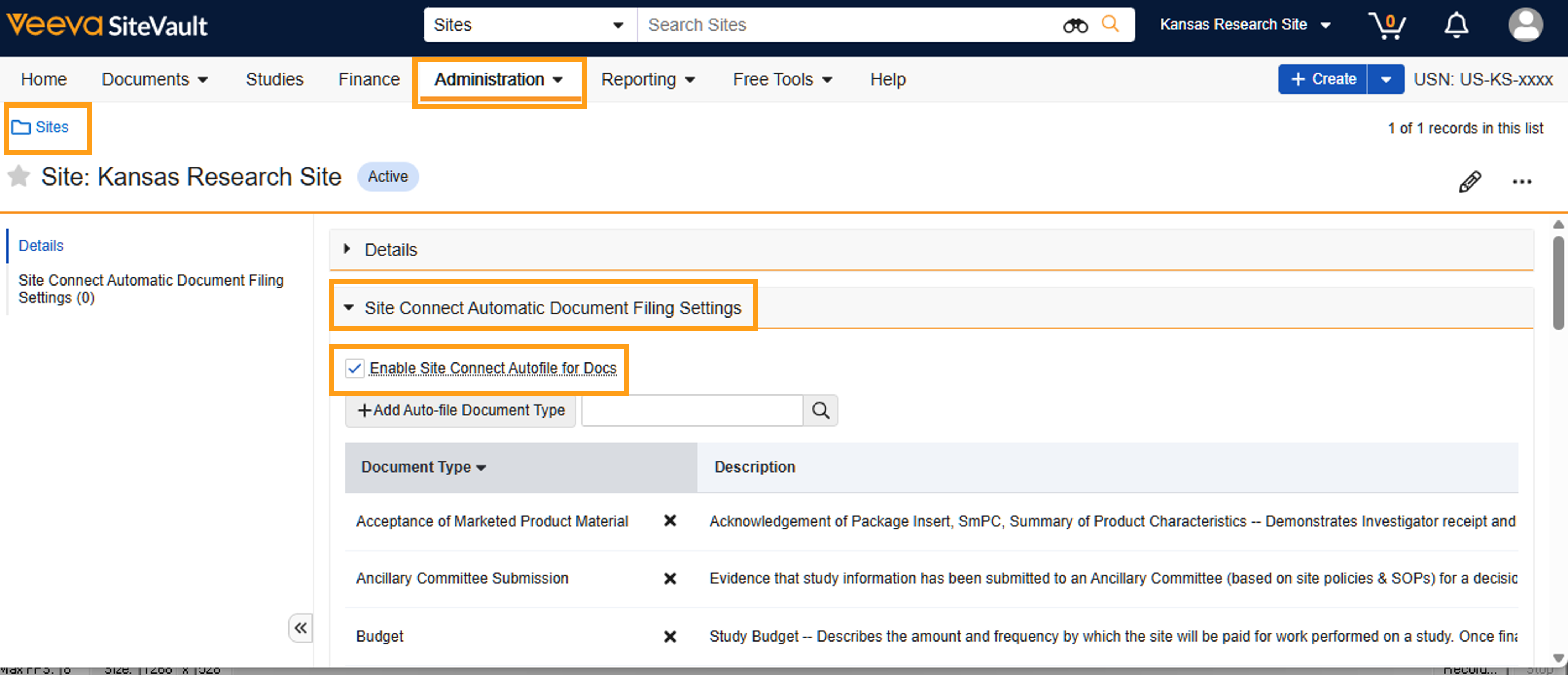
Site Administrators can enable auto-filing and configure the list of document types to be automatically filed for all Site Connect connected studies.
- Ensure the Vault Selector reflects the correct site.
- Access Administration > Sites.
- Expand the Site Connect Automatic Document Filing Settings section.
- If disabling, remove the check from Enable Site Connect Autofile for Docs. No additional steps are required.
- If enabling, add (or retain) the check for Enable Site Connect Autofile for Docs.
- Select + Add Auto-file Document Type to select the document types to automatically file.
- Select document types to automatically file. By default, Completed CRFs and Expedited Safety Reports are enabled for automatic filing.
- Note: There are several pages of document types; the selected checkmarks are retained if you navigate to another page.
- Select Save. You can edit this list as needed in the future.
Study-Level Opt Out
If you have enabled auto-filing at the site level and you need to opt out for a specific study, you can apply a study-level override. Please note that opting out of auto-filing at the study level will also prevent the auto-filing of the Completed CRFs and Expedited Safety Reports document types.
To opt out of auto-filing documents from Site Connect on a specific study, complete the steps below.
- Access Studies.
- Select study.
- Select View Study Details.
- Select Disabled from Auto-file Site Connect Documents.
- If the field isn’t visible, auto-filing has not been enabled at the site level.
