SiteVault Release Highlights
SiteVault eISF
Unclassified Documents in eBinder
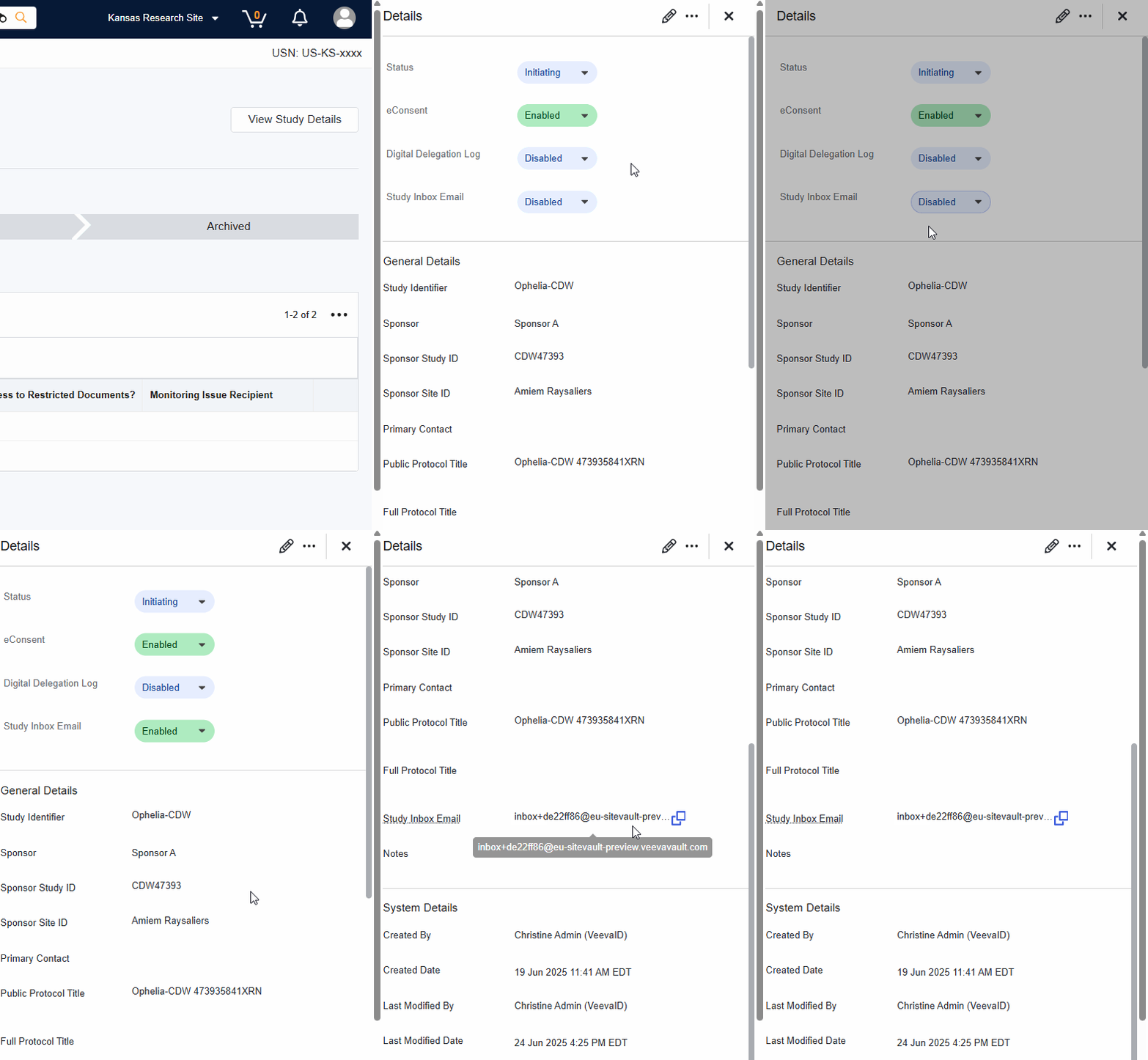
Site users can create unclassified study documents by uploading them to the Study eBinder and selecting the Classify Later option. Unclassified documents are filed to the Study eBinder Document Inbox folder, where they wait for classification. Unclassified documents can be uploaded using the Upload button or drag-and-drop functionality to the Document Inbox. Once classified with a Document Type, the document is moved to the appropriate folder under All Documents.
Selecting an unclassified document from the Document Inbox folder launches the eBinder Document Viewer - an integrated viewer for users to review and classify the document. From the eBinder Document Viewer, users can complete required document fields and approve the document or send it on a workflow.

Email Documents to SiteVault
With this feature, users can upload documents by emailing them to SiteVault. Each study has a unique email address and when an email is sent to that address, the attachments are uploaded as unclassified documents to the Study eBinder Document Inbox folder.
- An administrator must enable the feature at the study level when a study is not in one of the following states: Archived, Archival in Progress, or Cancelled.
- The sender’s email address must match an active user account with access to the site, study, and document upload.
- If the email does not include an attachment, the email is filed to the Document Inbox.
- Standard attachments not recognized as documents are not added to the Document Inbox. Examples include logos, signatures, meeting invitations, etc.
- The sender receives a notification if a valid document fails to upload.
Copy Certification Available on Approved Documents
Site users can select the Perform Copy Certification action on approved documents. This action is available from the Document Viewer and Study eBinder Action menus. Previously, copy certification was only available when approving/finalizing Draft documents.
Assign Monitoring Issue Recipients
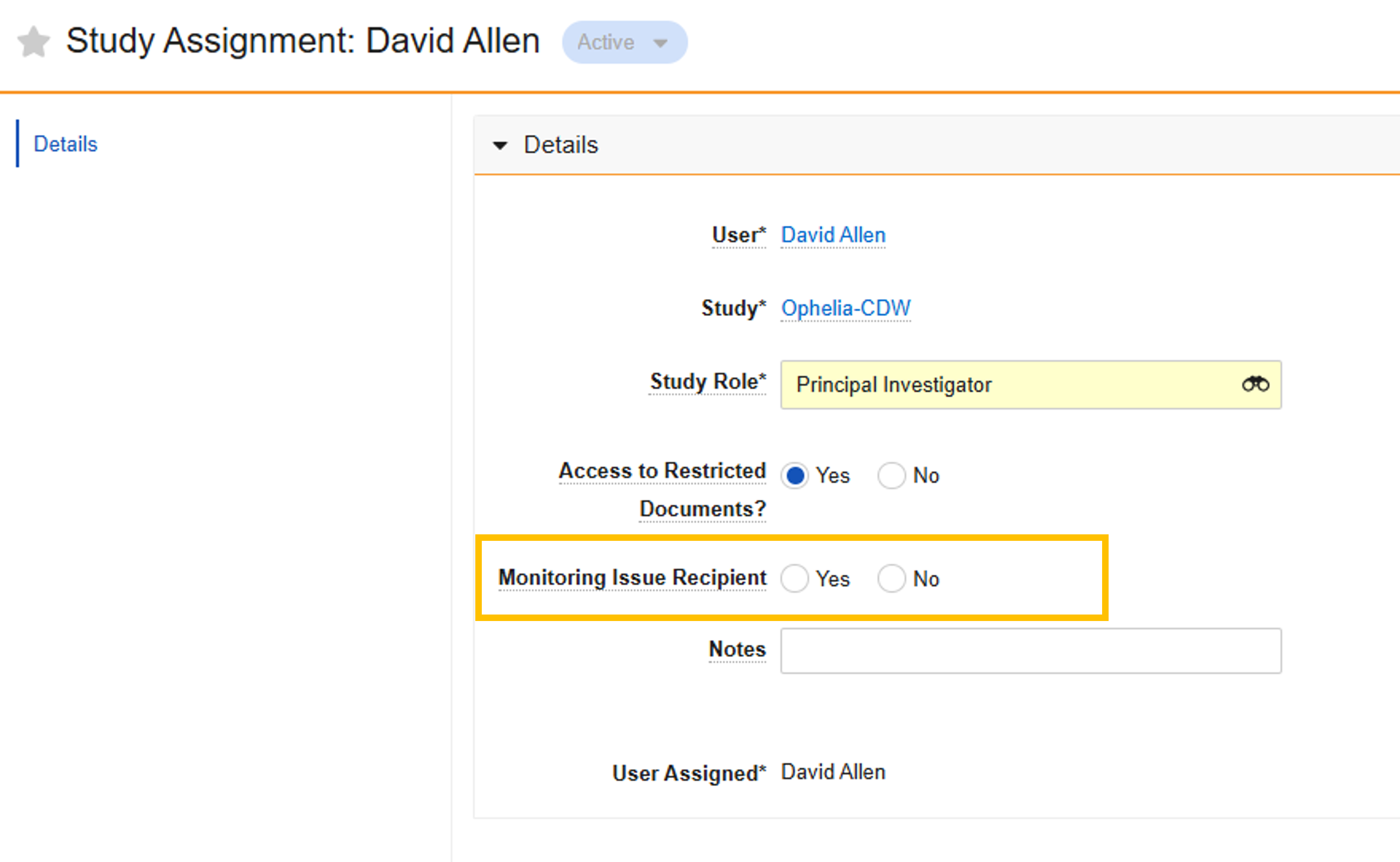
Administrators can specify which Study Staff users will receive monitoring-related tasks and notifications. The Receives Monitoring Tasks field is available when adding Staff to a study or editing an existing Staff user.
Show Staff Middle Name on Team Tab
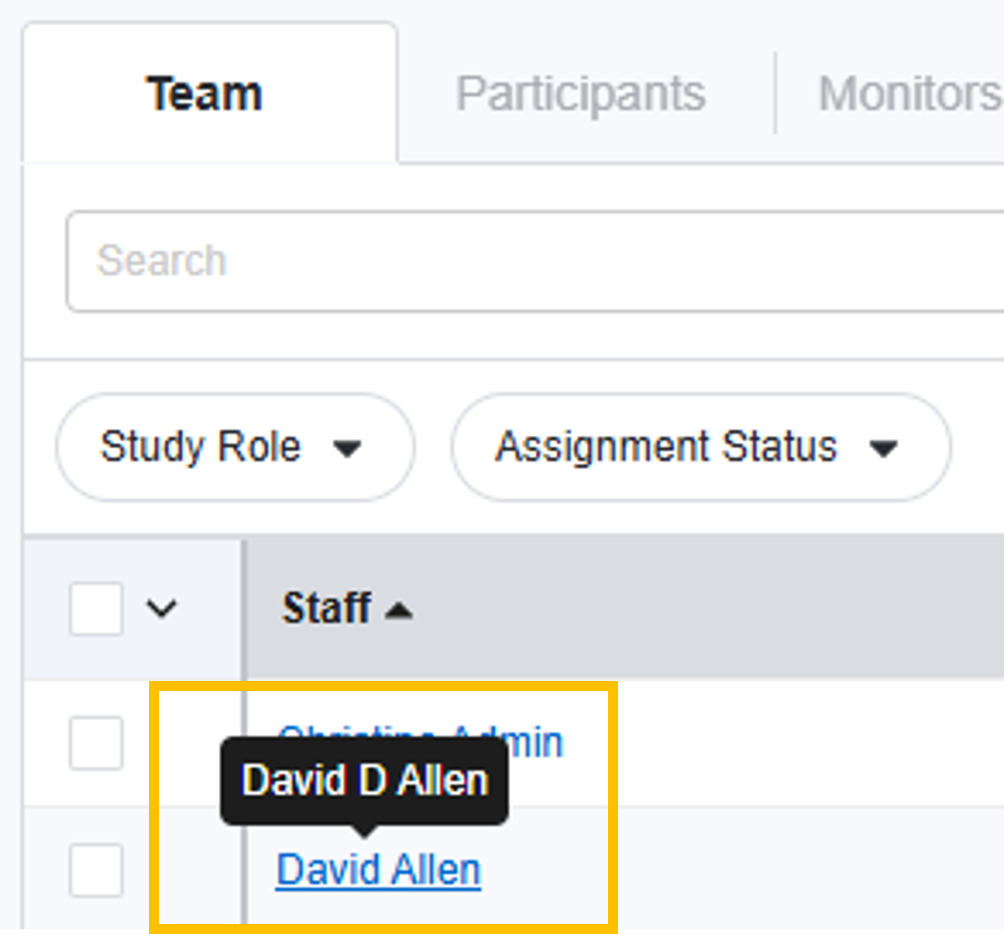
When viewing or creating a Study Team Assignment from the Study Team tab, administrators can view a Staff user’s middle name (when available) by hovering over the Staff name. This feature is available on the Team list and during Staff selection while completing the + Add Staff action.
Downloading Permissions
Site Staff can download approved source files and renditions for documents in the Draft to Effective lifecycle.
Document State Progress Chevrons
Documents in the Draft to Effective lifecycle will display document state progression chevrons while viewed in the Document Viewer.

SiteVault eConsent
eConsent Text Entry Element
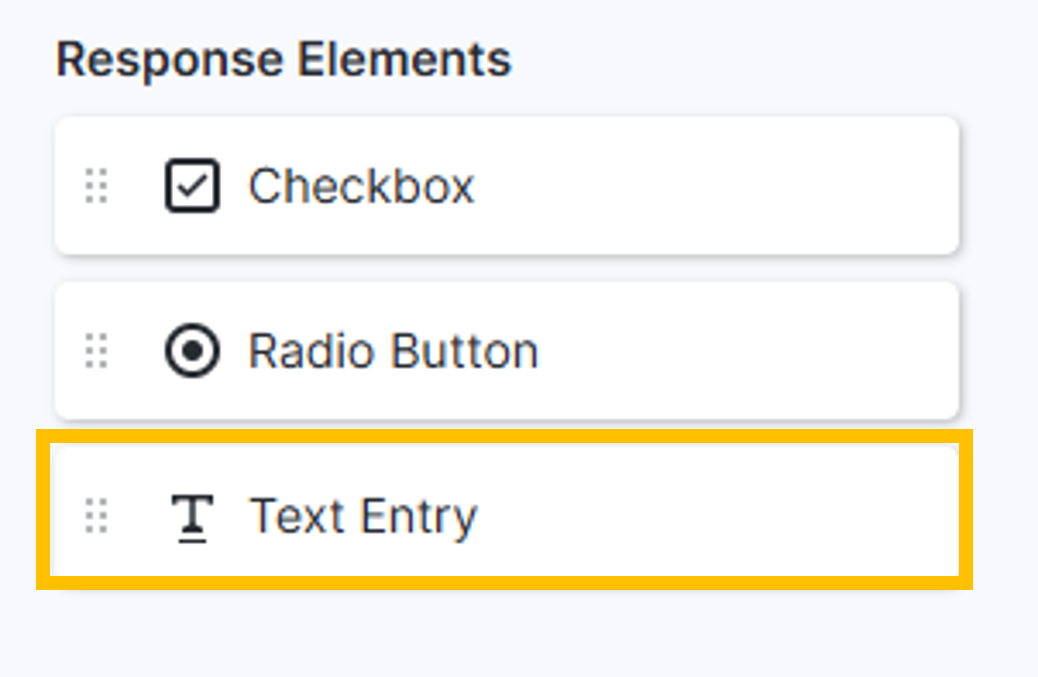
When editing a PDF-based eConsent form, users can overlay the Text Entry element, allowing participants or signatories to enter freeform text (initials, date entry, etc.) in response to a question. Text entry responses are displayed in the Additional Responses tab, available for reporting, and included in the eConsent Data Export.
eConsent Additional Responses Answer Column
On the Additional Responses tab, the Form Answer column is now simply labeled Answer. This column displays responses provided during the eConsent process, whether the respondent selected an option (radio button or checkbox) or typed in their own answer.
eConsent Data Export Report Answer Column
The eConsent Data Export report now includes the Answer (Text Entry) column, which captures text entered in response to consent form questions.
PDF eConsent Editor - Save and Exit Version Comments Available
After editing a form in the PDF eConsent Editor, the Save and Exit action includes a Version Comments field for users to share details specific to the version.
PDF eConsent General Enhancements
The following eConsent enhancements improve the overall user experience:
- Downloaded PDF eConsent forms will only display the signatory’s question responses if they have also applied their signature and have not selected to decline. Declined forms still display a Declined document status.
- The Site Member option is added to the Printed Name and Signature Date elements with a message advising that those elements are not necessary for Site Member signatures as SiteVault’s eSignature tool is used to capture and present Site Member signatures.
- When editing a form in the PDF eConsent Editor, users can edit the required/optional setting on a Radio Button element after saving.
- When using the PDF eConsent Editor to edit a document with non-Veeva form fields, the non-Veeva form fields are displayed, but disabled.
- Enhancements are in place to bring response elements to the forefront to help users select the desired response element when multiple questions are presented in a small space. Priority is based first on user navigation, and if the user has not yet selected an element, priority is given to required questions over optional ones.
SiteVault CTMS
Introducting SiteVault CTMS
We’re excited to announce SiteVault CTMS, a brand new application designed to centralize and streamline how your site manages the entire lifecycle of your clinical trials.
SiteVault CTMS empowers sites with enhanced control and efficiency, from initial study startup through execution and closeout. This platform offers a tailored experience specifically for clinical trial operations, allowing you to:
- Efficiently build and customize study schedules
- Schedule and track participant visits
- Track study finances
Our goal with SiteVault CTMS is to significantly improve your operational workflows, data accuracy, and financial transparency, ultimately contributing to more effective and compliant clinical trial management.
While all SiteVault users will see the new Finance tab, where CTMS information is managed, CTMS is currently only available to early adopters. We’ll share more information about general CTMS availability in our December release.
Expanded User Permissions
SiteVault user permissions are expanded to accommodate CTMS functionality. The following permission changes apply when CTMS is enabled on a study:
- Site Administrators have full access to all CTMS functionality for all studies at their site.
- Site Staff can view CTMS information for studies to which they are assigned.
- Site Staff with the All Studies Budgets and Contracts add-on permission receive the current access the add-on provides and full access to all finance functionality for all studies at their site.
- The All Studies Schedule Builder add-on permission grants Site Staff the ability to build study schedules for all studies at their site, regardless of study assignment.
- Research Organization Administrators have full access to all CTMS functionality for all studies within their organization.
- Research Organization Staff can view the study schedules for all studies to which they’re assigned.
Platform Features Highlights
All platform release notes are available for review on Vault Help.
Allow VeevaID Users to Change Email - Effective August 22, 2025
VeevaID users can now change the email address associated with their account, which also updates their username. Prior to 25R2, there was no option for VeevaID users to change their email address because it was also used as their username. This enhancement provides flexibility while maintaining security.
In the My Account page, users have the option to edit their email and username. After updating their email, users may also need to complete an image-based authentication check. Once the authentication check is complete, users receive a verification email. The final verification step prompts the user to enter their previous email and password.
Note: This feature will be completed as part of the 25R2 release, though it will not be available as part of the initial 25R2 release deployment. Users will find the feature available in all affected Vaults on August 22.
For more information, see the VeevaID site.
Filter Annotations by Created Date
When filtering annotations, users now have an option to filter by the Created Date of the annotation. This feature supports a common need to focus on annotations created before or after a significant event. The filter is applied based on the Created Date of the annotation itself, as well as its most recent reply. Applying this filter is not saved as a user preference.
When filtering on Created Date, users can use:
- In the range to choose a specific date range, including a single date by specifying the same date in both fields.
- After to choose annotations created after a specific date.
- Before to choose annotations created before a specific date.
Reporting Enhancements
This feature adds more sophistication to report field search and filtering:
- You can filter between case sensitive and insensitive on object text fields.
- A search operator is available on rich and long text fields, meaning you can search these fields for matching key words.



