- Administrators & Site Staff
Overview
When you add visits to new participants, you are automatically using the current schedule. When additional versions of a schedule become available, you can migrate a participant from one version of the schedule to another. Participants who haven’t started the schedule yet are automatically added to the new schedule.
The following actions occur when a participant’s schedule version is updated:
- Update all outstanding or incomplete visits to reflect the new schedule.
- Remove visits that are no longer in the updated schedule.
- Add visits that are newly included in the updated schedule.
- Completed visits will not be affected.
Cohort Changes
When certain participant groups need to remain on an older schedule, you can leave them on the original version and new participants can move to the updated version.
Participants Added to SiteVault Mid-Study
If you are adding an older study to SiteVault and have participants who have been on multiple schedule versions, you will need to retroactively update to older versions and then update visits and schedule versions per the participant’s experience.
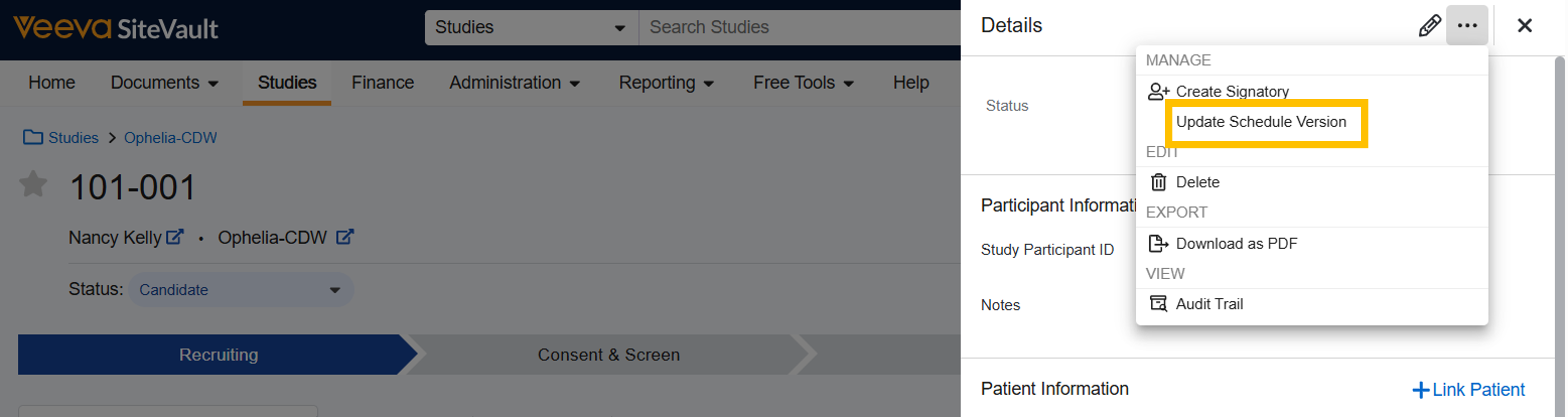
Update Schedule Version
To update the participant’s schedule version, complete the following steps:
- Navigate to Studies > Select Study > Participants.
- Select the participant.
- Select Visits.
- Select View Participant Details.
- Select the All Actions menu (…).
- Select Update Schedule Version.
- Select the schedule version to apply.
- Select Save.
- If any future visits are already scheduled, review and update as needed to ensure the visits occur within the revised targeted timeframes.



