Note: The ability to optionally skip a visit is determined by the study.
Proceed with Visit Out of Window
- From the Subjects page, select Record Event from the Subject’s task menu.
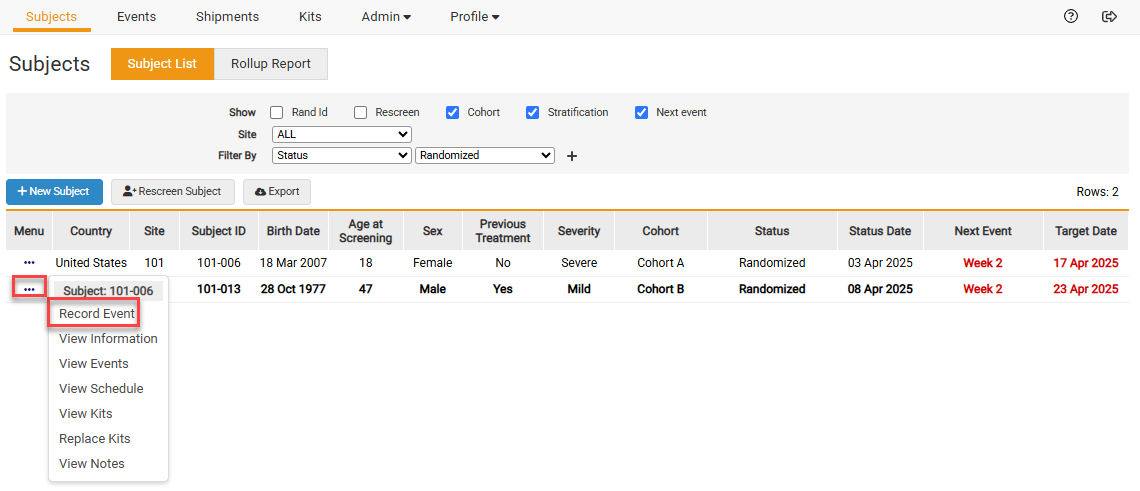
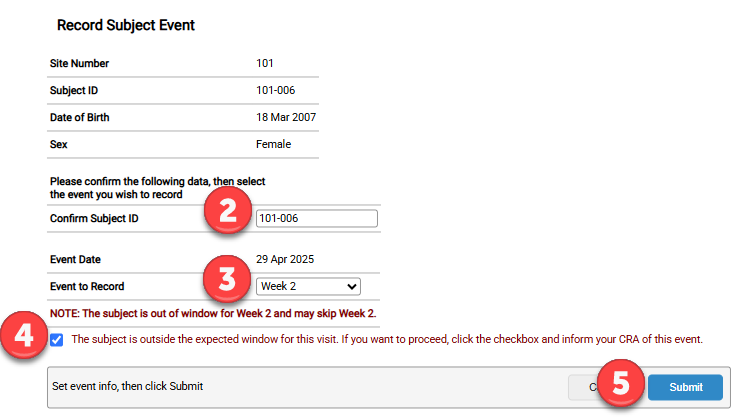
- Confirm the Subject’s ID.
- The next scheduled visit and the visit the Subject is in window for will appear in the dropdown. Select the next scheduled visit. A note will display to either confirm you would like to proceed with recording the visit out of window or to skip this visit.
Note: Only specified visits in a study may be optionally skipped. Your study may require you to skip the visit and record the visit that the Subject is in window for.
- Check the box to proceed with the visit out of window.
- Click Submit.
Optionally Skip Visit
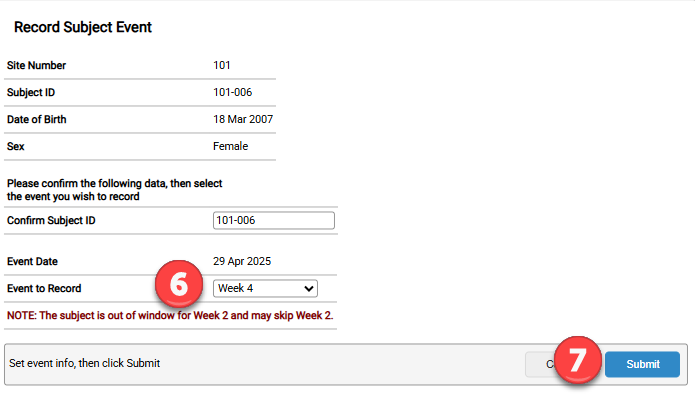
To skip the visit, follow steps 1-2.
- Select the next visit from the Event to Record dropdown.
- Click Submit
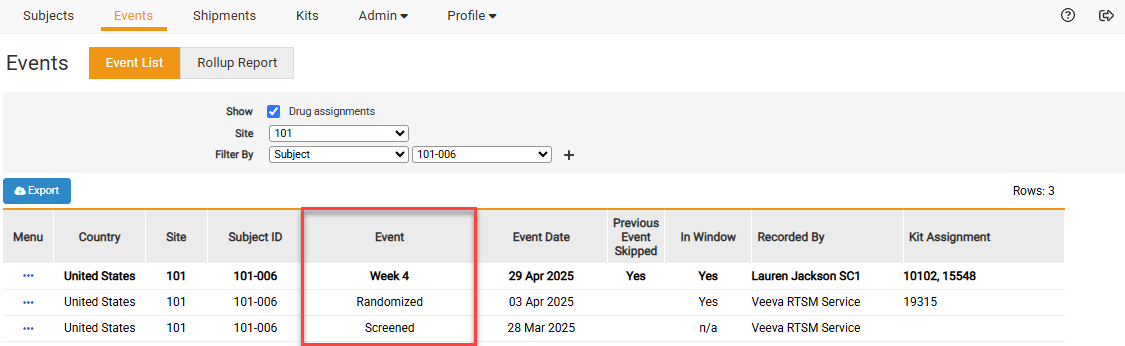
- We can see on the Events page that the Week 2 visit was skipped and that the Week 4 Visit was recorded.
Note: The study may have different tabs or radio boxes than what is displayed above.


